


Find your way around upcoach as a participant
Find your way around upcoach as a participant
You joined a program in upcoach. This page shows where everything is: your programs, your events, your messages and your profile, and how to reach your coach when you need help.
The sidebar on a computer
On a computer, the sidebar runs down the left side of every page. From top to bottom:
- Your workspace — Its logo and name. If you can write messages or posts in a program, a + button sits next to it, with Message and Post.
- Search or jump to… — Find a program, app or page by name. Press ⌘K on a Mac or Ctrl+K on Windows to open it from anywhere. See Search or jump to anything with ⌘K.
- The program you’re in — While you’re inside a program, its logo and name sit under the search box. Click it to go back to the program’s home page.
- Home — All your programs as cards, with how many things are new since your last visit.
- Inbox — Your notifications, channels and threads. A number shows how many notifications you haven’t read.
- Programs — Every program you’re in. Click a program to open it and show its apps underneath.
- Your name — At the bottom. Click it for your account menu (see Your profile and settings).
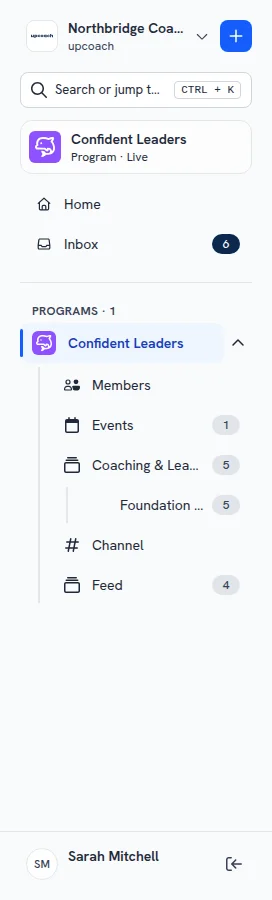
A program’s apps are the ones your coach added, under the names your coach gave them. Common ones are Members, Events, Coaching & Learning, Channel and Feed. A number next to an app counts what’s new in it for you.
If you’re in a program that hasn’t opened yet, it isn’t in the sidebar. A note on Home tells you it opens soon, and you get an email when it starts.
On your phone
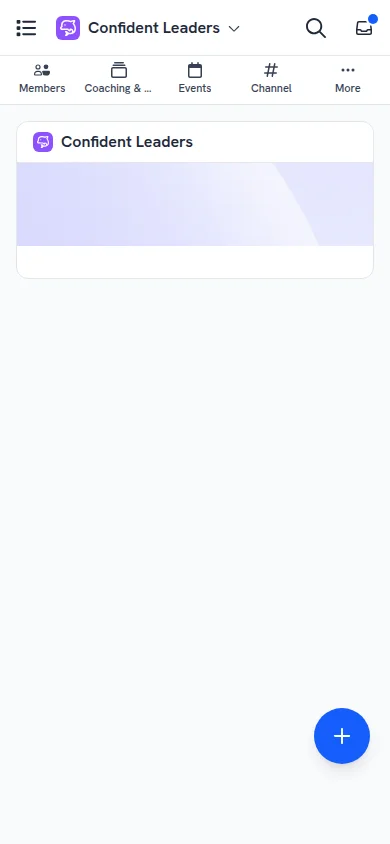
On a phone, the bar at the top of the screen holds ☰, the program you’re in, Search and Inbox. Under the bar, the program’s apps appear as tabs: the first four, then More for the rest. If you can write messages or posts, a round + button sits in the bottom-right corner.
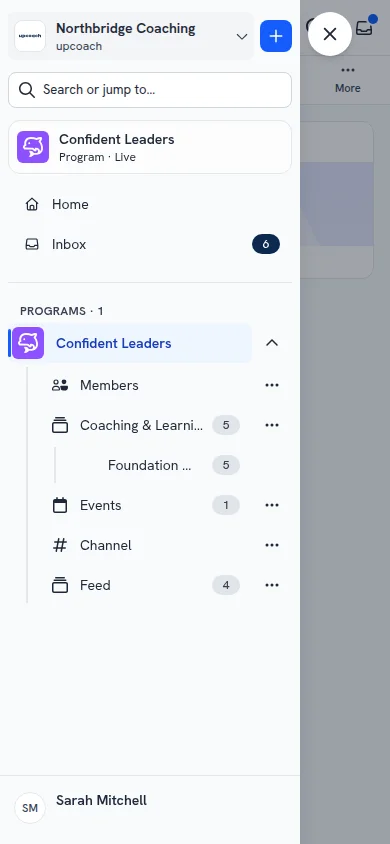
Tap ☰, or the program’s name, to open the menu. It’s the same sidebar as on a computer: your workspace, Search or jump to…, the program you’re in, Home, Inbox, your programs and their apps, and your name at the bottom. Tap a place to go there; the menu closes by itself. Tap × to close it without moving.
For more about the phone layout, see Use upcoach on your phone.
Your programs
- Home shows each program you’re in as a card under Your programs. Click a card to open the program.
- Programs in the sidebar lists the same programs. Click one to open its home page and its apps.
Events and sessions
Your program’s sessions are in its Events app. It has three tabs:
- Upcoming — Sessions still to come. Click Attend on a session to say you’re coming; the button then reads Attending.
- Past — Sessions that have already happened.
- Book a Call — One-on-one calls your coach offers. See Book a call with your coach.
Messages: Inbox and channels
Inbox, in the sidebar, has three parts:
- Notifications — New events, new activities, new posts and other updates from your programs. Filter them by program at the top of the page.
- Channels — The chat channels of your programs, listed by program. Click one to read it and write in it.
- Threads — Conversations in a channel that you started or replied to.
You can also open a program’s channel from its Channel app.
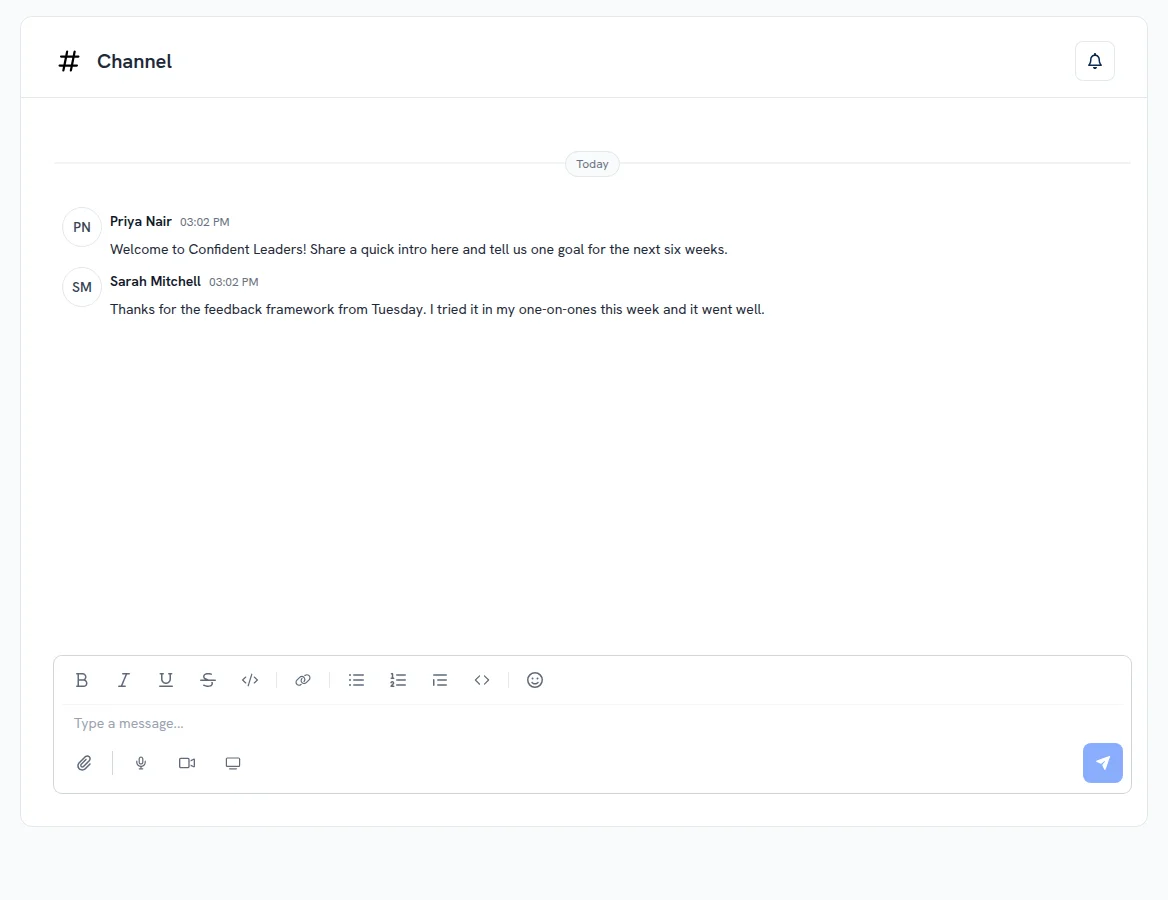
To write a message from anywhere, click + and then Message, pick the channel, and type.
For more, see Use channels for discussion and Manage your notifications and inbox.
Your profile and settings
Click your name at the bottom of the sidebar for your account menu:
- Your profile — Opens your profile.
- Connected apps — Apps connected to your account.
- Notification settings — Choose what you’re notified about.
- Switch workspace — Move to another workspace you belong to.
- Sign out
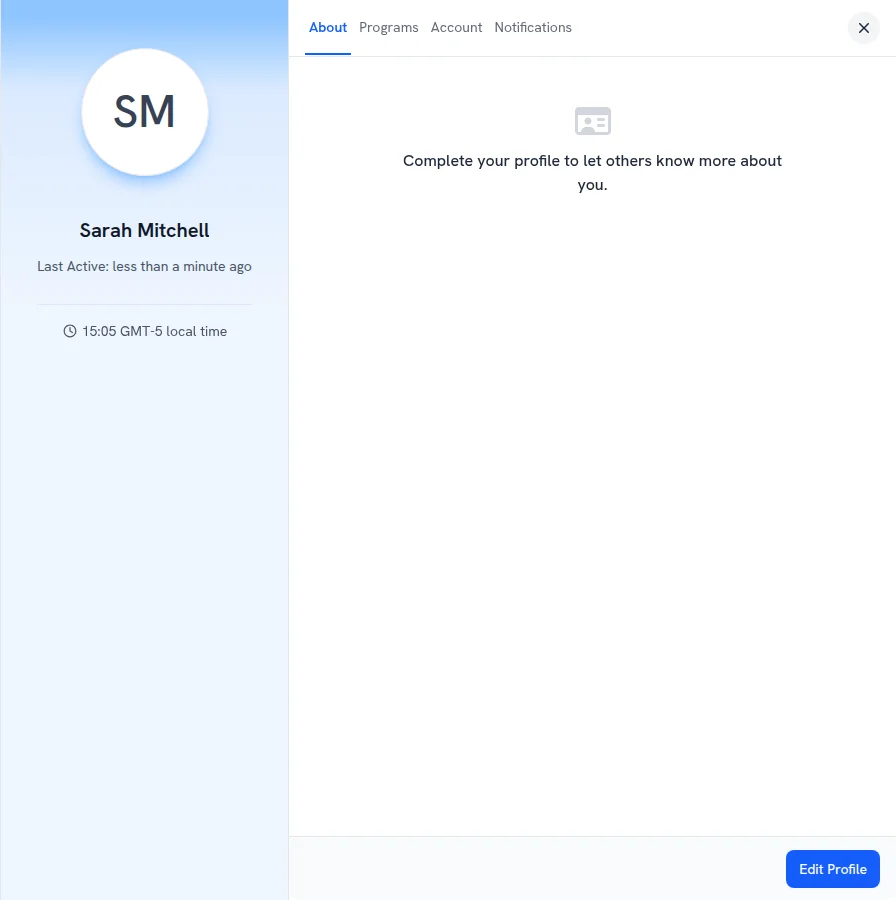
Your profile has four tabs: About, Programs, Account and Notifications. Click Edit Profile to add a photo, a headline, a bio and links. See Update your profile.
Get help from your coach
Your coach runs your program, so questions about the program, its sessions or its content go to them.
Message your coach in the program channel
- Open Inbox > Channels, or the program’s Channel app.
- Type your question in the message box.
- Type @ and your coach’s name to mention them, so they get a notification.
To reply to a message in the channel, hover it and click Reply in thread. Your conversation then also shows under Inbox > Threads.
Book a call with your coach
- Open the program’s Events app.
- Click the Book a Call tab.
- Click Schedule on the call you want and pick a time.
Each call shows how many sessions you’ve booked and how many you have left. If your coach doesn’t offer calls in this program, the tab says There are no available schedules at this time.
See how else to reach your coach
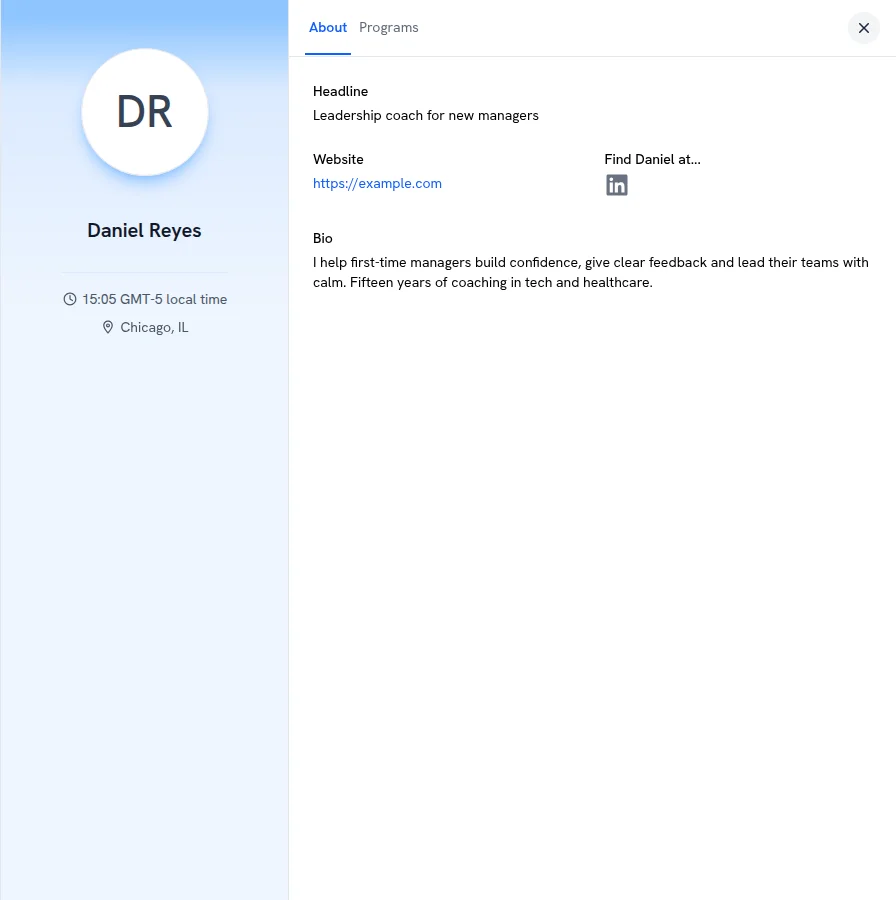
Click your coach’s name, for example in the program’s Members app or on one of their messages, to open their profile. It shows what your coach chose to share:
- Their Headline and Bio
- Their Website
- Links to their social profiles, under Find [name] at…
- Their local time and location
If you want to leave a program, ask your coach or program admin. See Leaving a program as a participant.