



Search or jump to anything with ⌘K
Search or jump to anything with ⌘K
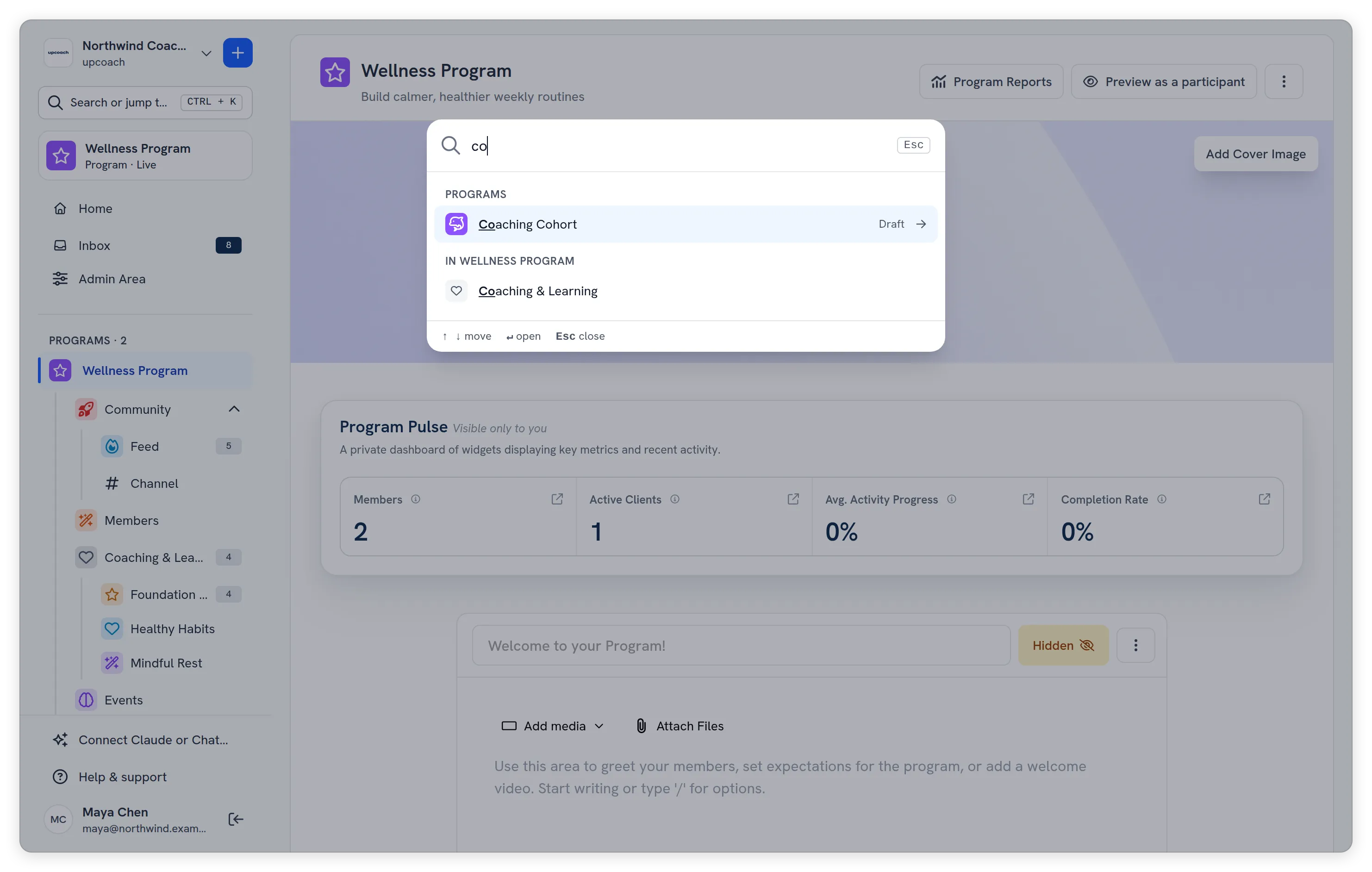
Search or jump to finds a program, one of its apps, an admin page or your account settings by name, and opens it. It saves scrolling through the sidebar when you run many programs.
Open it
Use whichever is closest:
- Press ⌘K on a Mac, or Ctrl+K on Windows and Linux. Press it again to close.
- Press / when you aren’t typing in a field.
- Click Search or jump to… at the top of the sidebar. When the sidebar is collapsed to a rail, click the magnifying glass.
- On a phone, tap the magnifying glass in the bar at the top of the screen.
While you’re writing in a rich text editor, such as a channel message or a lesson, ⌘K keeps its editor meaning (add a link) and doesn’t open search.
What you can find
Start typing and results appear under headings:
- Programs — Every program in your sidebar, with its logo. Drafts are marked Draft.
- In program name — When a program is open: its apps, as its sidebar lists them. If you can manage the program, its settings tabs too, such as Details and Branding.
- Go to — Home, your inbox (Notifications, Channels, Threads) and the reports you can open.
- Admin — For Owners and Admins: the Admin Area pages you can open, such as All programs, Brand & Settings, Offers and Billing (Owners).
- Account — Your profile, Notification settings and Keyboard shortcuts.
Results only include places you can open, so participants, facilitators and sponsors see their own programs and pages.
Matching is forgiving. A name that starts with what you type comes first, then a word inside the name, then a match anywhere. Initials work too: “fw” finds Foundation Week.
Recent
Before you type anything, Recent lists the last six places you opened from search, newest first, followed by a few Go to pages. Recent places are kept on this browser, separately for each workspace. A program you can no longer open drops out of the list, and a renamed one shows its new name. Nothing is added while you view upcoach as someone else.
Use it from the keyboard
| Key | What it does |
|---|---|
| ↑ / ↓ | Move through the results |
| Enter | Open the highlighted result |
| Esc | Close search and go back to where you were |
To see every shortcut you can use, open Help & support at the bottom of the sidebar and select Keyboard shortcuts, or search for “Keyboard shortcuts”.