


Use upcoach on your phone
Use upcoach on your phone
On a phone, or any narrow screen, upcoach keeps the full sidebar one tap away and puts the program you’re in at the top of the screen. Everything you use day to day is there.
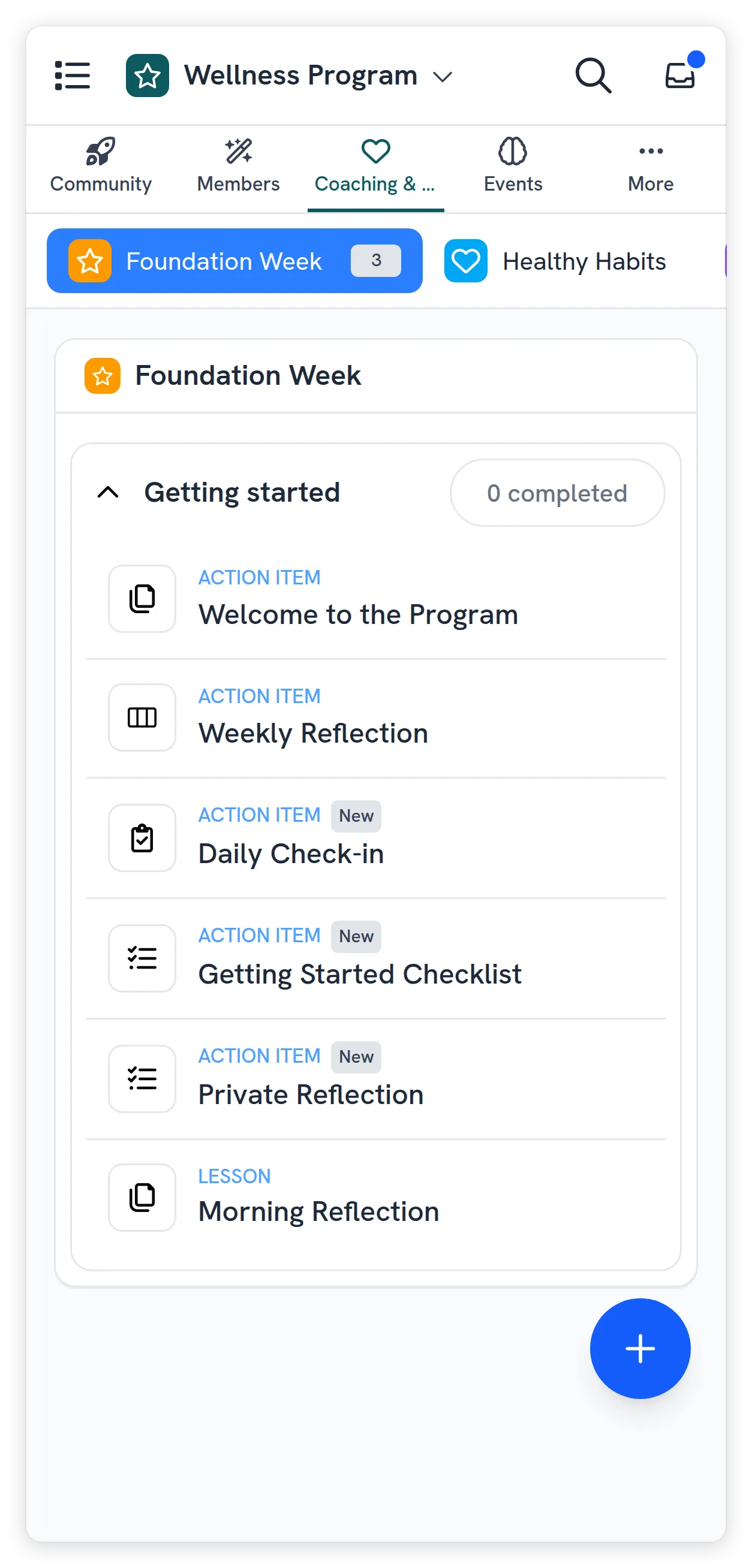
The bar at the top
The bar at the top of every page holds, from left to right:
- ☰ — Opens the sidebar.
- Where you are — The program you’re in, with its logo, or the section you’re in, such as Inbox or Admin Area. Tap it to open the sidebar too.
- Search (magnifying glass) — Opens Search or jump to, to find a program, app or page by name. See Search or jump to anything with ⌘K.
- Inbox — Opens your inbox. A dot on the icon means you have unread items.
Program Sponsors don’t have an inbox, so their bar has no Inbox icon.

Open the sidebar
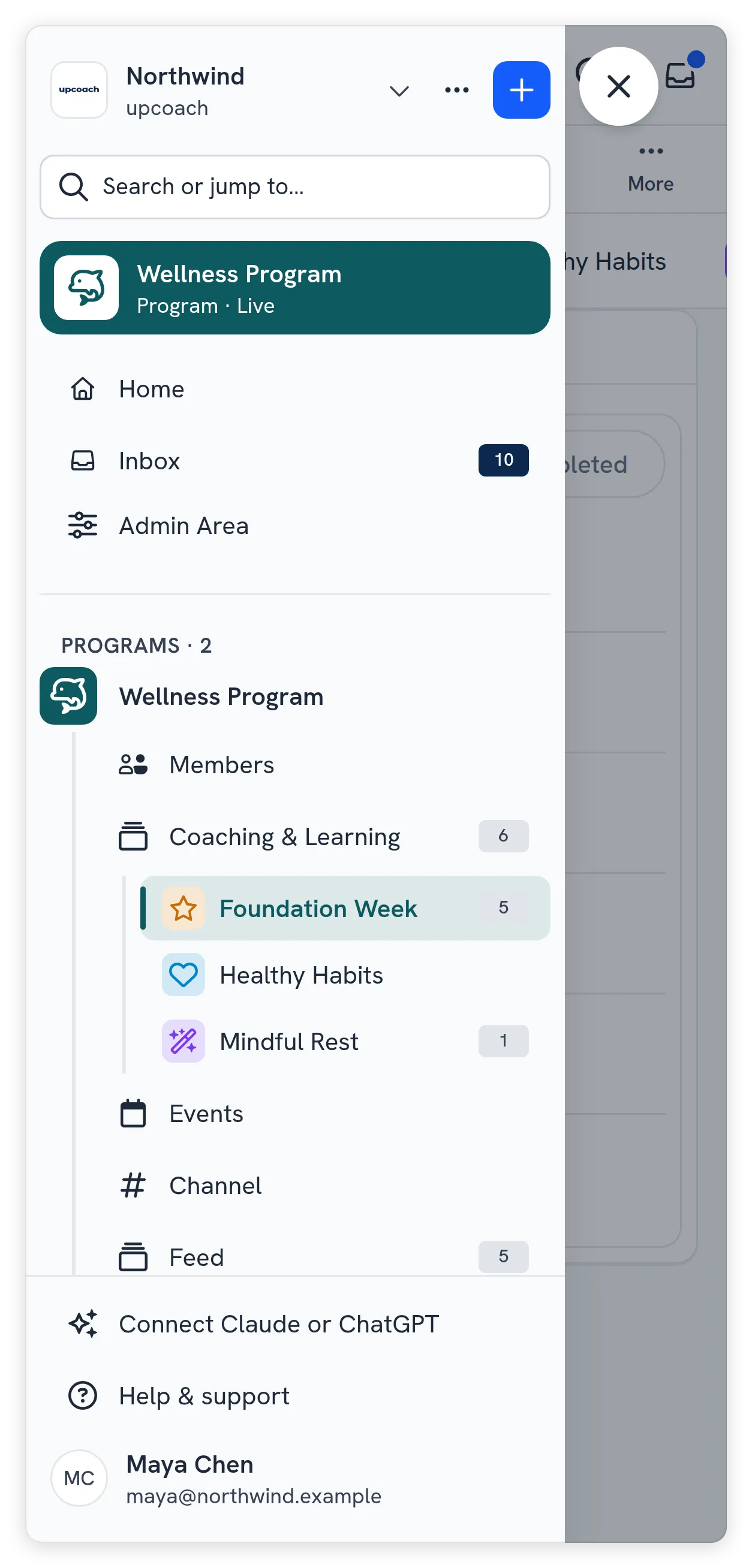
Tap ☰ to slide the sidebar in from the left. It is the same sidebar as on a computer: your workspace, Search or jump to, your programs and their apps, Inbox, Admin Area for admins, Help & support and your account menu.
Tap any place to go there, and the sidebar closes by itself. To close it without moving, tap × or the page next to it.
Apps, folders and Coaching & Learning modules have an ellipsis menu (three dots) at the end of their row. Tap the row to open it, or tap the three dots for its menu: the same choices as on a computer, such as Edit app, Move up, Move down and Copy link, depending on your role. Programs have no menu on a phone. To rename, duplicate or publish a program, use a computer.
On a phone the sidebar doesn’t collapse to a rail, and nothing can be dragged. To reorder apps and folders, use Move up and Move down in their menu. To reorder programs or modules, use a computer.
A program’s tabs
When you open a program, its apps appear as tabs under the bar: the first four, then More for the rest. The tab you’re on is underlined in the program’s colour, or in your workspace colour if the program has none. Tap More to see the other apps in a sheet from the bottom of the screen.
Some tabs open a second row underneath:
- A folder shows the apps inside it.
- The Coaching & Learning app shows its sections, so you can move straight to one.
Create something new
If you can create programs, events, messages or posts, a round + button sits in the bottom-right corner. Tap it for the same options as the + menu in the sidebar. It hides while the sidebar or More is open. See Create from the + menu.