



Manage your notifications and inbox
Manage your notifications and inbox
Your inbox keeps everything that needs your attention in one place — new activity across your programs, channel mentions, and thread replies. You can also control exactly how and when upcoach notifies you.
Open your inbox
Click the bell icon in the top-right corner of the header. This opens your inbox at the Notifications tab.
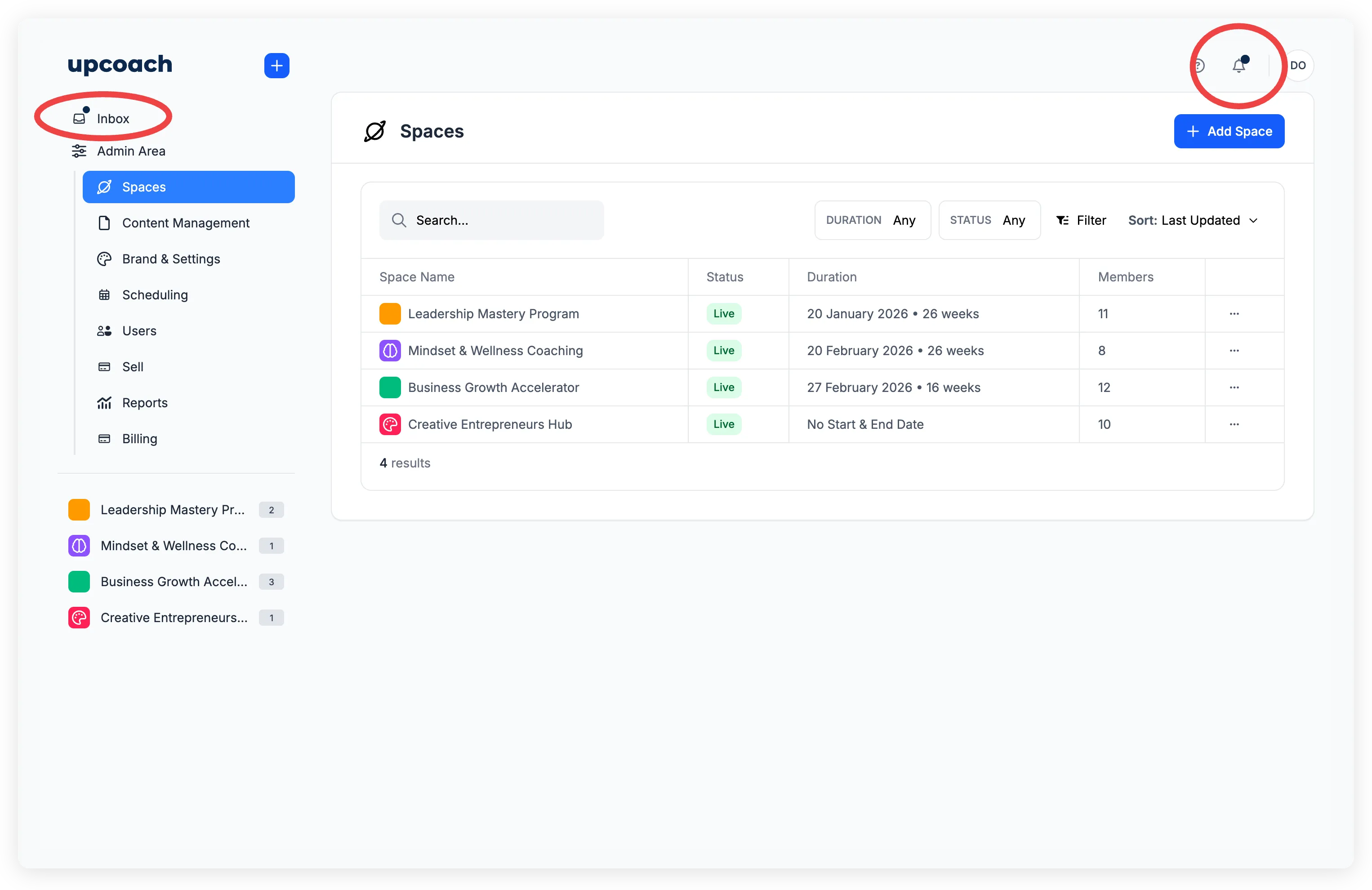
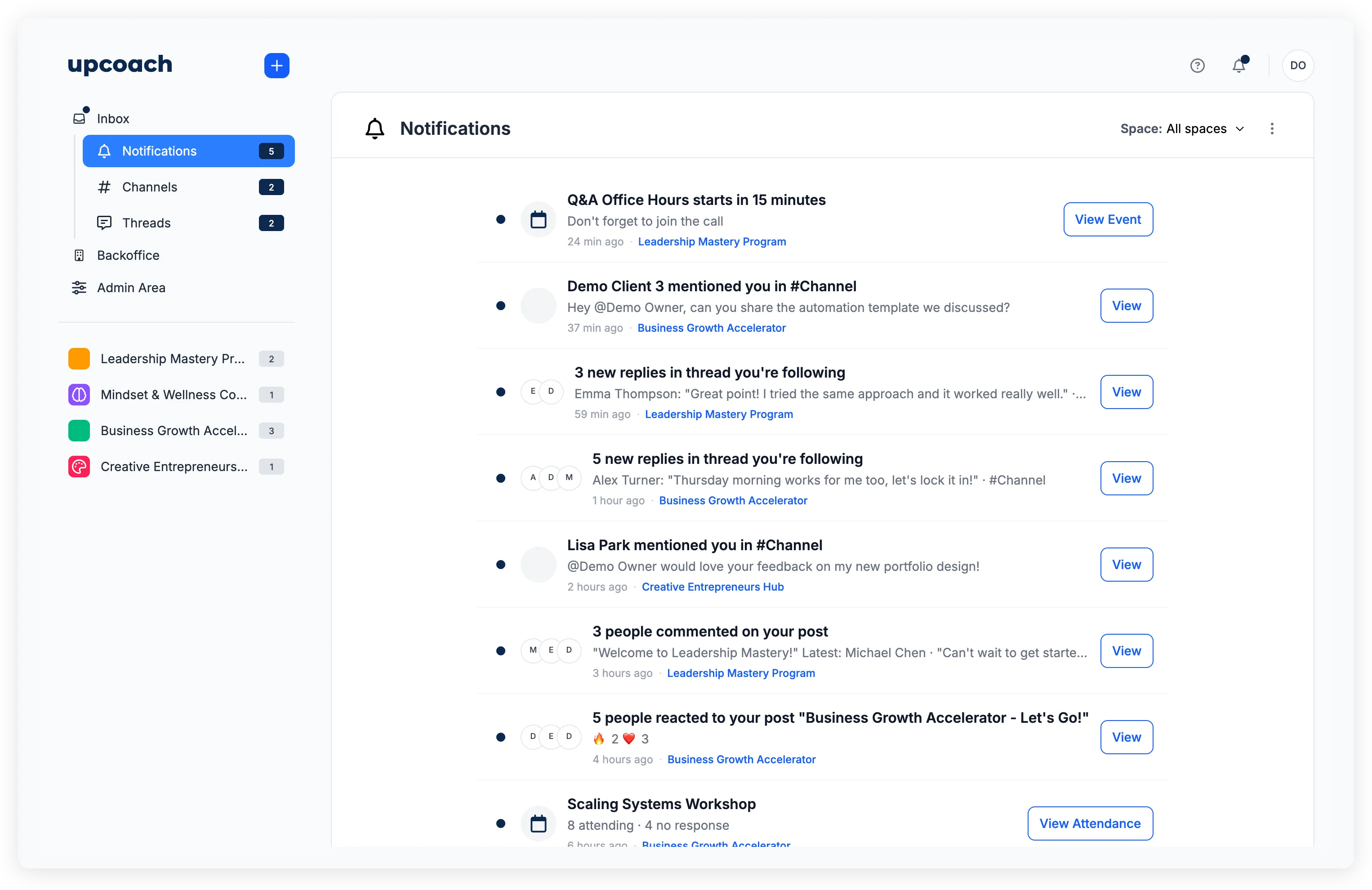
A blue dot on the bell icon means you have unread items. The inbox has three sections, each with its own count:
- Notifications — General activity across your programs
- Channels — Mentions and messages in channels you belong to
- Threads — Replies to conversations you’re part of
Browse notifications
The Notifications section is your default view. Each notification shows who triggered it, what happened, when, and which program it relates to.
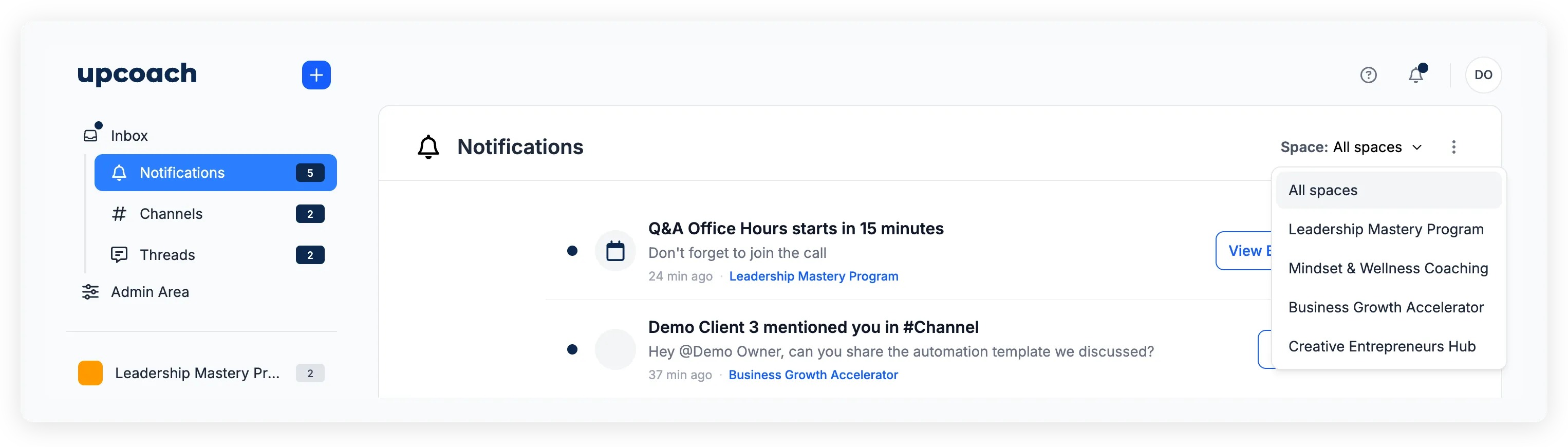
Filter by program. Click the Space dropdown at the top to show notifications from a specific program, or choose All spaces to see everything.
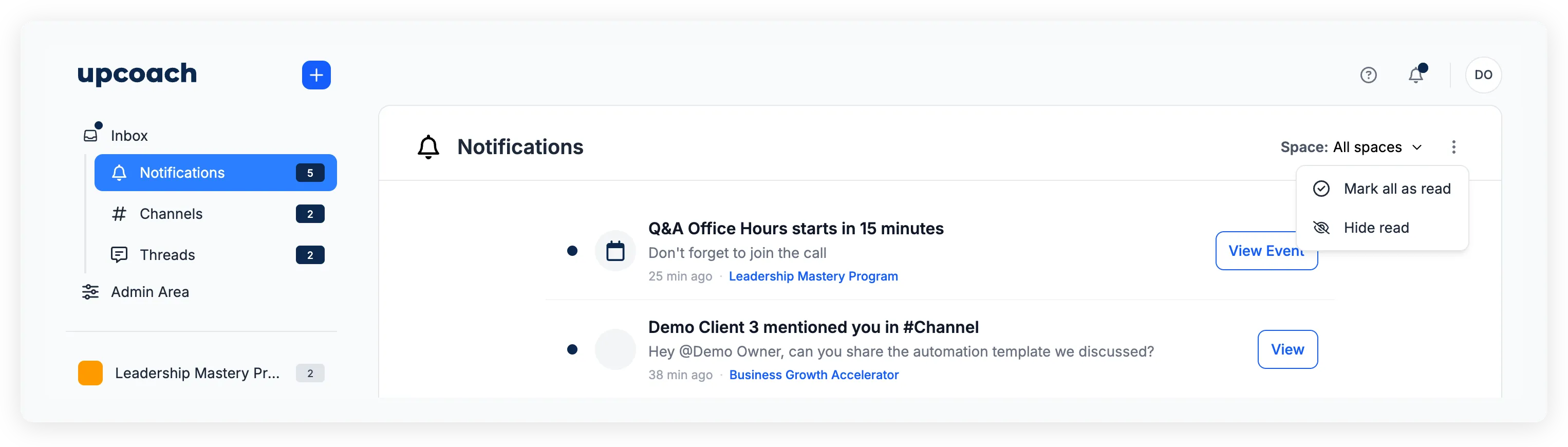
Show or hide read notifications. Open the menu (three-dot icon) and select Show read or Hide read to toggle read notifications in the list.
Mark all as read. Open the same menu and select Mark all as read. If you have a space filter active, this only marks notifications in that program as read.
Mark individual notifications. Click the dot next to any notification to toggle it between read and unread.
View channel activity
Click Channels in the inbox sidebar. This section shows all channels you belong to, organized by program.
Click a channel to open it and read the conversation. When you open a channel here, its unread count clears automatically.
If you don’t have any channels yet, you’ll see: “Channels you join will appear here.”
Click Back to Inbox to return to the channel list.
Follow threads
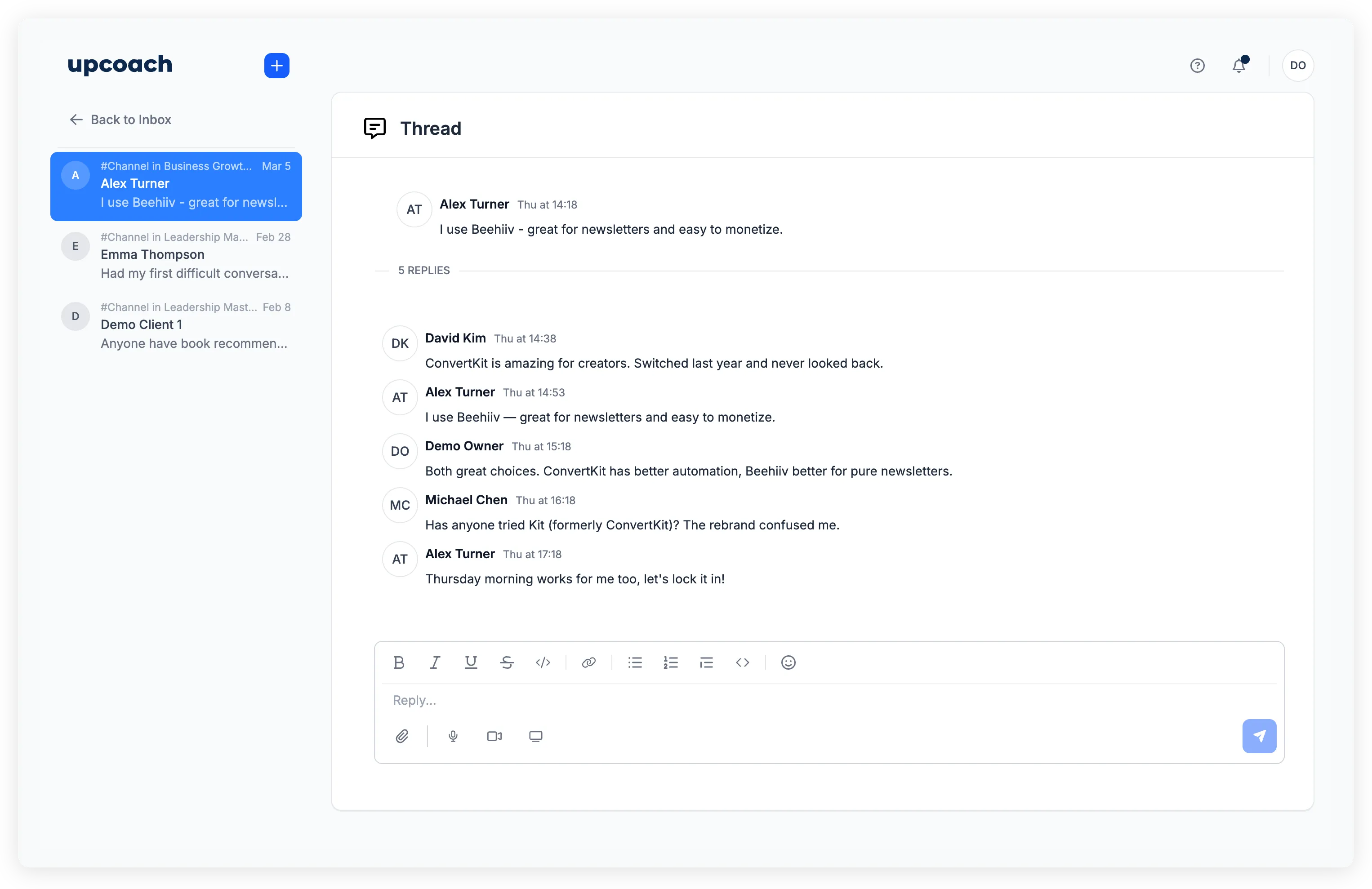
Click Threads in the inbox sidebar. This shows every thread you’ve started or replied to, across all channels and programs.
Each thread card shows:
- The channel and program it belongs to (e.g., #General in Marketing Program)
- Who started the thread and a preview of the original message
- When the last reply was posted
Click a thread to read the full conversation and add your reply. Unread replies are indicated by bold text on the thread card.
Click Back to Inbox to return to the thread list.
Change how you’re notified
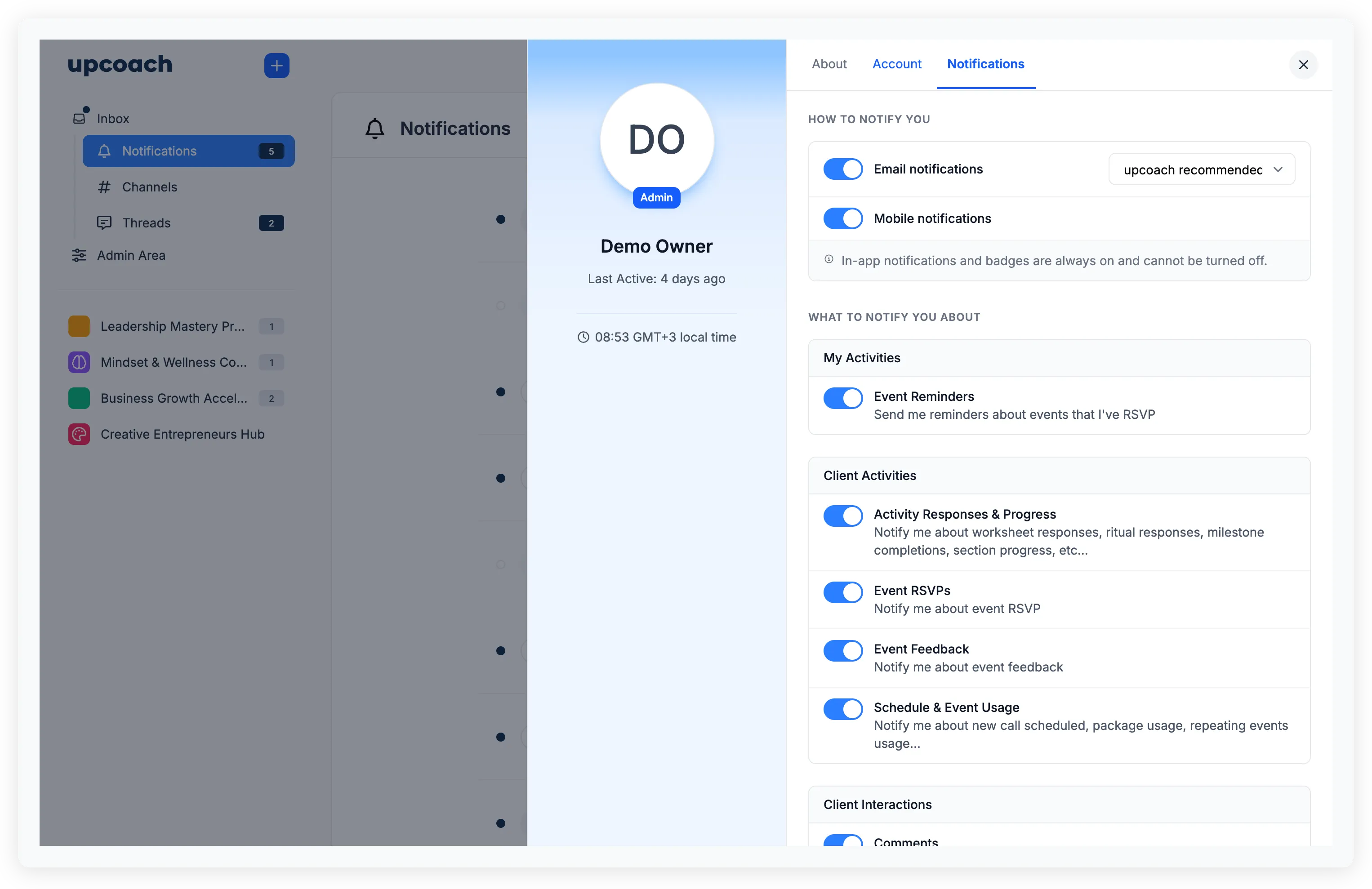
Open your notification preferences by clicking your avatar in the top-right corner, selecting Your Profile, then switching to the Notifications tab.
Choose delivery channels
Under How to notify you, you can toggle:
- Email notifications — Turn email notifications on or off. When enabled, choose a frequency: upcoach recommended, Daily, or Weekly.
- Mobile notifications — Turn push notifications on or off for the upcoach mobile app.
In-app notification badges are always on and cannot be turned off.
Pick what to be notified about
Under What to notify you about, notifications are grouped into categories. The categories you see depend on your role:
Everyone sees:
- Coaching & Training & Accountability — New activities (lessons, worksheets, check-ins), events and booking availability, and ritual reminders.
- My Activities — Reminders for events you’ve RSVP’d to.
- Peer Learning & Interactions — Comments, reactions, channel messages, and new posts from other participants.
Program operators also see:
- Client Interactions — Comments, reactions, channel messages, and posts from participants in your programs (replaces “Peer Learning & Interactions”).
- Client Activities — Worksheet responses, ritual responses, milestone completions, event RSVPs, event feedback, and booking activity.
- Sales Notifications — Purchase and registration alerts, capacity warnings, refund notifications, and subscription cancellations.
Each preference is either a toggle (on/off) or a dropdown with options like frequency or scope. Changes save automatically.
Manage exceptions
When you change notification settings for a specific channel or feed inside a program, that creates an exception — an override of your default preferences for that particular spot.
The Exceptions section at the bottom of your preferences shows all active overrides. Each exception lists the channel or feed name, which program it’s in, and its current setting.
To remove a single exception, click the X next to it. To clear all exceptions at once, click Reset all to default and confirm.