



Use the feed for announcements
Use the feed for announcements
The Feed app is your program’s announcement board and discussion space. Use it to share updates, celebrate wins, post resources, and encourage conversation among participants.
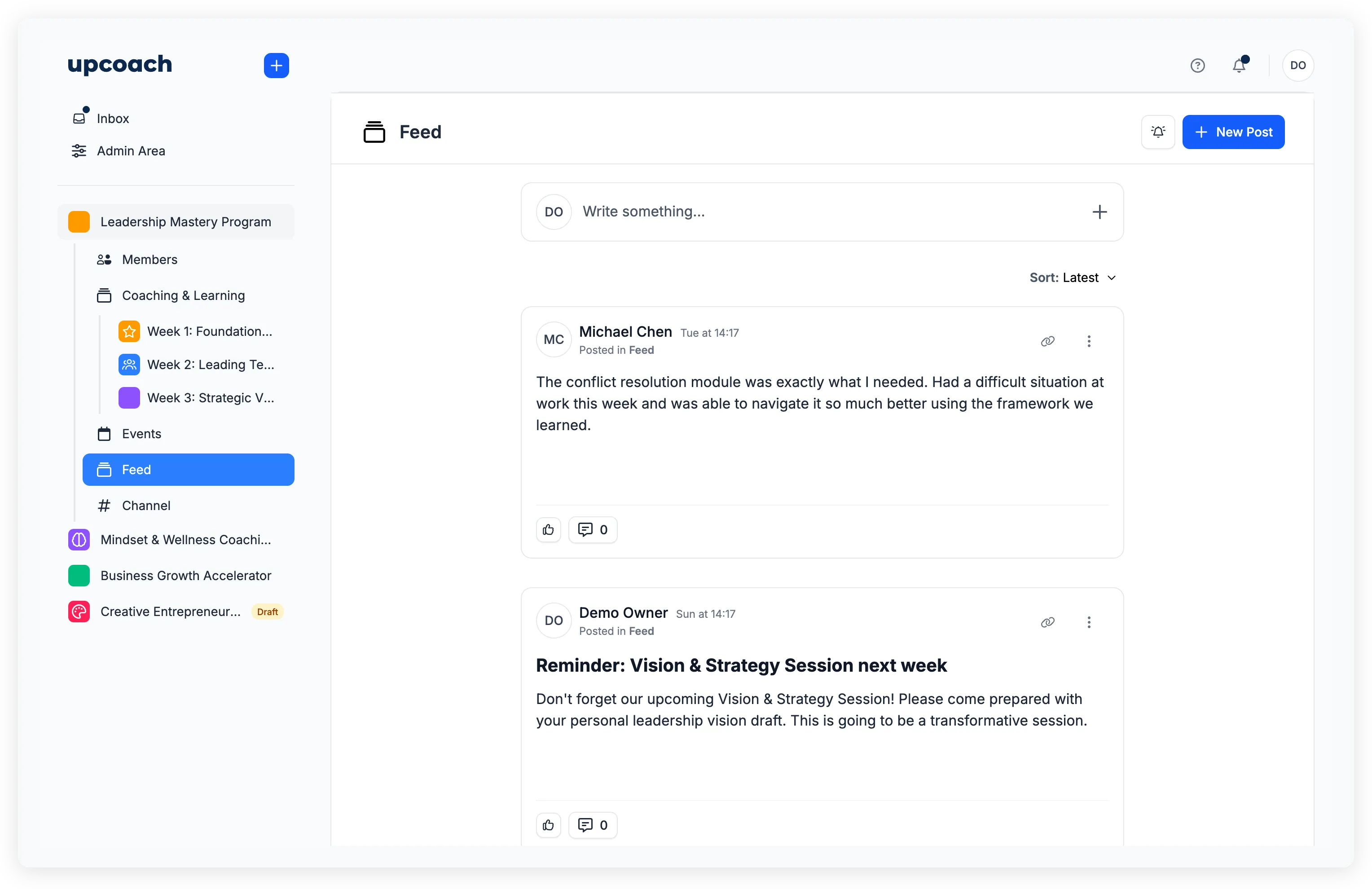
Creating a post
- Open the Feed in your program
- Click New Post (or click the “Write something…” input)
- Write your content using the rich text editor
- Optionally add:
- Cover media — A single featured image, video, or embed displayed at the top of the post
- Attachments — Files like documents, images, or videos
- Publish your post
Your post appears at the top of the feed and participants receive a notification.
Sorting the feed
Posts can be sorted by:
- Latest — Newest posts first (default)
- Oldest — Oldest posts first
- Most reactions — Posts with the most emoji reactions
- Most commented — Posts with the most comments
Comments and replies
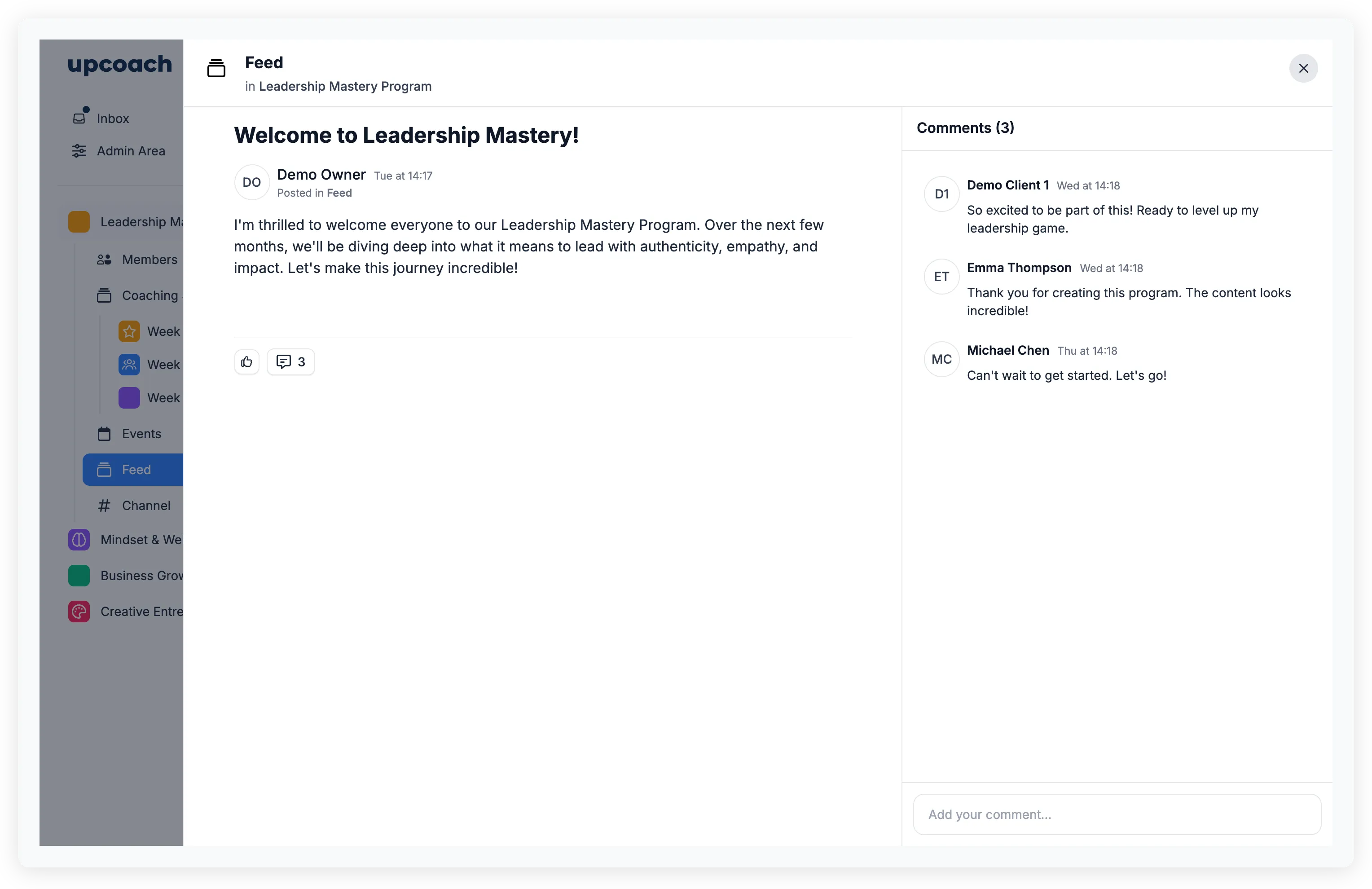
Participants can comment on posts and reply to each other’s comments:
- Comment — Click below a post to add a top-level comment
- Reply — Click reply on a comment to start a threaded conversation
Comments support rich text, @mentions, and file attachments.
Reactions
Both posts and comments support emoji reactions. Hover over a post or comment and click a quick reaction (👍 👏 ❤️ 💡 😄) or click + for the full emoji picker.
Editing and deleting posts
- Edit — Open your post’s action menu and select Edit. You can modify the title, content, cover media, and attachments
- Delete — Open the action menu and select Delete.
- Self-delete always works — anyone can remove their own post.
- Moderation uses a role rank: a higher-ranked user can delete a lower-ranked user’s post. The order is Owner > Admin > Implementation Admin > Program Admin > Facilitator > Participant > Sponsor.
- Sponsors can’t moderate anything — the Sponsor role is read-only.
- Lockdown applies. An Owner or Admin who is currently a Participant in this program (the locked Admin Space Access view) can’t moderate from this view. To moderate, they enter through Admin Area > Spaces. See Understand Admin Space Access.
Who can post
By default, all members with feed access can create posts. To restrict posting to admins only:
- Open the Feed app settings
- Change Who can create posts? to Admins only
This turns the feed into a one-way announcements board where only admins post and participants comment and react.
Sponsors never see a Post option — they’re read-only regardless of this setting. Participants only see the global + menu’s Message/Post shortcuts when they have feed or channel access in the program.
Notifications
Feed notifications keep participants informed about:
- New posts in the feed
- Comments on their posts
- Replies to their comments
- Mentions in posts or comments
- Reactions on their posts or comments
Participants can adjust their notification preferences for the feed.