



Customize your program space
Customize your program space
Each program has its own space where you control the name, appearance, apps, and onboarding experience. This article covers everything you can change.
Space settings
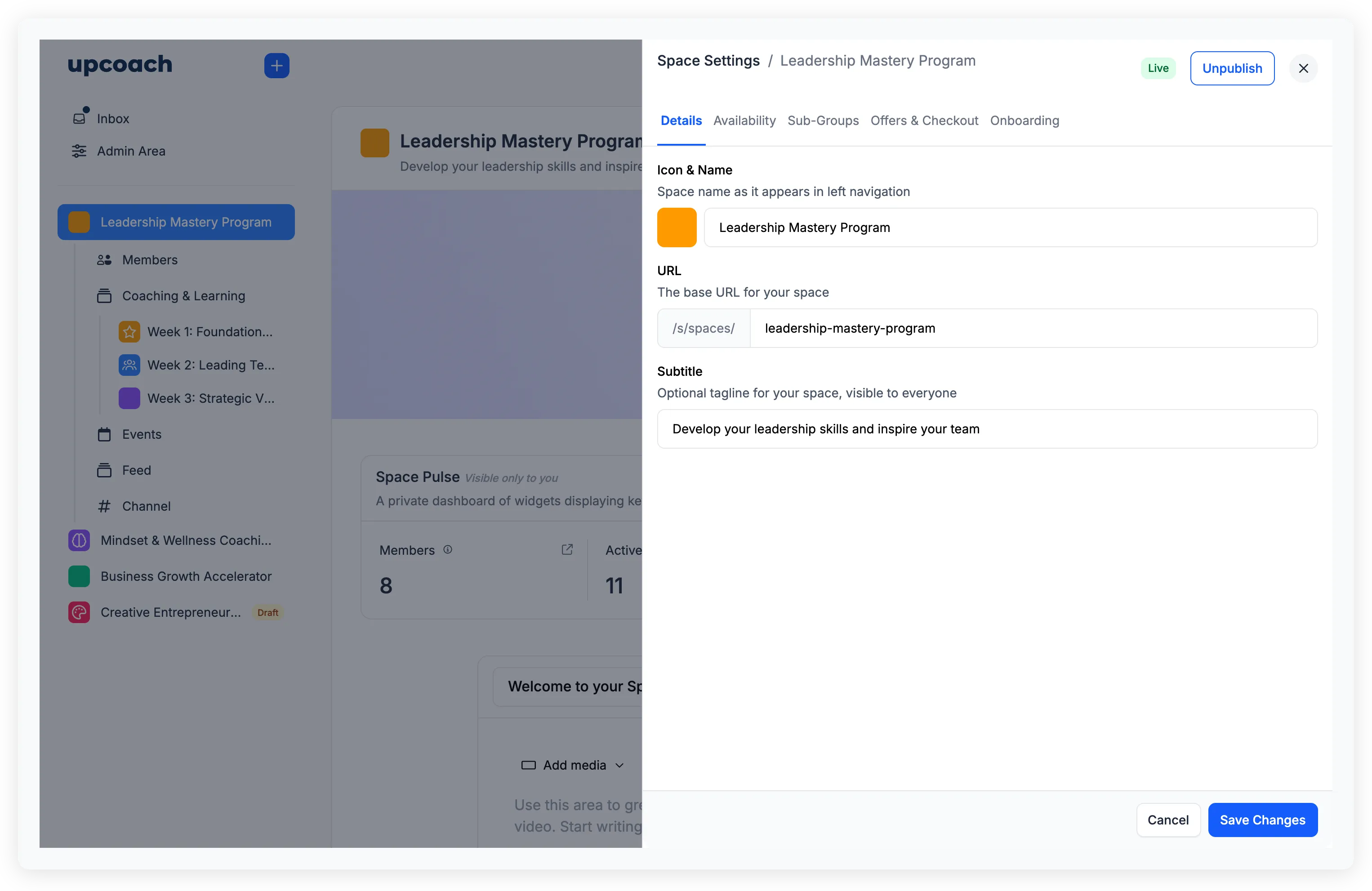
Hover over the program name in the sidebar, click the ellipsis menu (three dots), and select Settings. The Space Settings panel has five tabs:
Details
- Icon & Name — The icon, color, and display name shown in the sidebar
- URL — The URL slug for this program (e.g.,
/s/spaces/leadership-accelerator) - Subtitle — An optional tagline visible to everyone, shown under the program name
Availability
Set a schedule for your program. See Publish your program for details on start dates, end dates, and early access.
Sub-Groups
Organize participants within this program into sub-groups.
Offers & Checkout
Link free and paid offers to this program and set up the checkout page.
Onboarding
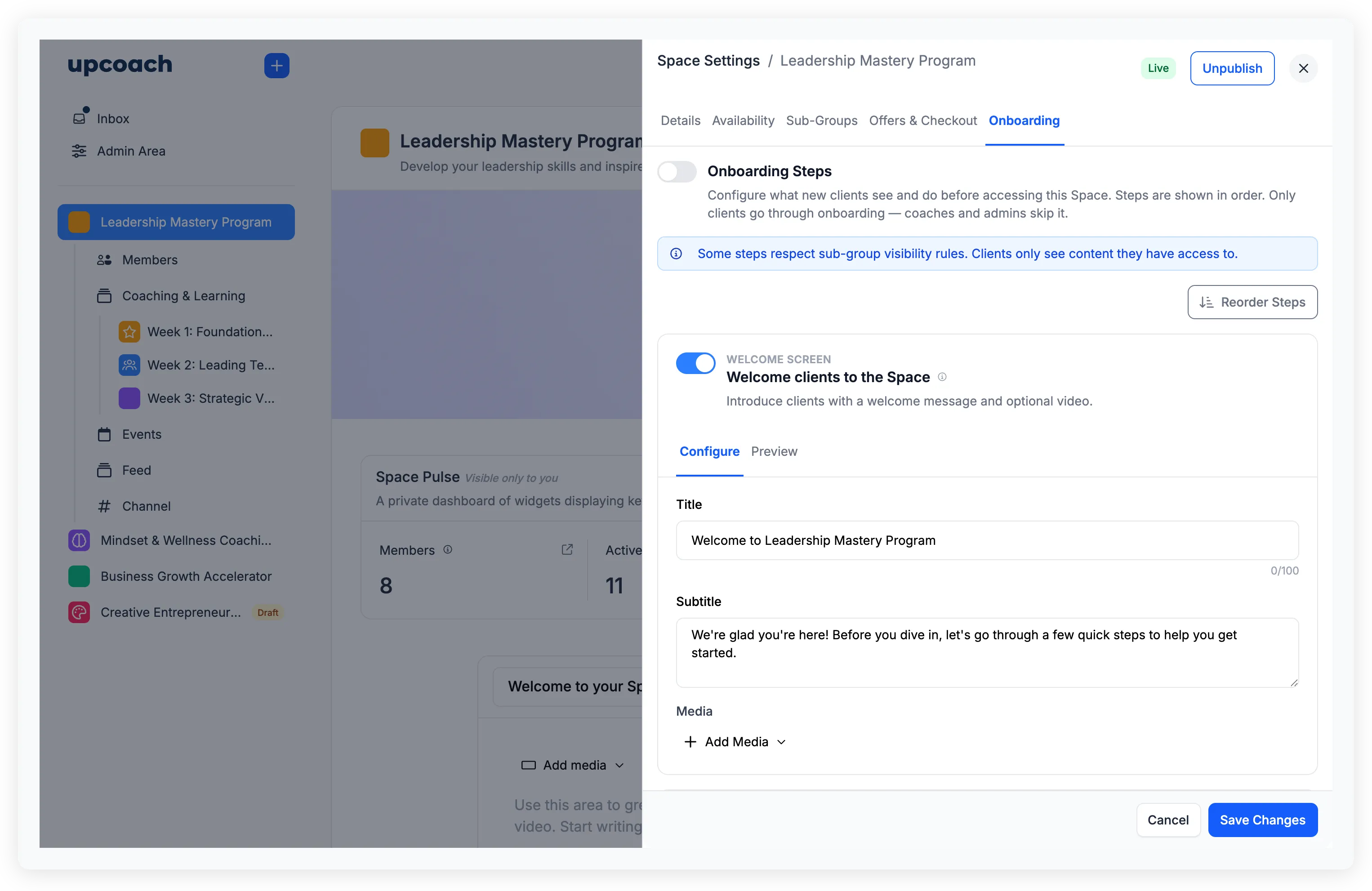
Build a multi-step onboarding flow that participants go through when they first join. Available steps include:
- Welcome Screen — A title, subtitle, and optional media (image, video, or embed)
- Worksheet — Require participants to complete a worksheet before accessing the program
- Ritual — An AI-guided conversation or reflection
- Events — Show upcoming events so participants can RSVP
- Scheduler — Let participants book their first call
- Completion Screen — A custom message with a destination button
You can reorder steps by dragging them and toggle which ones are required.
Cover image
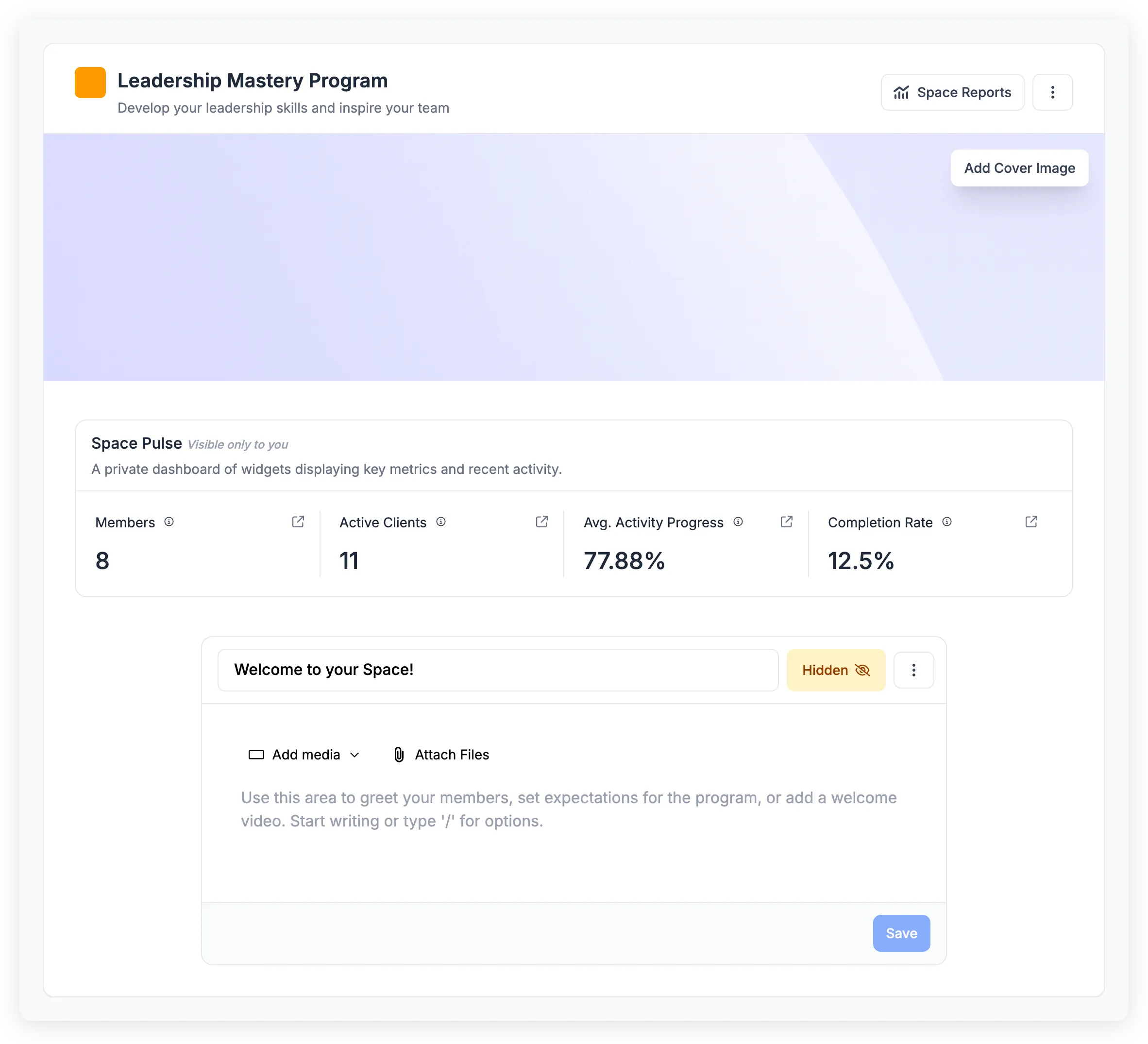
On the program home page, click Add Cover Image at the top to upload a cover. Once uploaded, hover over it to see options to Change Cover Image or Remove cover image.
Welcome section
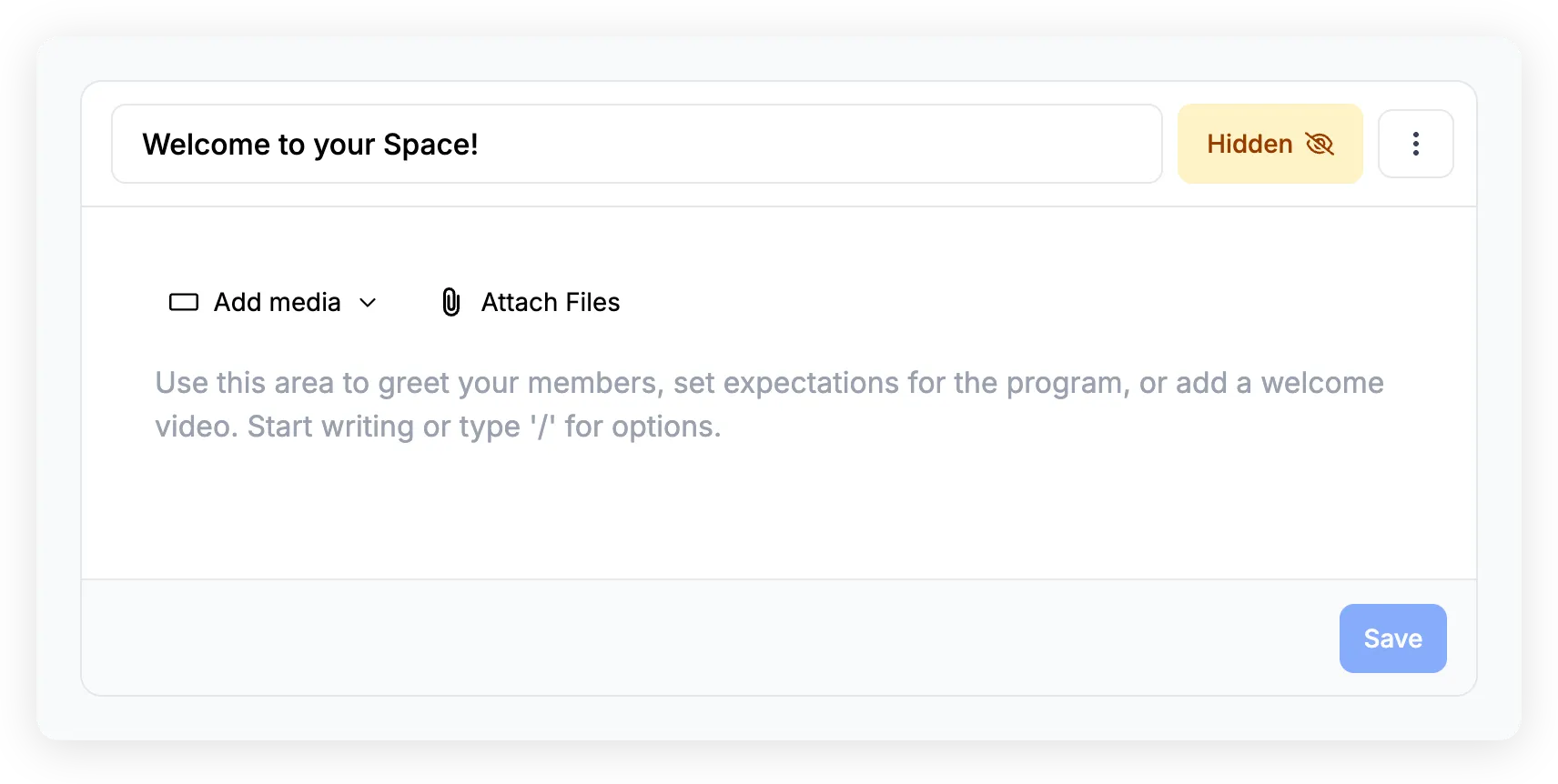
Below the cover image is the welcome section. It has:
- Title — The heading (defaults to “Welcome to your Space!”)
- Rich text editor — Write a greeting, set expectations, or add a welcome video. Type
/to see formatting options - Media — Add a featured image, video, or embed
- Attachments — Add downloadable files
You can hide this section from participants using the visibility toggle — it will show a Hidden badge to admins while remaining invisible to members.
Space Pulse
The Space Pulse dashboard appears on the program home page, visible only to admins. It shows four metrics:
- Members — Total enrolled participants
- Active Clients — Participants with at least one session in the last 30 days
- Avg. Activity Progress — Average progress across all sections
- Completion Rate — Percentage of members at 100% completion
Apps
Programs are modular — you add the apps you need and remove the ones you don’t.
Adding an app
Click the + icon next to the program name in the sidebar and select Add an app. Choose from the available apps, then set:
- Title — A custom name for this app instance
- Icon & Color — Customize how it looks in the sidebar
- Visibility — Show to all members, or restrict to specific groups
Managing apps
Hover over an app in the sidebar to see its settings icon. From there you can rename it, change its visibility, or access app-specific settings. To remove an app, you’ll need to type the app name to confirm — this permanently deletes the app and all its contents.
Organizing the sidebar
Drag and drop apps and folders in the sidebar to reorder them. You can also click the + icon and select Add a folder to group related apps together. See Organize your sidebar with folders and categories for the full walkthrough.