


Offer an event at several session times
Offer an event at several session times
Run the same masterclass, workshop or group call at the times that suit each region. Participants see one event, pick the time that fits them, and a full time offers a waitlist.
Create an event with several times
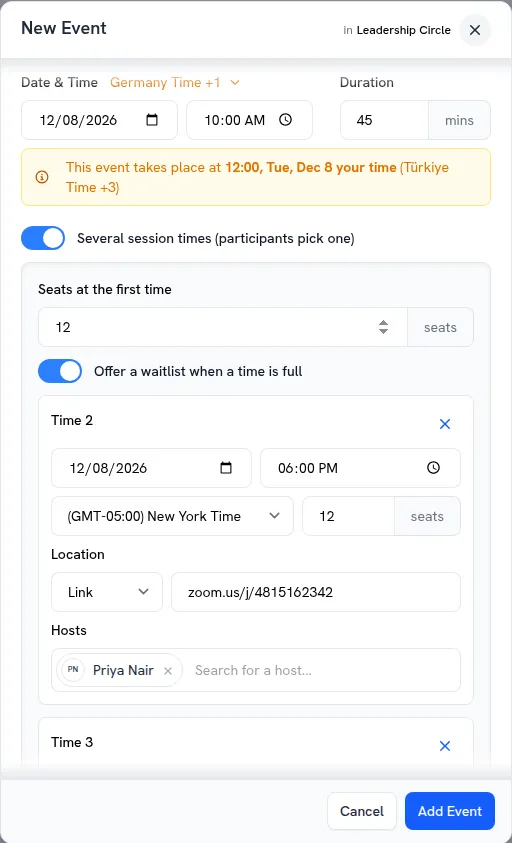
- Open your program and click Events in the sidebar, then Add Event.
- Fill in the title, then the date, time, time zone and location of the first time.
- Set the first time’s Hosts, under Show host, feedback and reminder settings.
- Turn on Several session times (participants pick one).
- Under Seats at the first time, set how many people can attend it. Leave it empty for no limit.
- Click Add session time for each other time. Each one has its own date, start time, time zone, seats, Location (a meeting link or an address) and Hosts. A new time copies the first time’s date, start time, time zone, location and hosts as they are when you add it, so set those first; change them for each region.
- Click Add Event.
Every time starts with the event’s duration, description, visibility, reminders and feedback setting. To add times to an existing single event, use its Session times tab.
How participants pick a time
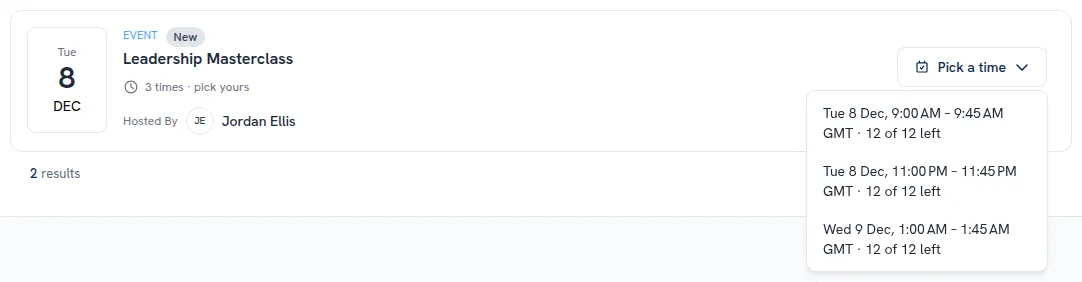
The event shows as one card in the Events list, and in a module when you attach it to one. The card says how many times are offered. Participants click Pick a time and choose from every time, shown in their own time zone (from their profile) with the seats left.
After they pick, the card shows their time and its host, and they get an email confirming it, with a calendar invite for that time. Participants who have connected their calendar get the confirmation without an invite file.
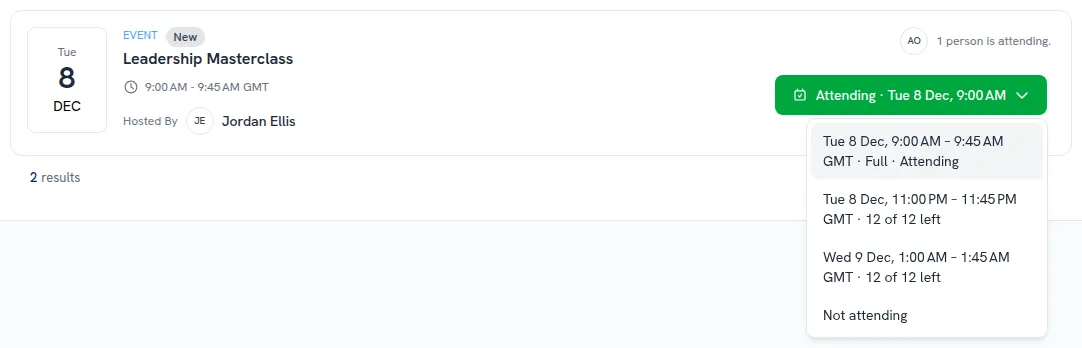
To change, they pick another time from the same menu and move in one step: their old seat is freed for someone else. They get two emails: one saying they’re no longer attending the old time, and one confirming the new time with its calendar invite. With a connected calendar, they get only the confirmation. Not attending gives the seat up.
The waitlist
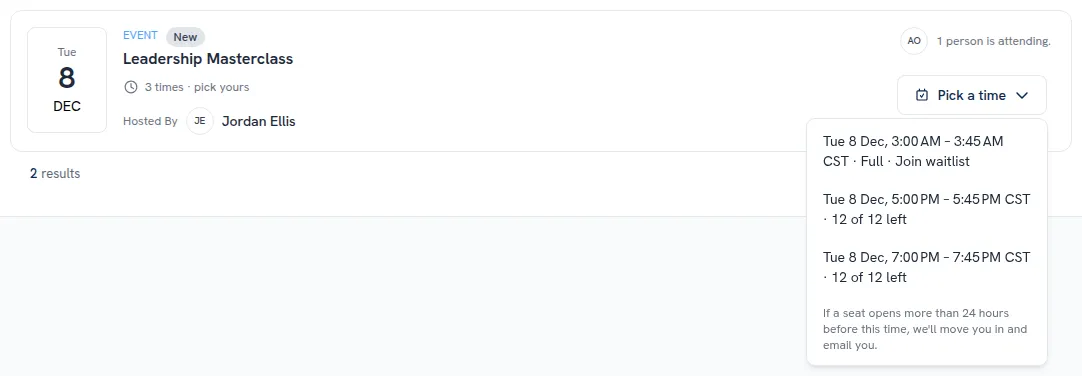
When a time reaches its seats, the menu shows it as Full · Join waitlist. A participant who joins keeps any time they already hold. They can wait for one time per event: joining another time’s waitlist leaves the first, and picking a time with a free seat leaves the waitlist. Someone who only waits sees their place in line on the button, for example On the waitlist (#1), and can Leave the waitlist from the menu.
When a seat frees up, the first person waiting who can take it gets it and receives a “You’re in” email, with the calendar invite unless they’ve connected their calendar. If they held another time, they move. Without a connected calendar, they also get an email saying they’re no longer attending it. That time’s seat goes to its own waitlist in turn.
In the last 24 hours before a time starts, nobody is moved from the waitlist: people might not see the email in time. A seat freed then stays open to pick.
Turn the waitlist off
The waitlist is on by default. Turn off Offer a waitlist when a time is full when you create the event, or later in its Session times tab. With it off, a full time shows Full and can’t be picked. People already waiting keep their place.
The Session times tab
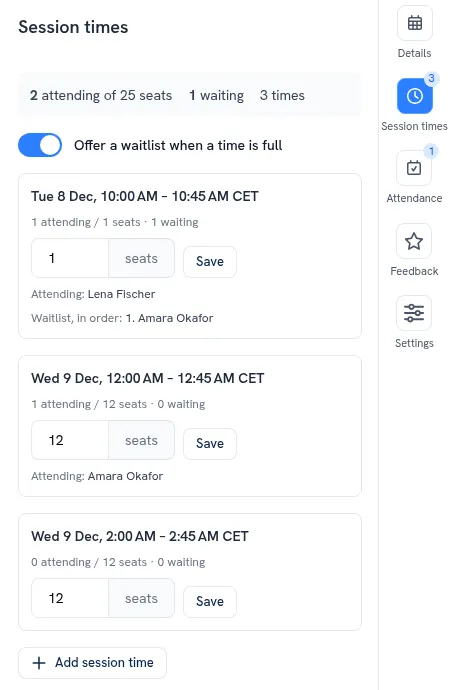
Open the event and click Session times in the bar on the right. It shows:
- The totals: how many people are attending, of how many seats, how many are waiting, and how many times there are.
- The waitlist switch.
- Each time with who is attending and its waitlist, in order. Click a time to open it.
- A seats field for each upcoming time (click Save to apply). Lowering it never removes anyone who is attending; raising it more than 24 hours before the time gives the new seats to the waitlist straight away.
- Add session time, to offer the event at more times. A new time starts in your own time zone, with the open time’s link and hosts. Set its date, start time and time zone, and its seats, link and hosts if they differ, then click Save session times.
Edit an event with several times
Each time is its own event: it has its own host notes, attendance, recording and feedback requests. To switch between them, click 2 other times (the number of other times) under the event’s title.
Apply to all times
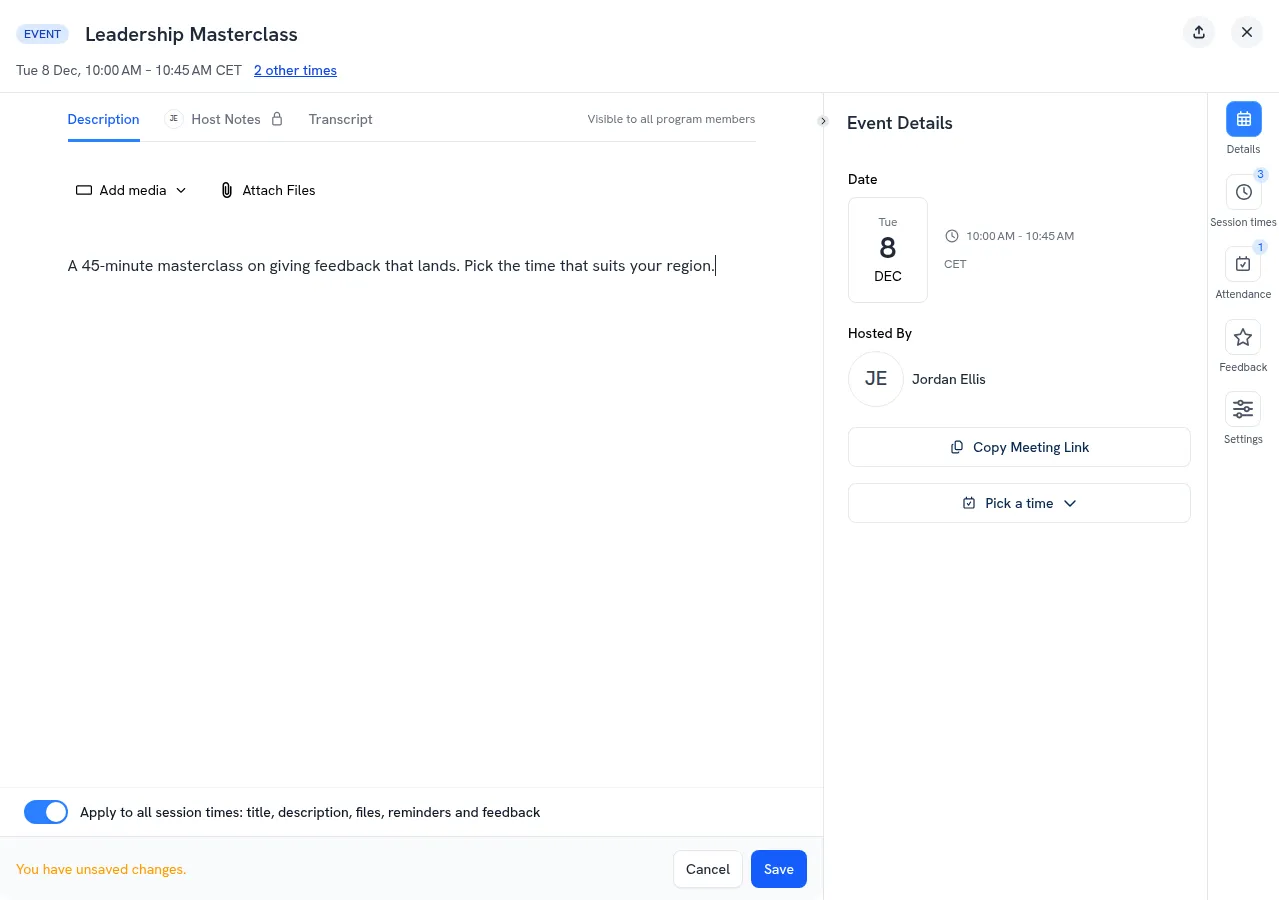
When you change a time, Apply to all session times: title, description, files, reminders and feedback appears above Save, switched on: those fields, and the reminder message, change on every time. Turn it off to change only the time you’re on.
Per-time host, link and sub-groups
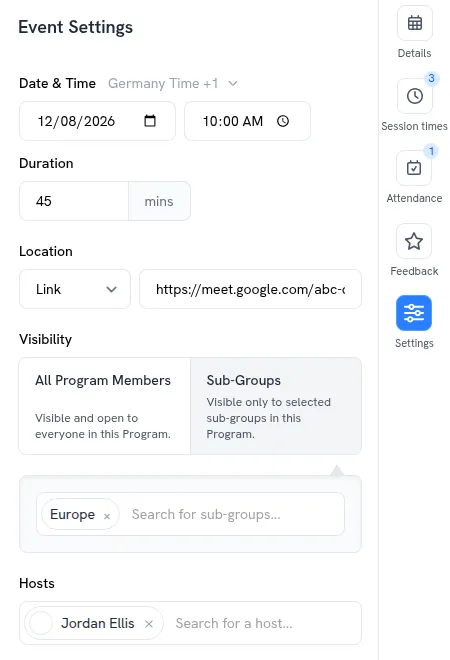
The date and time, location, hosts and visibility always belong to one time. Change them in that time’s Settings tab.
To keep a time for one region, choose Sub-Groups under Visibility and pick the sub-group. Only its members, and the people who run the program, see that time and can take its seats or wait for it.