


Connect upcoach to Zapier
Connect upcoach to Zapier
The upcoach app for Zapier links your workspace to thousands of other apps without code. Invite a buyer to a program when they pay in your checkout tool, add a new participant to your CRM, or post in Slack when someone finishes an activity. Zapier is available on every plan.
Only an organization Owner, Admin or Implementation Admin can connect Zapier. Zapier acts as the person who connected it, only in the workspace they chose.
Connect your workspace
You connect the first time a Zap uses an upcoach step. Zapier opens an upcoach window:
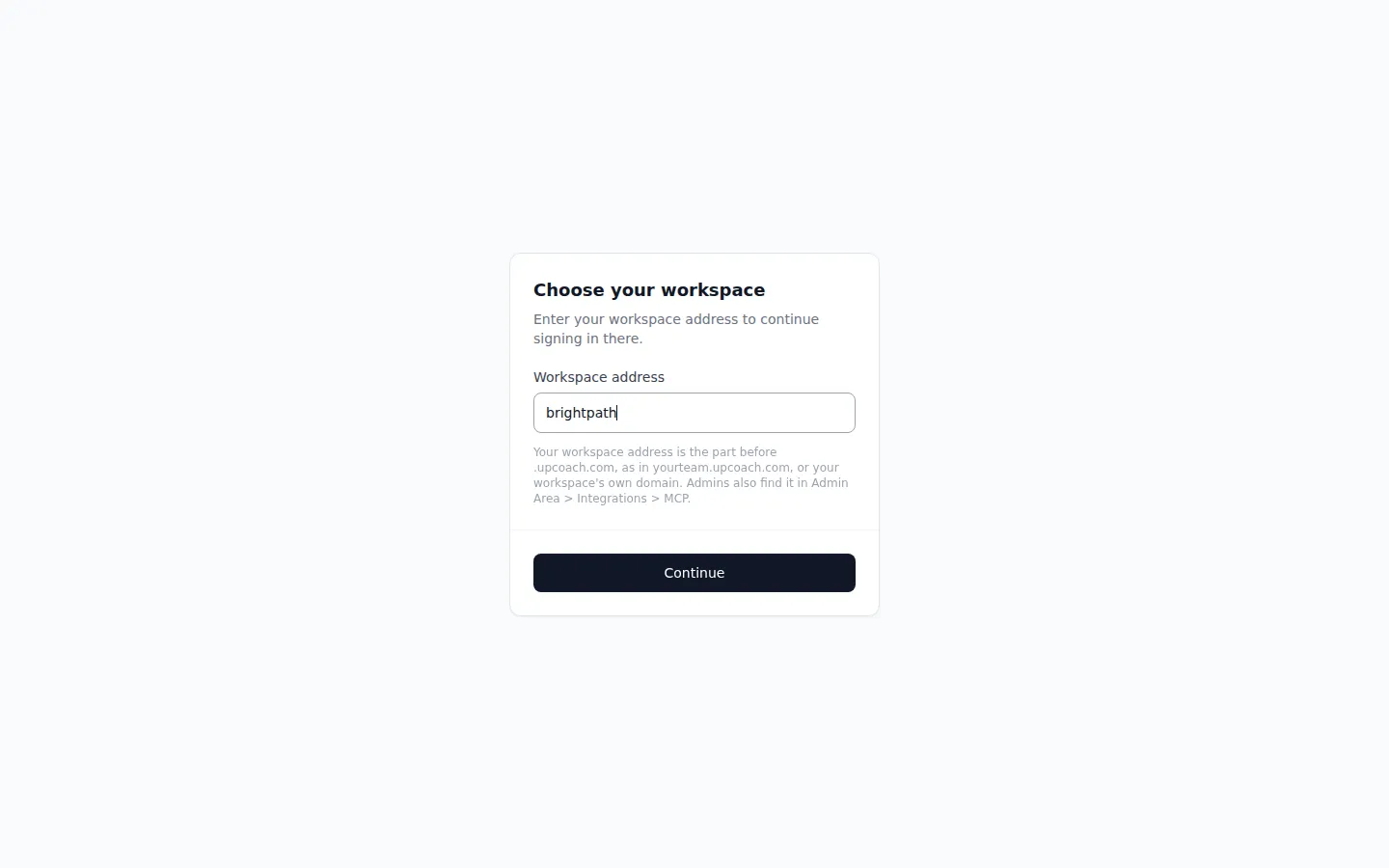
- Under Choose your workspace, enter your workspace address, the part before
.upcoach.com(or your workspace’s own domain), and click Continue - Sign in to upcoach if you aren’t already
- Check the workspace and what Zapier will be able to do, then click Authorize
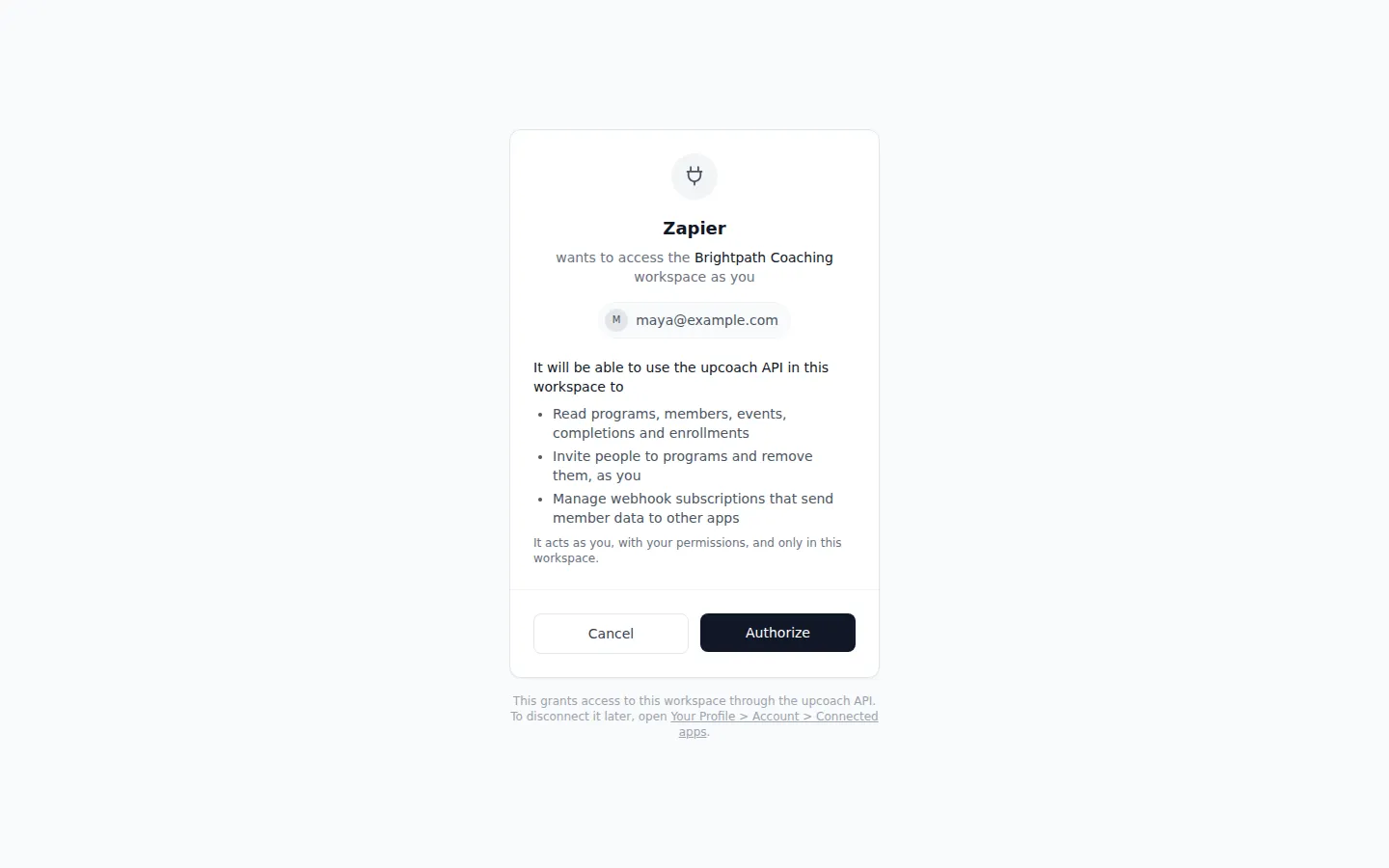
Zapier names the connection after the workspace and your email, for example “Brightpath Coaching ([email protected])”. To connect another workspace, add a second connection and choose that workspace.
Zapier renews its access by itself while your Zaps run. If a connection goes unused for 90 days, reconnect it.
Triggers
A trigger starts a Zap. Every trigger except New Program and New Workspace Member can be limited to one program.
| Trigger | Starts when | Other filter |
|---|---|---|
| New Program Member | Someone joins a program: invited, added by an admin, or through an offer | Role |
| New Workspace Member | An invited person accepts and joins your workspace | |
| New Offer Enrollment | Someone buys an offer or joins a free one. The program filter keeps offers that include that program | |
| Activity Completed | A member completes an activity | |
| New Event Response | A member answers an event invitation or changes their answer | Response (yes or no) |
| Member Removed From Program | Someone is removed from a program | |
| New Program | A program is created. Zapier checks for new programs on its own schedule |
All triggers except New Program arrive as they happen. Turning a Zap on adds a webhook to your workspace, and turning it off removes it. You see them in Admin Area > Integrations > Webhooks, marked “Made over the API”. See Send events to your tools with webhooks.
Actions and searches
| Step | What it does |
|---|---|
| Invite to Program | Invites someone to a program by email, as a participant or a coach. Someone already in your workspace is added at once |
| Remove From Program | Removes a member from a program. They get a notice that they were removed |
| Find Member | Finds a person in your workspace by exact email, or only in one program |
| Find Program | Finds a program by name, or part of it. Can be limited to published or draft programs |
Invite to a program from another app
This Zap invites everyone who buys in your checkout tool to a program.
- In Zapier, create a Zap and set up its trigger, for example a new sale in your checkout tool
- Add an action step, search for upcoach and choose Invite to Program
- Choose your upcoach connection, or connect your workspace as described above
- Fill in the step:
- Program: choose the program from the list, or map a program ID from an earlier step
- Email: map the buyer’s email from the trigger. They set their own name when they join
- Role: Participant (the default) or Coach. A coach becomes the program’s Program Facilitator
- Test the step. Zapier shows the result, with Status
invitedand Invitenew - Publish the Zap
What happens on each run:
- A new person gets the upcoach invite email and joins the program when they accept
- Someone already in your workspace is in the program at once (In Program Now is true)
- Someone already in the program isn’t invited again. The step still succeeds, with Status
not_invitedand a Reason:already_member, orother_role(their role stays as it is). If they never joined and their invite for the same role is still pending, they get it again (Inviteresent, ornewif the old invite had expired) - An address that can’t be invited gives Status
not_invitedwith Reasoncannot_invite - Over your plan’s client limit or admin seats, the step stops with upcoach’s message, and the person isn’t invited
- Over the invite email caps, Zapier tries the step again later
Disconnect Zapier
- In upcoach, click your avatar and select Your Profile
- Open the Account tab
- Under Connected apps, click Disconnect next to Zapier, then click Disconnect again to confirm
Zapier loses access at once, and the webhooks its Zaps made are turned off. If you lose your admin role, Zapier stops working too, and Zaps using that connection fail until someone with an admin role reconnects them.
What to do next
- Invite participants: how invitations work in upcoach
- Send events to your tools with webhooks: the events behind Zapier’s triggers
- Use the upcoach API and webhooks: build your own integration