



Add links to your sidebar
Add links to your sidebar
The Link app places a clickable shortcut in your program’s sidebar that opens an external URL. Use it to connect participants to outside resources — a Google Drive folder, a Slack workspace, a Calendly booking page, or any other website they need during your program.
You can add as many links as you need, and each one gets its own icon, color, and visibility settings.
Add a link
- Hover over the program name in the sidebar and click the + button that appears.
- Select Add an app.
- In the Apps modal, click Link.
- In the Link Settings modal, fill in these fields:
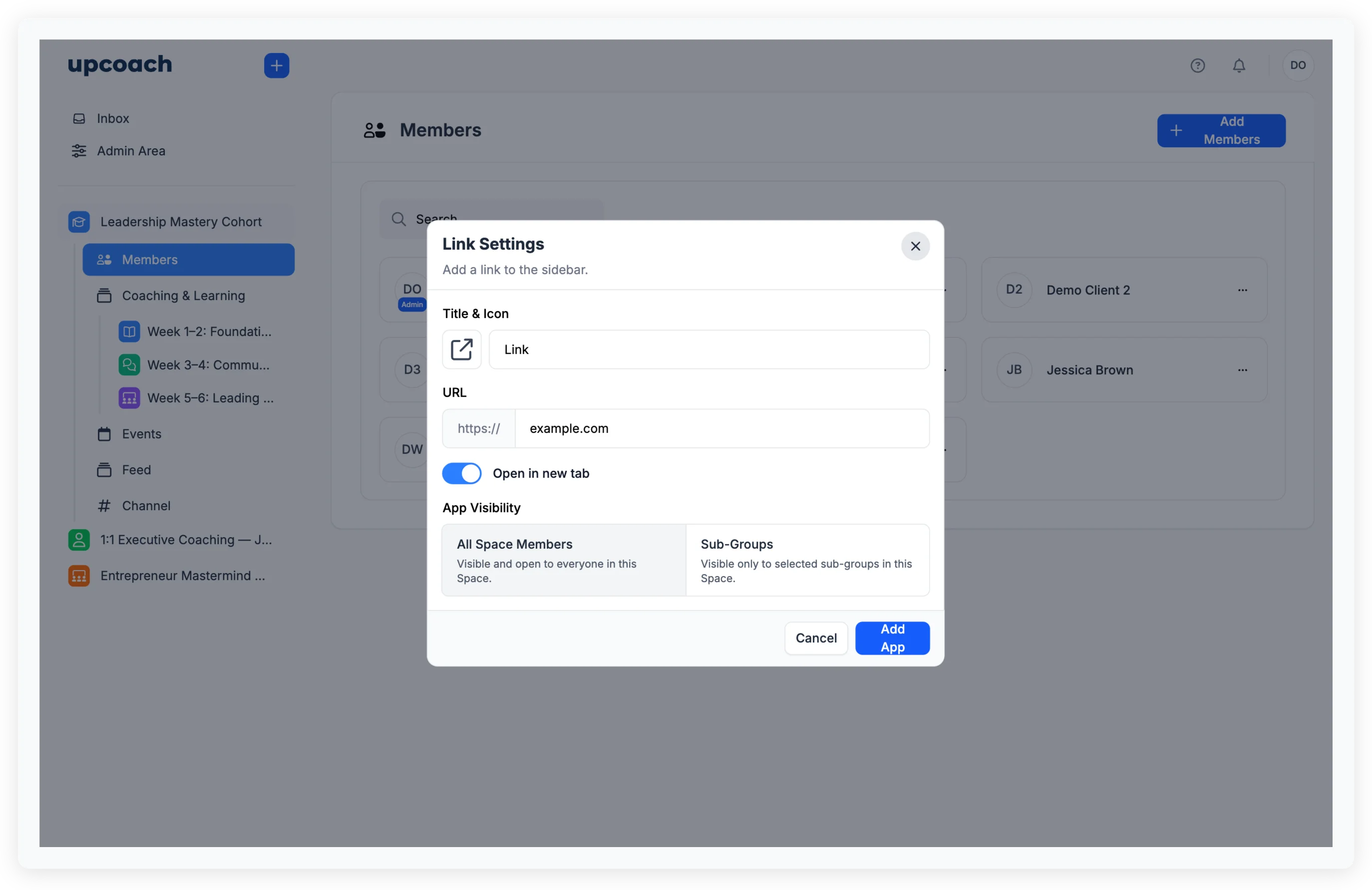
- Title & Icon — Pick an icon and color, then enter a name that tells participants where the link goes (e.g., “Resource Library” or “Book a Call”).
- URL — Enter the destination address. The
https://prefix is added automatically, so type just the domain and path (e.g.,drive.google.com/your-folder). - Open in new tab — When on, the link opens in a separate browser tab. When off, it replaces the current page. On by default.
- App Visibility — Choose All Space Members to show the link to everyone, or Sub-Groups to restrict it to specific groups within the program.
- Click Add App.
The link appears in the sidebar with the icon and title you chose. Participants can click it to go directly to the URL.
Edit a link
- Hover over the link in the sidebar to reveal the ellipsis menu (three dots).
- Click Edit.
- Update any settings — title, icon, URL, tab behavior, or visibility.
- Click Update App.
Remove a link
- Hover over the link in the sidebar and click the ellipsis menu.
- Click Remove.
- Type the link’s title to confirm.
- Click Yes, remove this app.
Removing a link deletes it permanently. It does not affect the external website it pointed to.
Reorder links
Drag and drop links in the sidebar to change their position. You can also drag links into folders to group them with other apps. See Organize your sidebar with folders and categories for more on sidebar organization.