


Run a live session agenda participants follow and write in
Run a live session agenda participants follow and write in
Give a group session, such as a 90-minute mastermind, an agenda the whole group follows. Participants see where the session is, add their wins and questions, and sign up to present a topic for feedback. When the session ends, everyone gets a recap, and commitments and open questions come back at the next session’s Check-in.
Build the agenda
-
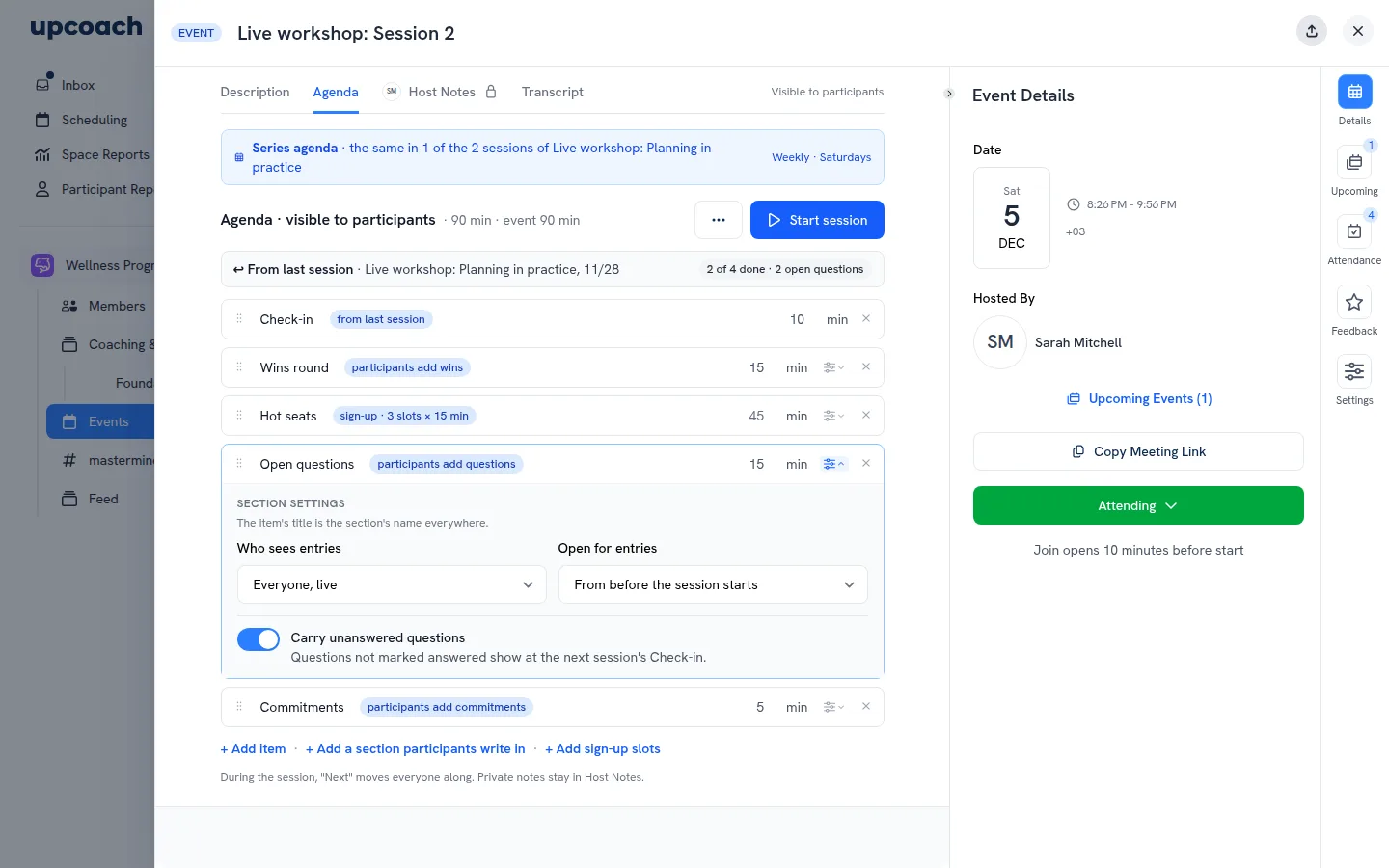
Open the event and click the Agenda tab, next to Description, Host Notes and Transcript. Hosts, and those who manage the event, see this tab. Once an event has an agenda, it opens on this tab.
-
If the agenda is empty, pick a template, such as Mastermind or Office hours, and click Use this, or click Start blank. The event gets its own copy. More in Use the agenda library.
-
Add the parts of your session:
- + Add item for a part with only a title and minutes.
- + Add check-in for the part where last session’s commitments and open questions come back (one per agenda).
- + Add a section participants write in for a part where participants add entries, such as Wins, Questions or Commitments. The item’s title is the section’s name everywhere, and the counts use it: a section called Wins counts “1 win”, “5 wins”.
- + Add sign-up slots for parts where participants take a turn, such as hot seats.
-
Drag an item by its handle to change the order, and set each item’s minutes. The agenda’s total shows next to the event’s length, and turns amber when the agenda is longer than the event.
-
Click an item’s settings button to open its settings inside its card. For a section participants write in:
- Who sees entries: Everyone, live, or Only hosts. With Only hosts, hosts and people who manage the program’s events see every entry, and each participant sees their own.
- Open for entries: During its item, The whole session (a compact field to add to it stays open whichever item is current, for questions people think of at any time) or From before the session starts.
- Carry unanswered questions (for a Questions section): questions you haven’t marked answered show at the next session’s Check-in.
- Carry to next session’s Check-in (for other sections, such as Commitments): everything added shows at the next session’s Check-in, with a Done toggle.
For sign-up slots: Slots and Minutes per slot. The item’s minutes are the slots times the minutes per slot, up to 600. Each person takes one slot. Sign-up opens before the session lets participants sign up ahead.
-
Click Save agenda. Agenda saved confirms it.
To reuse this agenda for other events, choose Save as template… in the agenda’s ⋯ menu. It shows for those who can use the Agenda Library.
Host Notes stay private to hosts. Nothing from them shows on the agenda.
Events that repeat
The agenda of a recurring event belongs to the series: a banner shows how many sessions use it. When you save, choose This session only, This and following sessions (the default) or All sessions. What participants added stays with each session, and a session that is live or has ended keeps its own agenda. Only the sessions whose agenda you can edit change: if you host only some of them, only those change, while people who manage the program’s events change them all.
For an event that doesn’t repeat, Copy agenda to another event… in the ⋯ menu copies the items and settings to an upcoming event of the program that nobody has added to yet.
Run the session
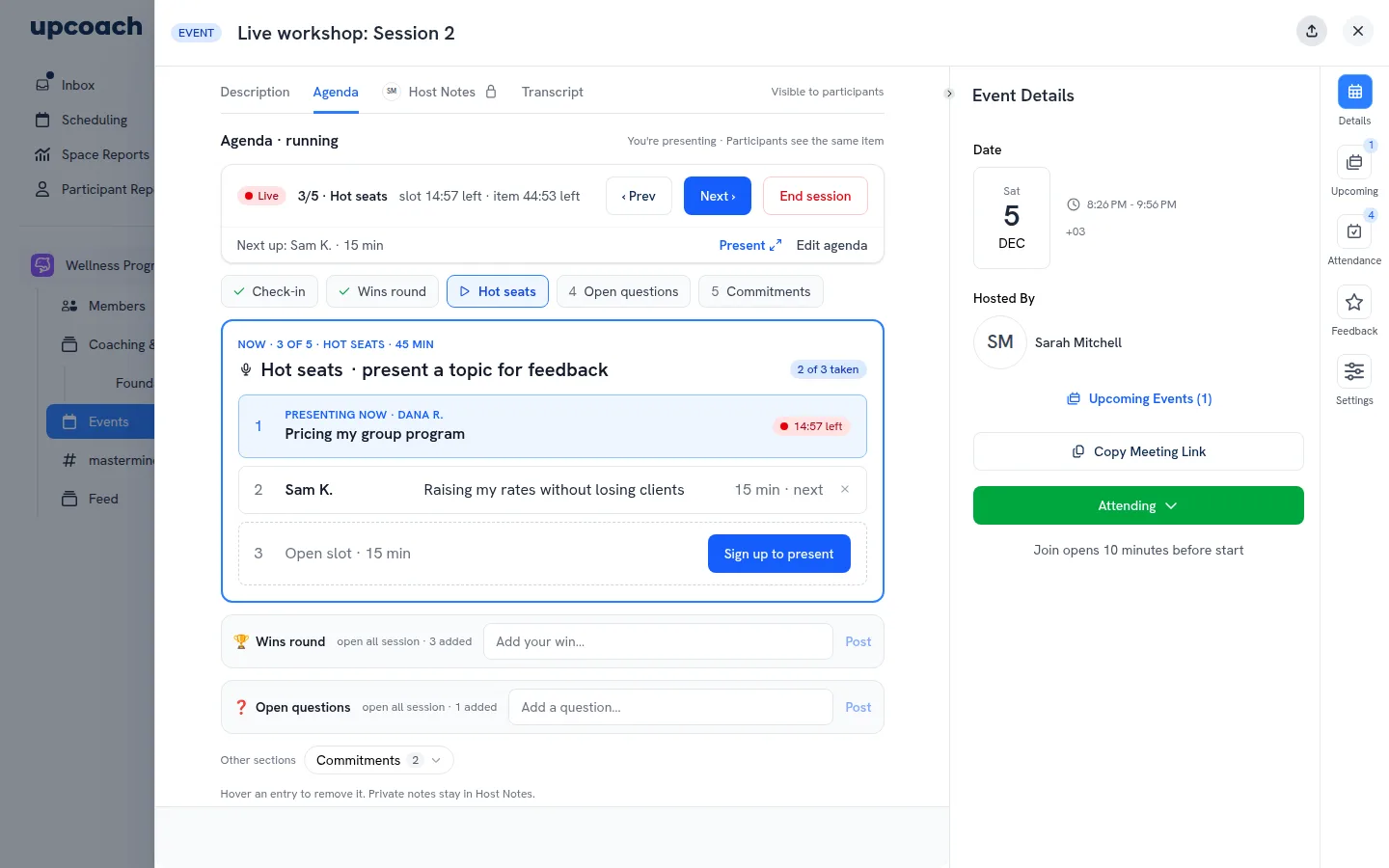
- When the session begins, click Start session. Everyone moves to the first item.
- The control bar stays at the top of the panel: where the session is, the time left, Prev, Next and End session. Above it, the panel says who is presenting (“You’re presenting”, or a co-host’s name). When another host moves the session, you get a short notice saying where they moved it.
- Click Next to move everyone along. On hot seats, Next moves to each presenter in turn. Everyone sees who is presenting, the slot’s time left and then the item’s, and a presented mark on those who have had their turn. Someone who signs up while hot seats run takes a slot after the one presenting.
- Hover an entry to remove it. On a Questions section, click Mark answered on the questions you’ve covered.
- Click Present to show the agenda full screen, for example to share your screen in a call. The controls move to a bar at the bottom, and the → and ← keys (or a presentation clicker) move to the next and previous step.
- Edit agenda opens the editor while the session runs.
End the session and share the recap
-
Click End session. The dialog shows what carries to the next session.
-
Choose where the recap goes:
- It is always saved on the event.
- Post recap in a channel is ticked when the program has a channel you can post in, with one picked for you. Choose another channel, or untick it.
- Email recap to attendees is off unless you tick it. It goes to those marked as attended, or to those who said they’d attend, but not to you, read-only sponsors, or participants of a draft program. The dialog says how many and on what basis, such as “3 people who said they’d attend”, or why nobody can be emailed. Each of them gets the recap as a notification, and by email when their Events & Schedule Availability email setting is on.
The post and the email show the session’s date, who was there, the counts and a link to the recap; what participants wrote stays on the event.
-
Click End session. Everyone’s agenda switches to the recap, and nothing more can be added.
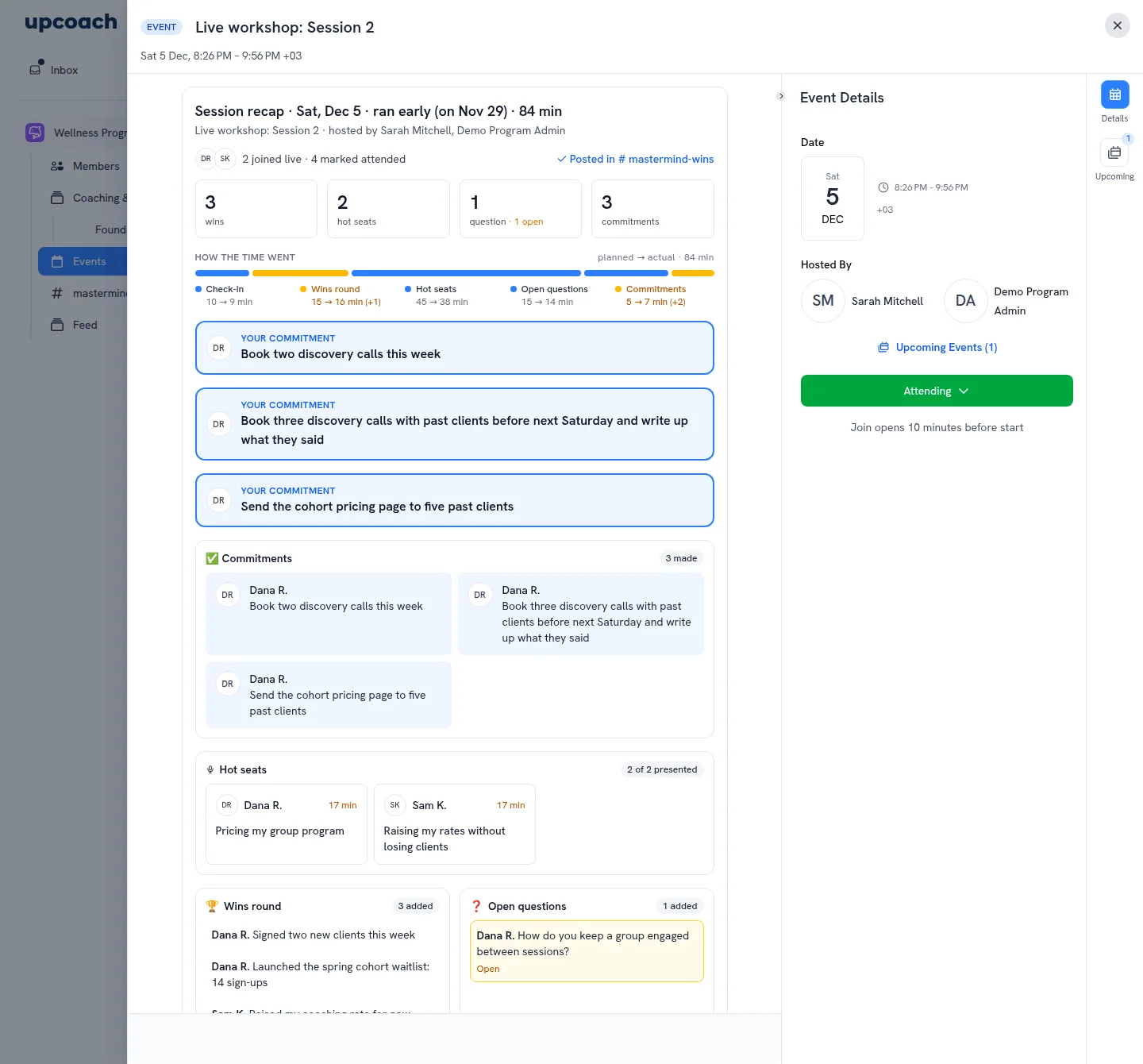
The recap is dated with the session’s own date, and says “ran early (on Nov 29)” when the session was run on an earlier day. It shows who was there two ways, the same in the recap, the channel post and the email:
- joined live: participants who opened the agenda while the session ran, counted once each, automatically. The event’s hosts aren’t counted;
- marked attended: people a host marked in the event’s attendance.
Each count shows once it’s above zero.
Then the counts, how long each part took against its plan, each person’s commitments, the hot seats, and every section, with the questions still open. Participants see their own commitment at the top. A session where nothing was added says so in one line. As a host, Edit recap lets you mark questions answered or remove entries, and Post again posts it in a channel.
What participants see
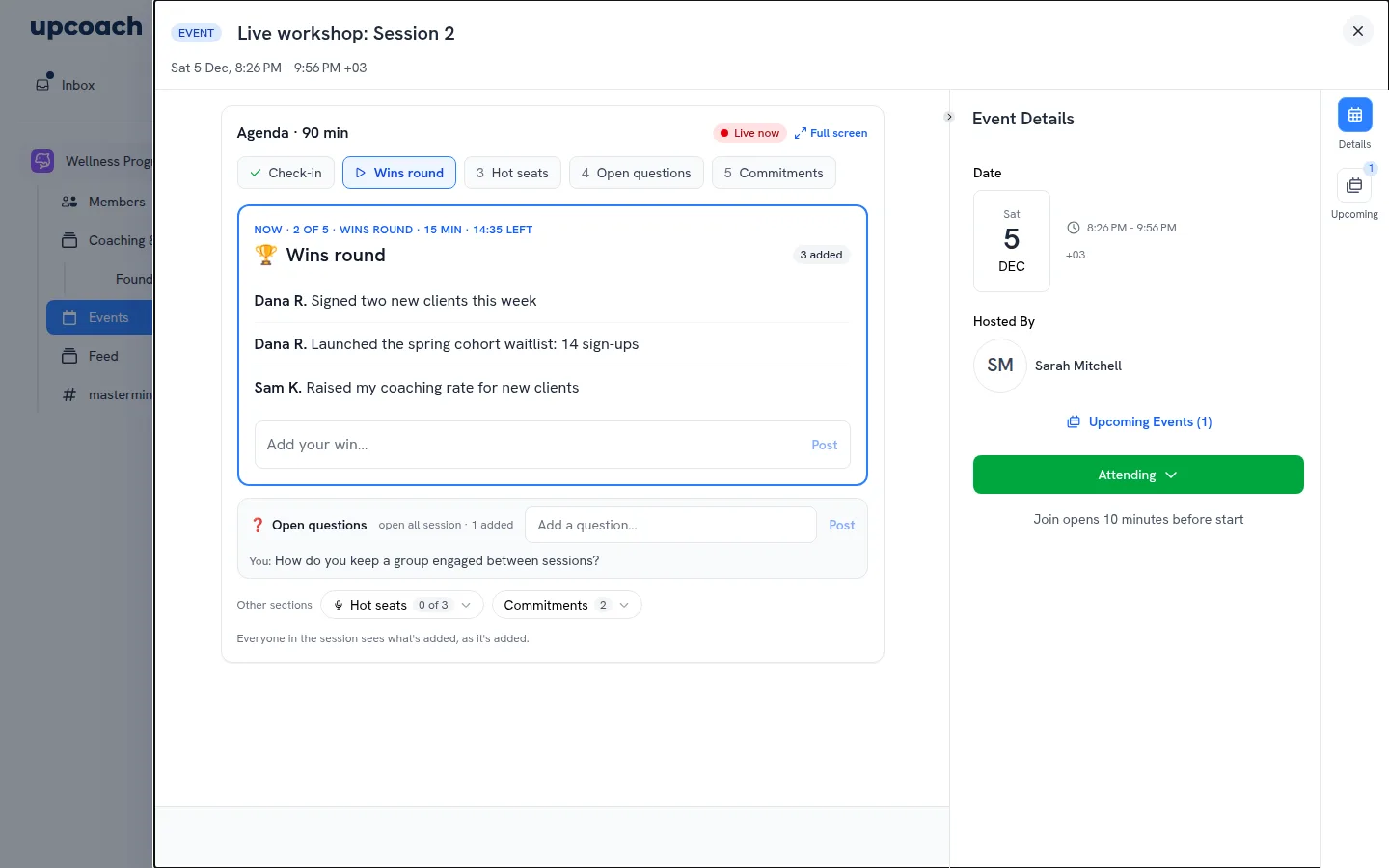
Everyone in the program who can open the event sees the agenda at the top of it, under the event’s title and date. A private 1:1 booked session’s agenda opens only to the people listed on it, its hosts, and those who manage the program’s events. Program sponsors who aren’t listed on it can’t open it.
In the program’s Events list, a module’s attached event and the series’ Upcoming tab, an event with an agenda has an Agenda button: ● Live · Agenda while the session runs, and Recap once it has ended. It opens the event right where you are.
While the session runs:
- the item the group is on is shown large, with its time left; the other sections fold into chips that open when tapped;
- they add to the current section, and to any section open the whole session, and what they added stays in view;
- on hot seats, they see who is presenting and sign up for an open slot after them;
- Full screen shows only the agenda, and it follows the host as the session moves.
At the next session of the series, the Check-in shows From last session: the commitments and the questions still open, already before the session starts, so participants can tick theirs Done ahead. Only a previous session that ran hands anything on. The person who made a commitment, the hosts, and those who manage the event can tick its Done toggle, as long as they could see it in the session it came from. When the agenda has no check-in item, From last session is a bar at the top of the agenda.
Participants can remove their own entries and leave their own slot while the session runs. Once it has ended, participants can’t add, remove, leave a slot or tick Done there. Program sponsors who don’t attend sessions can follow the agenda, marked View only, but don’t add to it and don’t count as joined live.