


Use the agenda library to start events from a template
Use the agenda library to start events from a template
The Agenda Library keeps the agendas you run often, such as a mastermind or an office hours call, as templates. Start any event’s agenda from a template in one click, then change what you need for that session.
For building and running the agenda itself, see Run a live session agenda.
Before you begin
Who can do what
- Owners, Admins, and others who can use the Activity Library can open the Agenda Library, add, edit, duplicate, and delete templates, and save an event’s agenda as a template
- Hosts of an event, and those who manage it, can start its agenda from any template in the library
- Participants and Sponsors don’t have access to the Agenda Library
See Program Admin, Facilitator, and Sponsor roles.
Open the Agenda Library
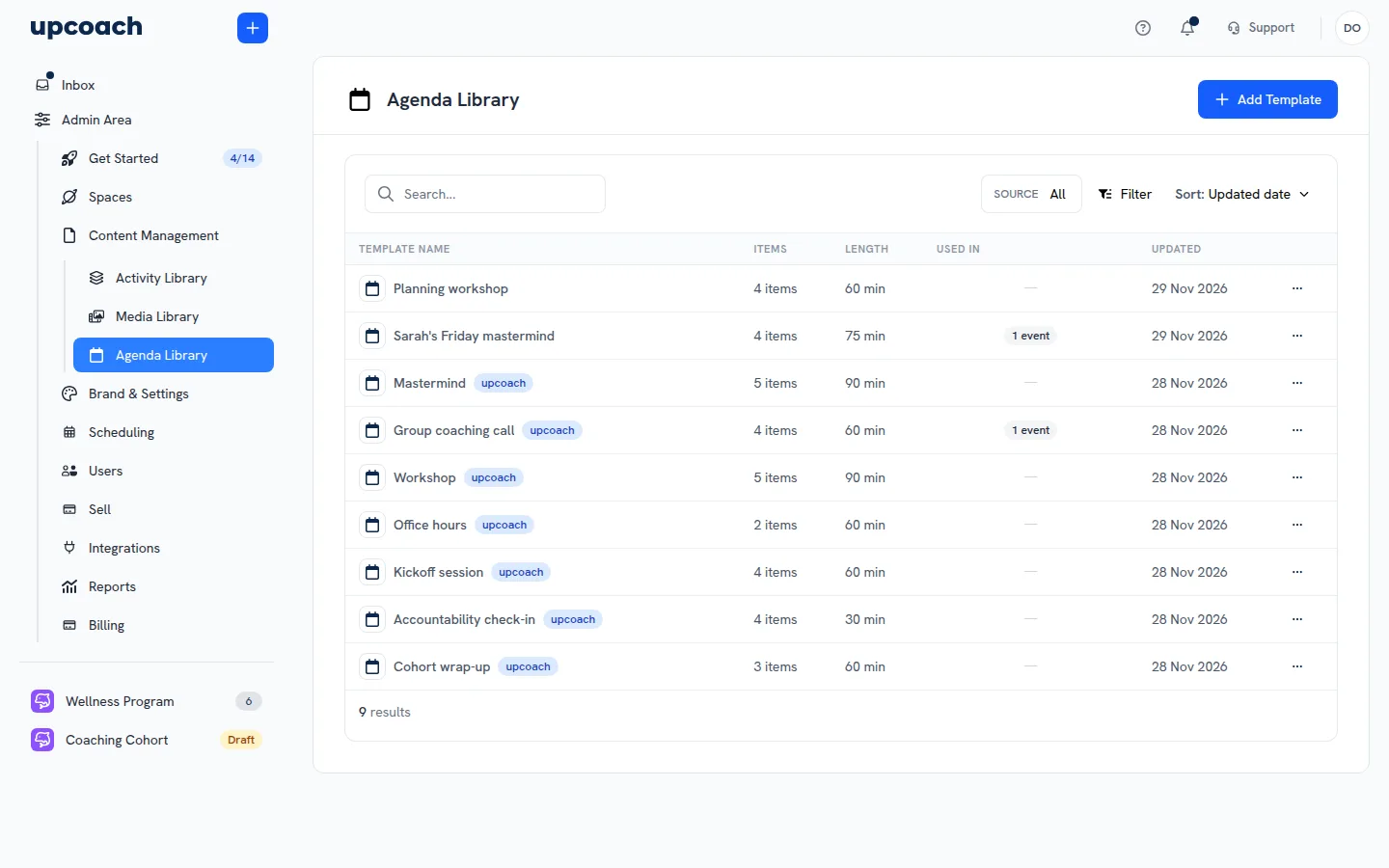
Open Admin Area > Content Management > Agenda Library from the sidebar, next to the Activity Library. The library shows every template in a table with these columns:
- Template Name: built-in templates have an upcoach badge
- Items: how many parts the agenda has
- Length: the agenda’s total minutes
- Used In: how many events use it
- Updated: when it last changed
Search by name or description, filter by Source (All, Built-in or Yours), and sort by updated date or name.
Built-in templates
upcoach includes seven templates to start from:
- Mastermind: peers share wins, take hot seats and leave with a commitment
- Group coaching call: teach one topic, then answer the group’s questions
- Workshop: teach, practise, then share back what came out of it
- Office hours: open questions first, then short laser-coaching slots
- Kickoff session: start a cohort with introductions, the program, and each person’s goal
- Accountability check-in: a short weekly check on last week’s commitments
- Cohort wrap-up: close a cohort with highlights, lessons and what comes next
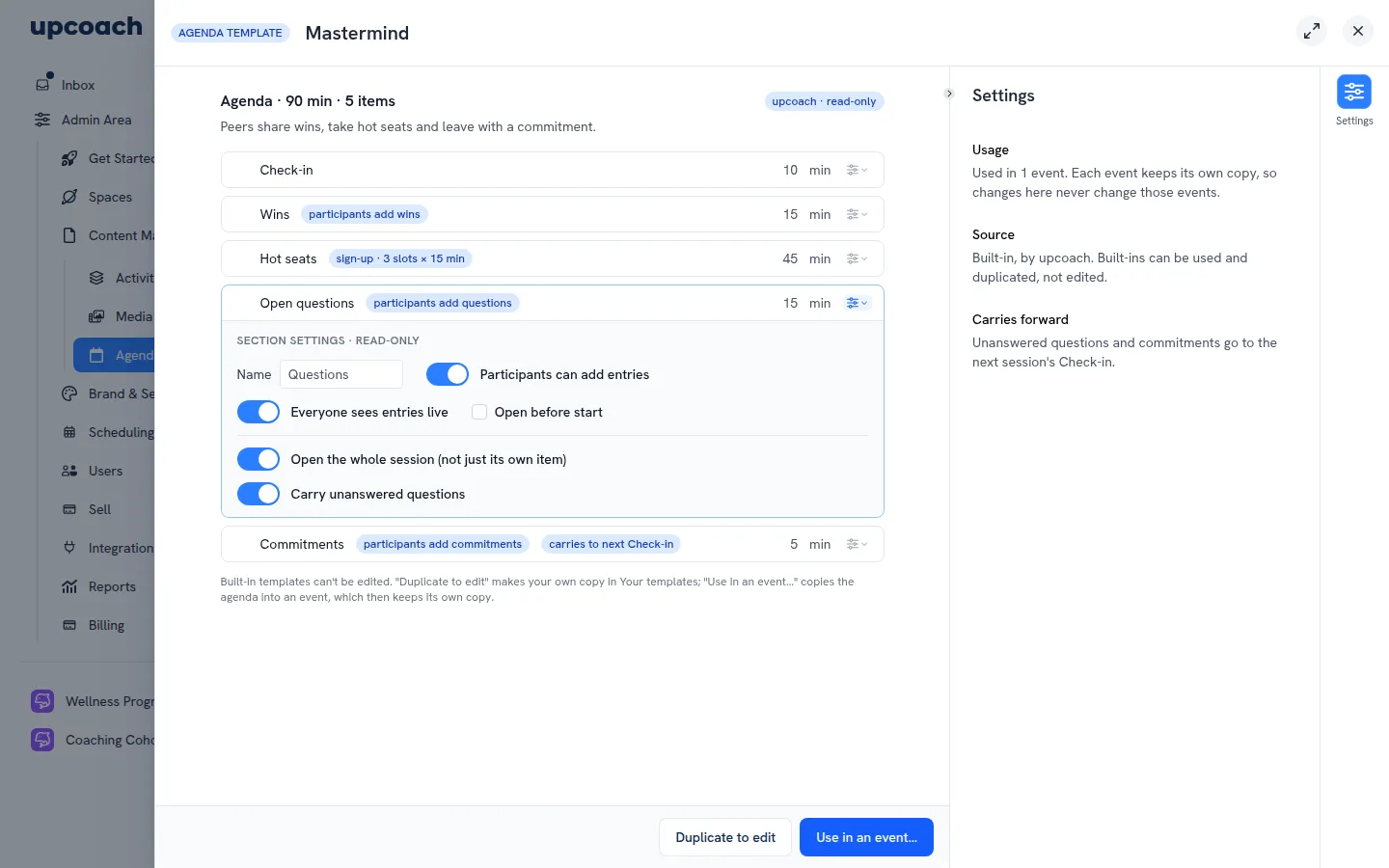
Click a template to see its items, their minutes and their settings. The Settings tab on the right shows where it’s used and what carries to the next session’s Check-in.
Built-in templates can’t be edited. To change one, click Duplicate to edit, which adds your own copy under Yours.
Your own templates
- Add a template: click Add Template. A template called New template opens, with a Check-in item. Rename it, add a one-line description, and add its parts with + Add item, + Add a section participants write in and + Add sign-up slots. Drag items to change the order, open an item’s settings to set it up, then click Save.
- Edit: click the template, or choose Edit in the row’s ⋯ menu.
- Duplicate: choose Duplicate in the ⋯ menu to start a new template from an existing one.
- Delete: choose Delete in the ⋯ menu. Events that started from the template keep their agenda.
Each event keeps its own copy of the agenda it started from, so editing a template doesn’t change events already using it.
Start an event’s agenda from a template
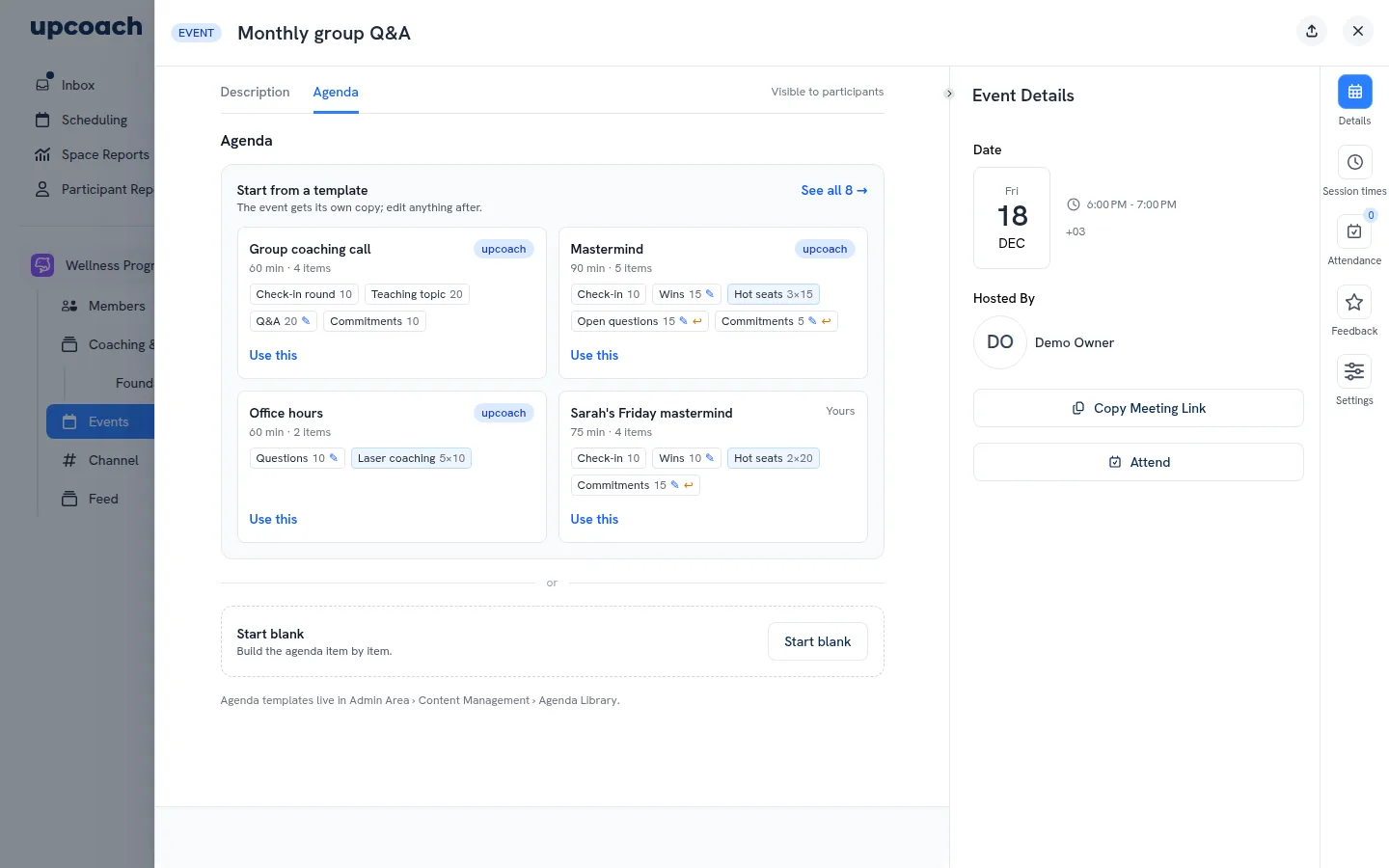
- Open the event and click the Agenda tab.
- When the agenda is empty, Start from a template shows a few templates, with their items and minutes. Click See all to search every template, grouped into Built-in and Yours.
- Click Use this on the template you want, then change the event’s copy like any agenda.
To replace an agenda that already has items, choose Start from template… in the agenda’s ⋯ menu. You’re asked before anything you’ve built is replaced.
For a recurring event, choose which sessions get the template, as when you save its agenda (see Events that repeat). A session that is running changes only itself.
In the library, Use in an event… points you to an event’s Agenda tab, where the template is listed.
Save an event’s agenda as a template
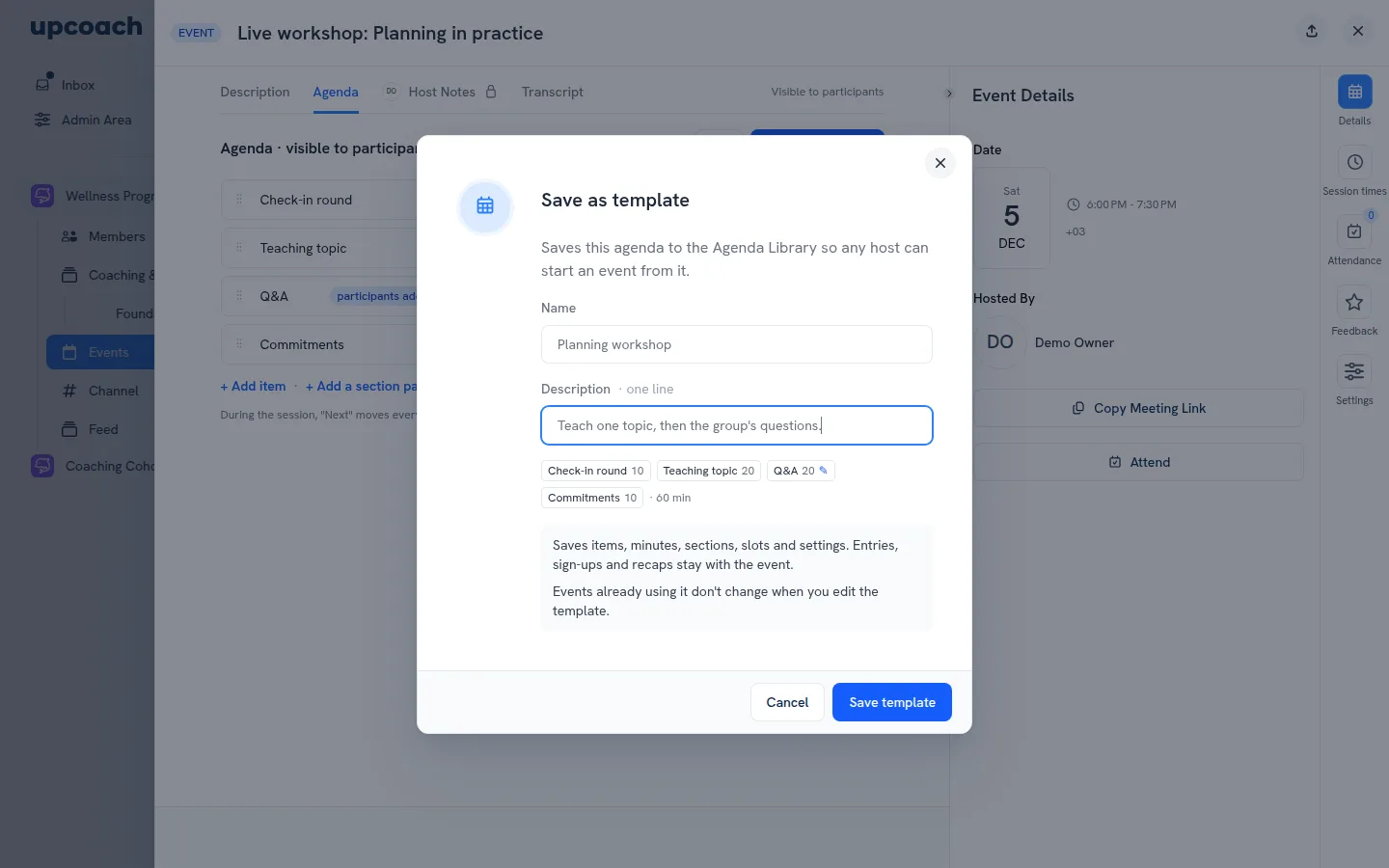
- In the event’s Agenda tab, choose Save as template… in the ⋯ menu.
- Give the template a name and a one-line description.
- Click Save template.
The template keeps the items, minutes, sections, slots and their settings. Entries, sign-ups and recaps stay with the event. The new template is listed under Yours, ready for any host to start an event from.