


One Event, Several Session Times: Each Participant Picks One
Run the same masterclass or group call at the times that suit each region. In New Event, turn on Several session times (participants pick one) and add each time with its own date, time zone, seats, host and meeting link.
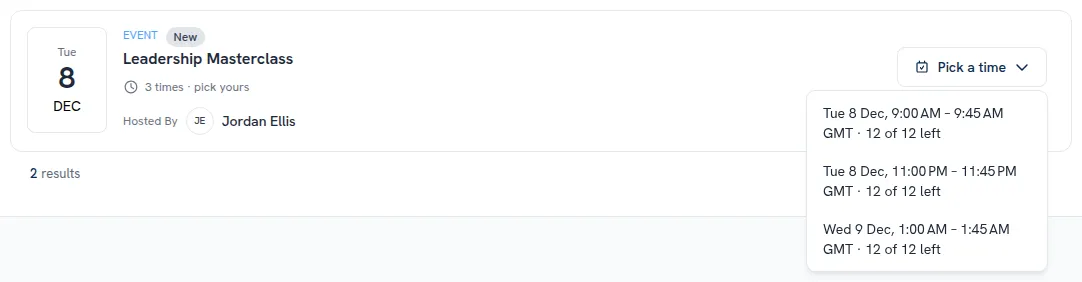
Participants see one event, in the Events list and in any module you attach it to. They click Pick a time and choose the one that fits them, shown in their own time zone with the seats left. Picking sends them a confirmation email, with a calendar invite if they haven’t connected their calendar.
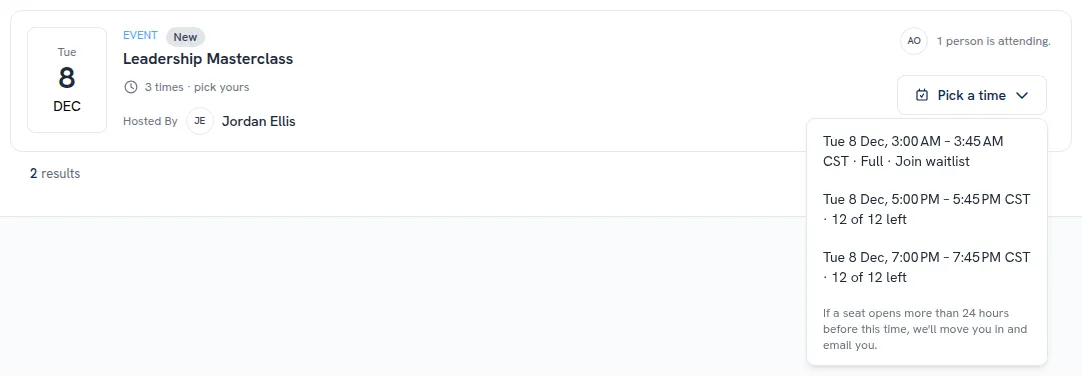
When a time is full, participants can join its waitlist. When a seat frees up more than 24 hours before the time starts, the first person waiting gets it and an email saying they’re in. The waitlist is on by default, and you can turn it off for each event.
The event’s Session times tab shows who is attending each time and who is waiting. One edit can apply to every time, and each time keeps its own host, meeting link and sub-group visibility.
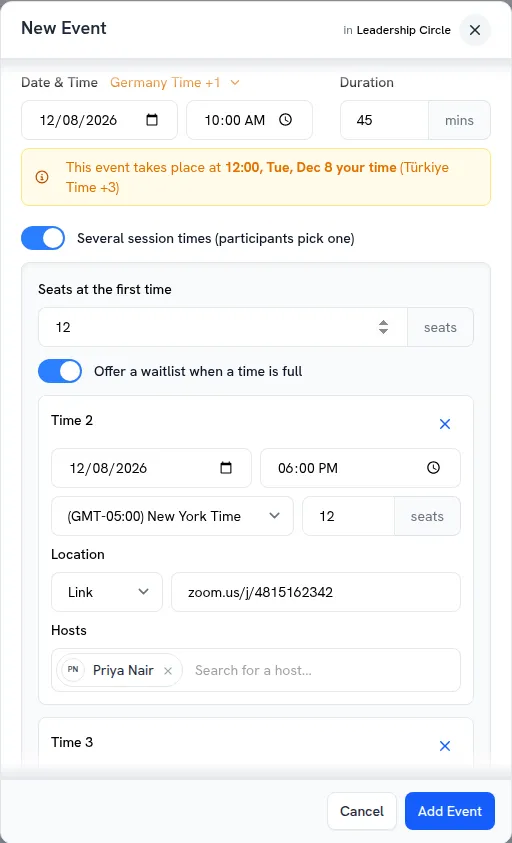
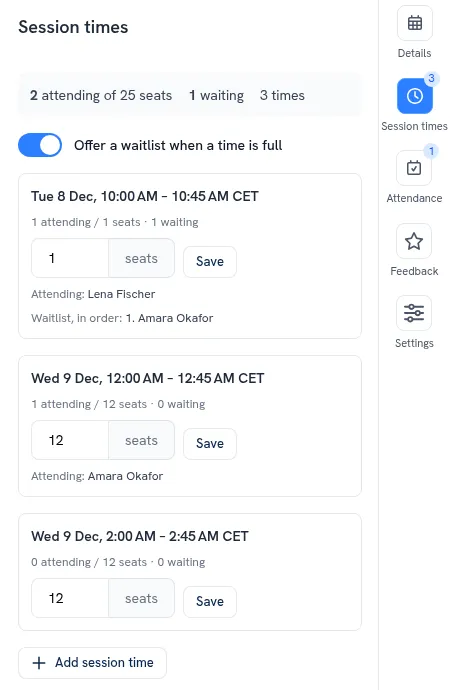
Add each time with its own seats, host and meeting link
Participants see one event and pick the time that fits them
A full time offers a waitlist
See who is coming to each time