


To add quizzes to a coaching program, decide what each quiz is for before you write a question: a knowledge check at the end of a module, a readiness check before a live session, or a scored final check at the end. Keep each one short, write an explanation for every answer so a wrong choice teaches something, and read the scores before your next session so they change what you do. In upcoach, a quiz is an activity you add to a module, and every participant’s score lands in one Results tab.
This guide covers where quizzes earn their place, how to write questions for adults who are not in school, and how to set one up step by step.
Why add quizzes to a coaching program?
A coaching program is not a course, and nobody joined to be tested. So a quiz has to do a job for the participant and for you, or it is just friction.
It does two jobs well. For the participant, answering a question pulls an idea back out of memory, and the explanation that follows corrects a misunderstanding before they act on it. For you, the scores show which idea did not land, while there is still time to come back to it on the next call. Without them you find out in week six, when someone applies the method wrong.
That second job is the one coaches tend to miss. A quiz is a cheap way to see inside the group’s understanding between sessions.
Three ways to use quizzes in a coaching program
1. A knowledge check after a module
End each module with three or four questions on its key ideas. If the module is “Week 1: Leading yourself”, ask about the two or three ideas you most need people to carry into week 2.
The explanation does most of the work here. A participant who picks the wrong answer reads why it is wrong right away, in your words. Then look at the scores across the group: if most people missed the same question, open the next session with that idea.
2. A readiness check before a live session
Put a short quiz in the module before a group call, for example “Are you ready for Thursday’s role-play?” Ask about what people need to know to take part: the steps of the model you will practise, or the terms you will use.
Open the results before the call. You will see who has the basics and who needs a five-minute recap first. If you run your program as a cohort with a weekly live session, as in how to run a cohort-based coaching program, this fits right before each session.
3. A scored final check
Close the program with a longer check that covers each module. It gives participants a clear end point, and it gives you a record of what each person took away. The scores sit next to the rest of their progress, so you can use them in your own completion decisions, in a debrief call, or in what you report back to a client organization.
How to add a quiz to a coaching program, step by step
- Pick the job. Knowledge check, readiness check or final check. Write it at the top of your draft so every question serves it.
- List what people must know. For a knowledge check, the two to four ideas the module exists to teach. For a readiness check, what someone needs before the session starts. Leave out anything nice to know.
- Write one question per idea. Use a real situation from the participant’s work rather than a definition: “Your report says the deadline is impossible. What do you do first?” is better than “What is active listening?”
- Choose single or multiple choice. Single choice when one answer is right. Multiple choice when several are, which works well for “which of these are signs of…” questions.
- Write wrong answers people actually believe. The best wrong answer is the mistake you see participants make in sessions. If nobody would pick an option, it does not test anything.
- Write an explanation for every question. One or two sentences on why the right answer is right. Participants read it whether they got the question right or not, so it doubles as a short lesson.
- Set the points. Give every question the same points unless one idea matters much more than the others.
- Place it and read the results. Put the quiz at the end of the module or before the session it prepares for. Then put a time in your calendar to open the results before your next call.
Quiz, worksheet or check-in?
A quiz is one of several ways to ask participants questions. Pick by the kind of answer you want:
| Use | When the answer is | Example |
|---|---|---|
| Quiz | Right or wrong, and you can mark it in advance | ”Which of these is the first step of the feedback model?” |
| Worksheet | Open-ended, in the participant’s own words | ”Describe a conversation you avoided this week and why.” |
| Check-in | The same questions, answered again and again | ”How confident do you feel leading your team this week?” |
Most programs use all three. If you are looking for self-assessments and personality instruments instead, see coaching assessment tools.
Checklist before you publish a quiz
- The job is written down: knowledge, readiness or final check
- Three to five questions for a module or readiness check
- Each question is a situation from the participant’s work, not a definition
- Each wrong answer is a mistake people really make
- Every question has an explanation
- The quiz sits where its score will be useful: end of module or before the live session
- A time in your calendar to read the results before the next call
Adding quizzes to a coaching program on upcoach
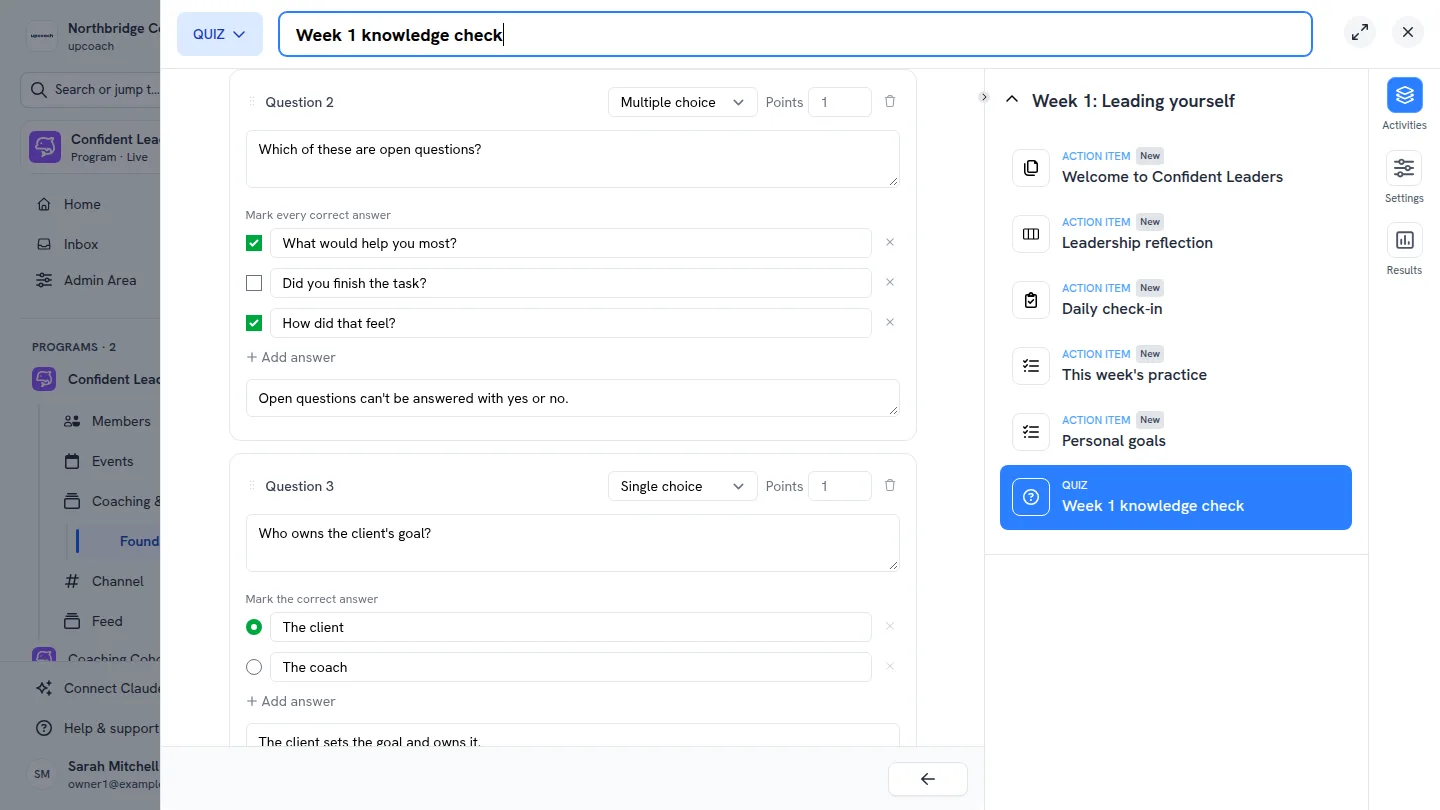
In upcoach, a quiz is an activity type in your program’s curriculum, available on every plan listed on the pricing page. Open a module, click + Activity and select Quiz. Each question is single choice or multiple choice, with 2 to 10 answers, its correct answer or answers marked, its own points (1 by default) and an optional explanation. A quiz can hold up to 100 questions, and you can also build one in the Activity Library to reuse it across programs.
Participants answer every question, then submit. They see their score in percent and points, which answers were right and your explanation for each question. Each participant submits a quiz once, and submitting completes it, so it counts toward their progress like any other activity. Participants never see each other’s results.
This 35-second video shows the whole flow: building a quiz, a participant taking it, and reading the scores.
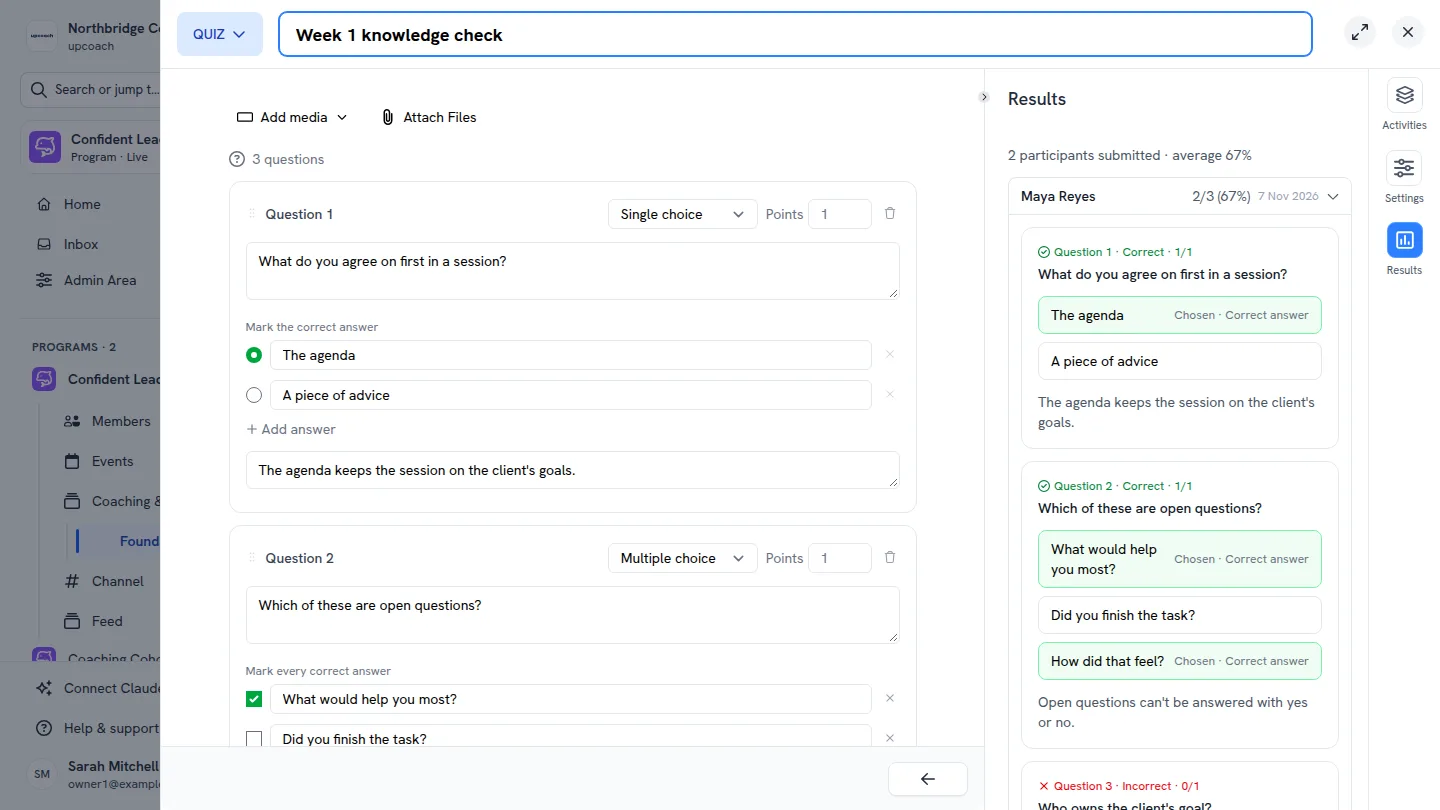
You see the scores in three places. The quiz’s Results tab shows how many participants submitted, their average score, and each participant’s answers question by question. Program Reports show each quiz’s score on the participant’s activity list, and the CSV export has it in its Score column.
If you plan programs in Claude or ChatGPT, a workspace owner or admin can connect them to upcoach and ask for a quiz in plain words: “Create a quiz called ‘Session basics check’ in Week 1 of my Confident Leaders program, three questions, one point each, with a short explanation for every question.” The assistant adds it to the module, and you open it to check it before participants see it. The quizzes help article covers every step and setting.
Want a program to try this on? The free New manager: your first five one-to-ones training gives you five days of lessons and worksheets; add a three-question knowledge check after day 1 and see what the scores tell you. You can start a 14-day free trial with no credit card required.
Frequently asked questions
Where should a quiz go in a coaching program?
In three places: at the end of a module to check its key ideas, in the module before a live session to see who is ready for it, and at the end of the program as a scored final check. Put each quiz where its score will change what you do next.
How many questions should a coaching quiz have?
Three to five for a knowledge check or a readiness check, so it takes a few minutes and people finish it. A final check can be longer, ten to fifteen questions that cover each module. In upcoach a quiz can hold up to 100 questions.
How is a quiz scored in upcoach?
Each question has its own points, 1 by default. A question earns its points only when exactly its correct answers are chosen. Participants see their score as a percentage and in points as soon as they submit, along with the right answers and your explanation for each question.
Can participants take an upcoach quiz more than once?
No. Each participant submits a quiz once, and the result they see stays the same when they open it again. Submitting completes the quiz, so it counts toward their progress like any other activity.
Where do I see my participants’ quiz scores?
In the quiz’s Results tab, which shows how many people submitted, the average score and each participant’s answers. Each score also shows in Program Reports on the participant’s activity list, and in the Score column of the CSV export.
Should I use a quiz or a worksheet?
Use a quiz when a question has a right answer you can mark in advance. Use a worksheet when you want open-ended reflection in the participant’s own words, and a check-in when you want the same questions answered on a regular rhythm.