


Use quizzes to check what participants learned
Use quizzes to check what participants learned
A quiz asks participants scored single and multiple choice questions. When they submit, they see their score and the correct answers, and you see every participant’s score and answers.
Before you begin
- You need a program with the Coaching & Learning app installed
- You need at least one section and one module in your curriculum (see Build your curriculum)
Create a quiz
- Open your program and click the section where you want the quiz.
- Inside a module, click + Activity, or open Activity Library in the Admin Area and click Add Activity.
- Select Quiz.
- Give the quiz a title, then write your first question.
- Choose Single choice (one correct answer) or Multiple choice (one or more correct answers).
- Type the answers and mark the correct one, or every correct one.
- Set the Points for the question (1 by default) and, if you like, an explanation that participants see after they submit.
- Click Add question for the next one, drag questions by the grip handle to reorder them, then save.
A quiz can have up to 100 questions, each with 2 to 10 answers. It can’t be saved while a question has no correct answer marked; the question says what’s missing.
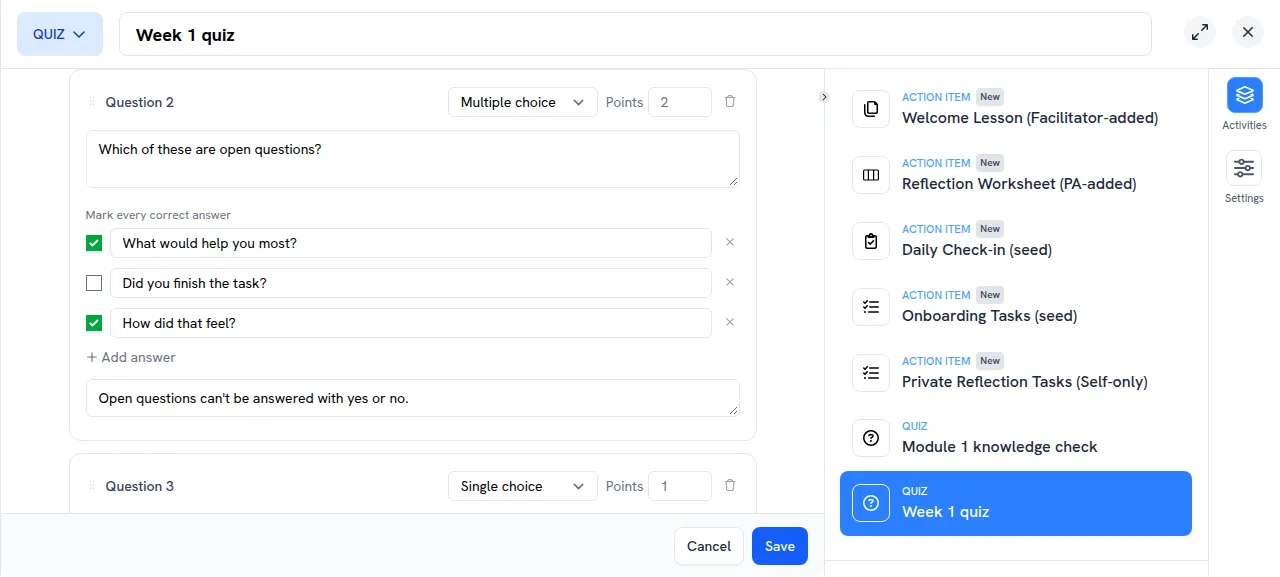
A quiz is an activity like any other: you can add it to more modules, duplicate it or delete it from the activity library.
How participants take a quiz
Participants open the quiz in their module, choose their answers and click Submit answers once every question is answered. Each participant submits a quiz once.
A question earns its points only when exactly its correct answers are chosen. After submitting, participants see:
- their score as a percentage and in points
- for each question, whether they got it right, which answers they chose and which were correct
- your explanation, where you wrote one
Submitting completes the activity, so it counts toward the participant’s progress like any other activity. Opening the quiz again shows the same result.
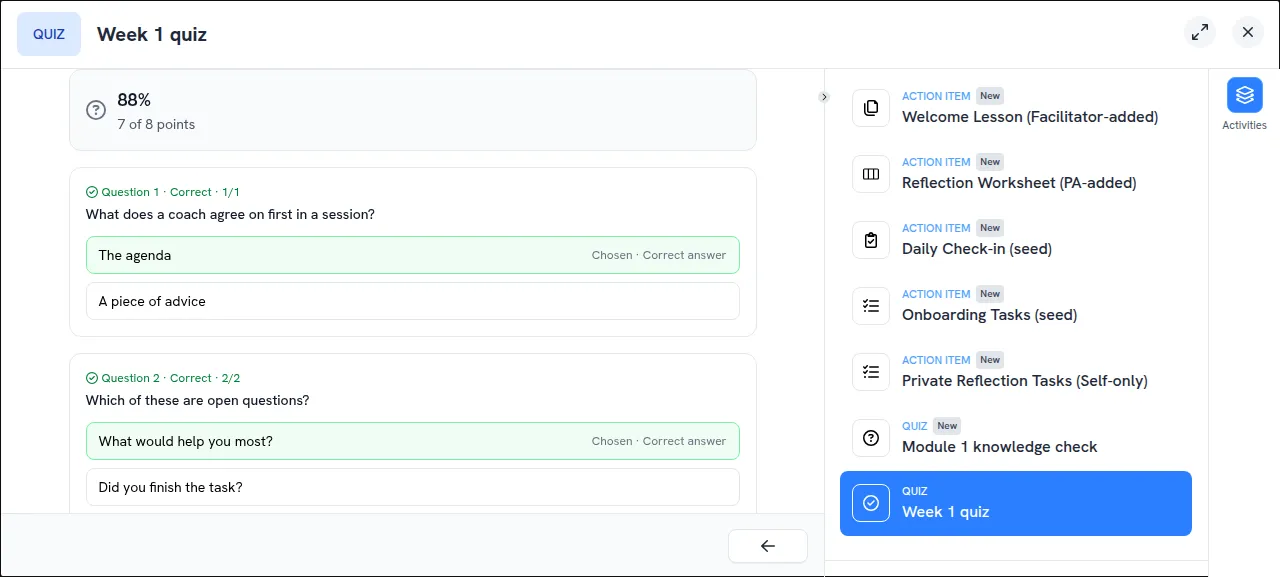
Participants don’t see the correct answers before they submit, and they never see other participants’ results.
See your participants’ scores
Open the quiz in your program and select the Results tab. It shows how many participants submitted, their average score and each participant’s score. Click a participant to see their answers question by question.
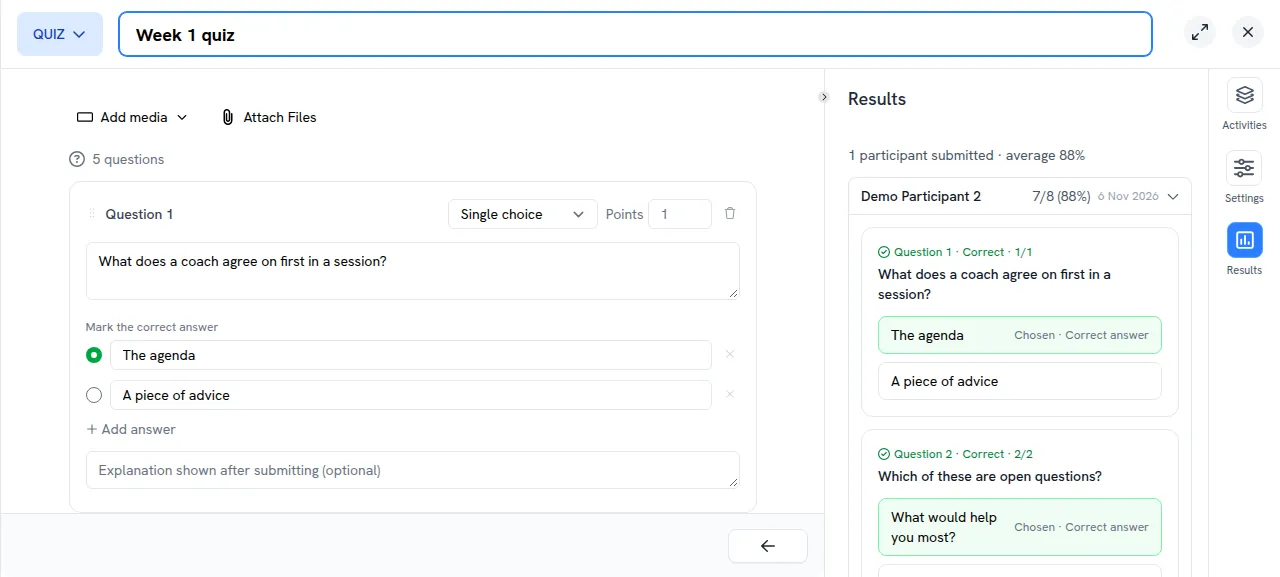
Owners, admins, program admins and coaches see the Results tab.
Scores also appear in reports:
- Space Reports: open a participant to see each quiz’s score next to its viewed and completed dates
- Progress export (CSV): the activities export has a Score column, for example
7/8 (88%)
The score is saved when the participant submits, so later changes to the questions don’t change it.