


Create and revoke API tokens
Create and revoke API tokens
An API token lets a script or tool use the upcoach API in your workspace. Make one token per tool, so you can revoke one without breaking the others.
Only an organization Owner, Admin or Implementation Admin can create and revoke tokens. A token acts as the person who created it: see Who can use it.
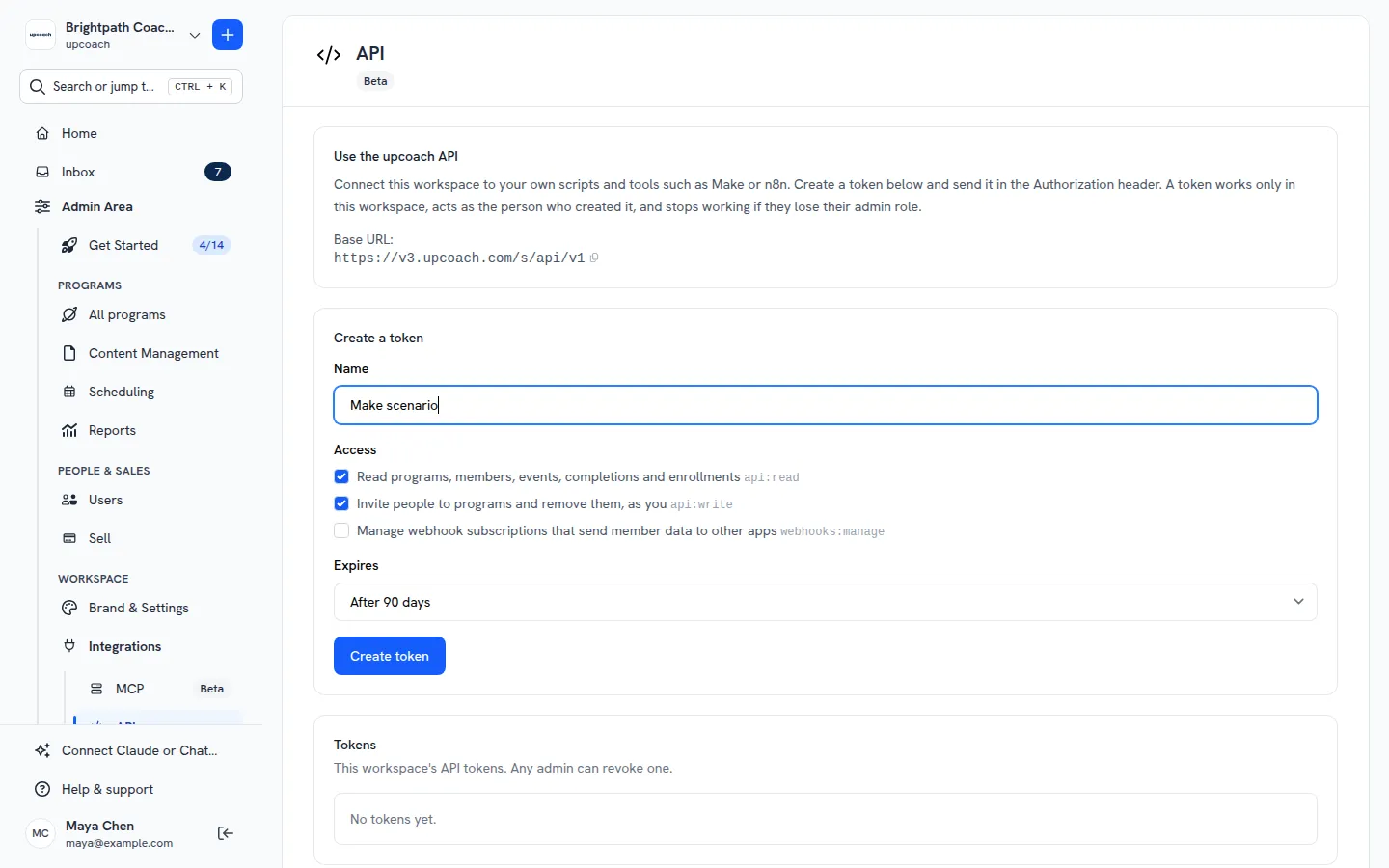
Create a token
- Open Admin Area > Integrations > API
- Under Create a token, enter a Name that says which tool will use it, for example “Make scenario”
- Under Access, tick what the token may do. Read and invite are ticked to start with:
- Read programs, members, events, completions and enrollments (
api:read) - Invite people to programs and remove them, as you (
api:write) - Manage webhook subscriptions that send member data to other apps (
webhooks:manage)
- Read programs, members, events, completions and enrollments (
- Under Expires, pick After 30 days, After 90 days (the default) or After 365 days. The workspace Owner can also pick No expiry (10 years)
- Click Create token
Copy the token once
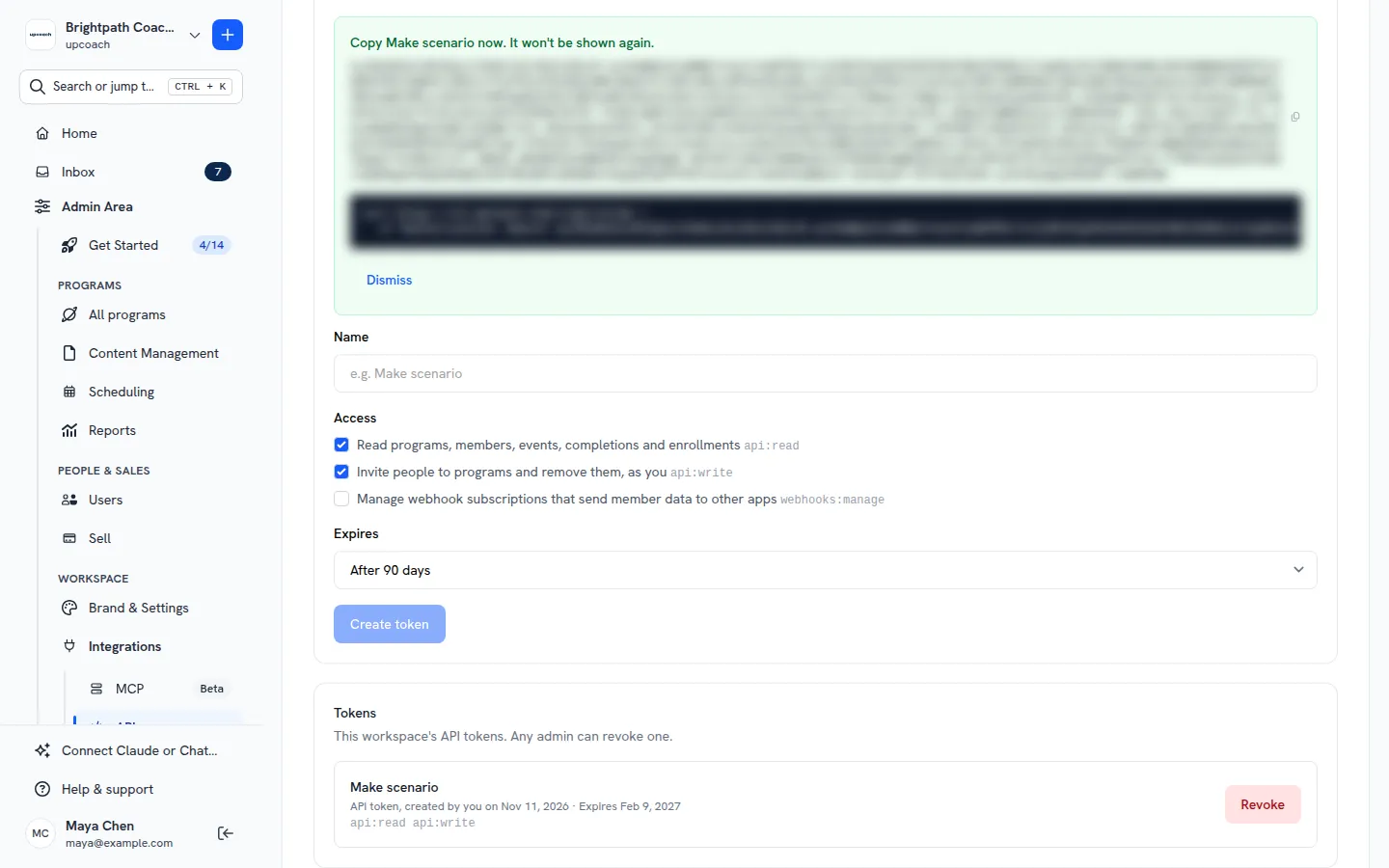
The new token appears in a green box: “Copy Make scenario now. It won’t be shown again.” Click the copy button next to it and store it where your tool keeps secrets. upcoach doesn’t keep a copy.
The box also shows a curl command that calls the API with the new token, so you can check it works.
If you try to leave the page before copying, upcoach asks you first. If you lose a token, revoke it and create a new one.
See your tokens
Tokens lists the workspace’s live tokens: each one’s name, who created it and when, when it expires, when it was last used, and its scopes. Expired and revoked tokens leave the list.
Revoke a token
Any Owner, Admin or Implementation Admin can revoke any token in the workspace.
- Open Admin Area > Integrations > API
- Under Tokens, click Revoke next to the token
- Click Revoke again to confirm
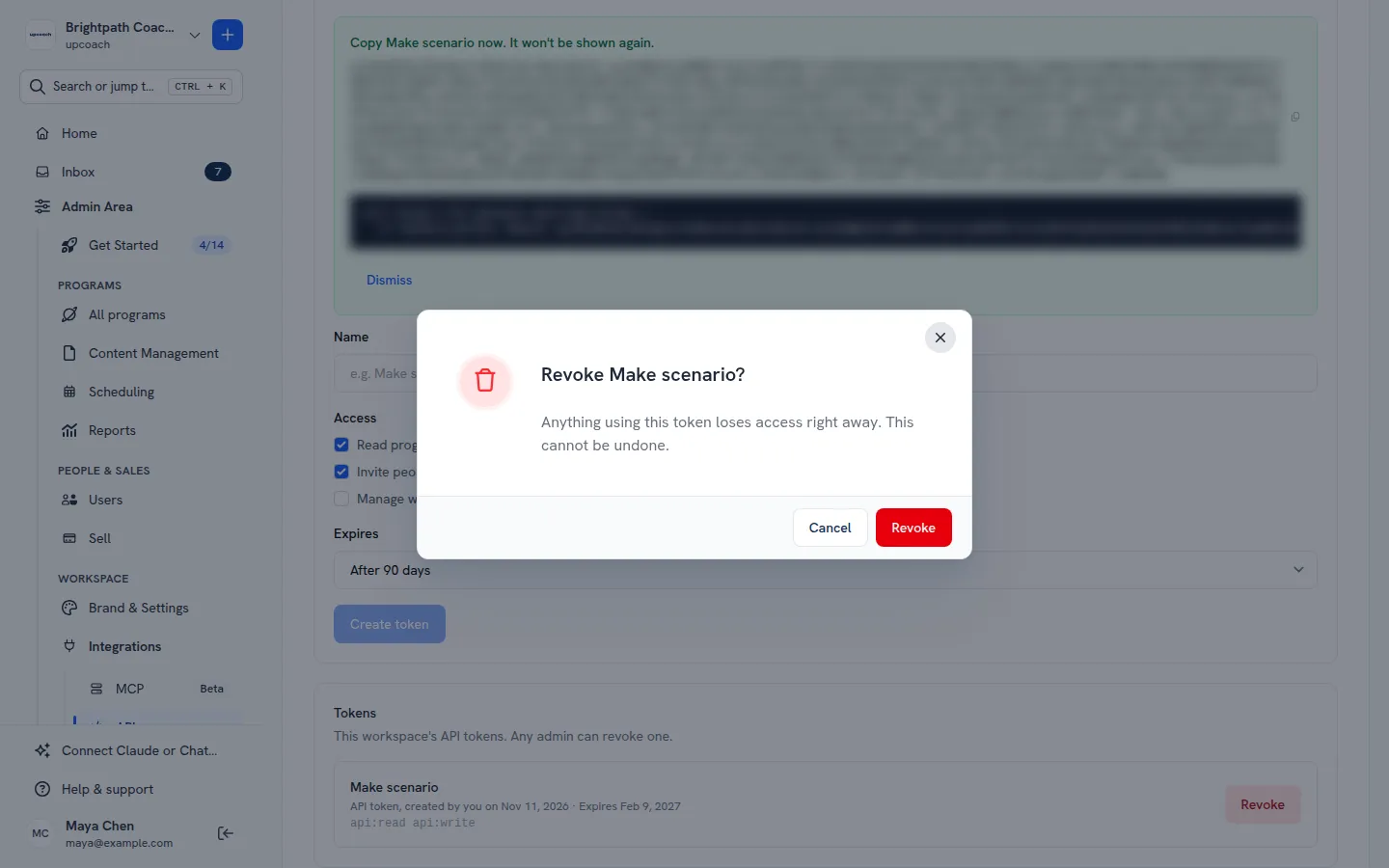
Anything using the token loses access right away: its next request gets a 401. Webhook subscriptions the token made over the API stop too. Webhooks added on the Webhooks page are not affected.
What to do next
- Use the upcoach API and webhooks: the base URL, errors and rate limits
- upcoach API endpoint reference: what you can call with your token
- Send events to your tools with webhooks: get events as they happen