


Change the email address you sign in with
Change the email address you sign in with
You can change the email address you use to sign in to upcoach. To keep your account safe, upcoach checks both your current address and the new one.
Change your email
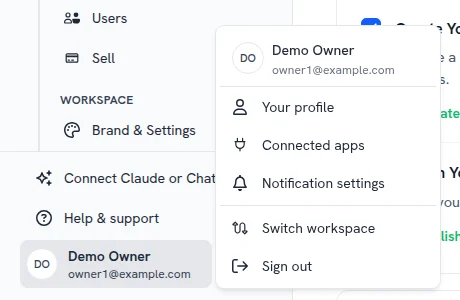
- Click your name at the bottom of the sidebar and select Your profile.
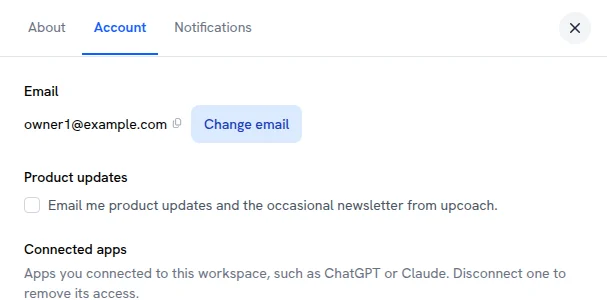
- Open the Account tab. Under Email, click Change email.
- Enter your new email address.
- upcoach sends a one-time code to your current address. Enter it to continue.
- upcoach then sends a confirmation link to your new address. Open it to finish. The link works once, for 24 hours.
Your email changes as soon as you open the link. upcoach also sends a notice to your old address, so you’ll know if someone else made the change.
Good to know
- Starting again cancels the earlier change. If you start a new email change, any link from an earlier attempt stops working.
- A password reset cancels a pending change. If you reset your password before opening the confirmation link, start the change again.
- The link expired? Start again from step 1; you’ll get a new code and a new link.
- Program Sponsors don’t see Change email on their profile.
- No access to your current email? You can’t receive the code. If you run your workspace, write to us through the help chat. If you’re a participant, ask your coach to contact us.