


Create and share a program impact report
Create and share a program impact report
An impact report turns a program’s results into a page you can send to a sponsor, a client organization or your own team. It shows totals for the whole group, never individual participants. It includes a short AI-written summary, and every statement in it points to the figure it rests on.
Before you begin
- You need to be the program’s owner, an admin, or one of its program admins. Facilitators, sponsors and participants can’t create or share reports.
- The program needs at least five enrolled participants. For a smaller program, Create impact report is disabled, and the tab says how many it has.
- Your plan sets how many impact reports you can create each month, and AppSumo plans include 1 a month. The Impact report tab shows how many you’ve used.
Create a report
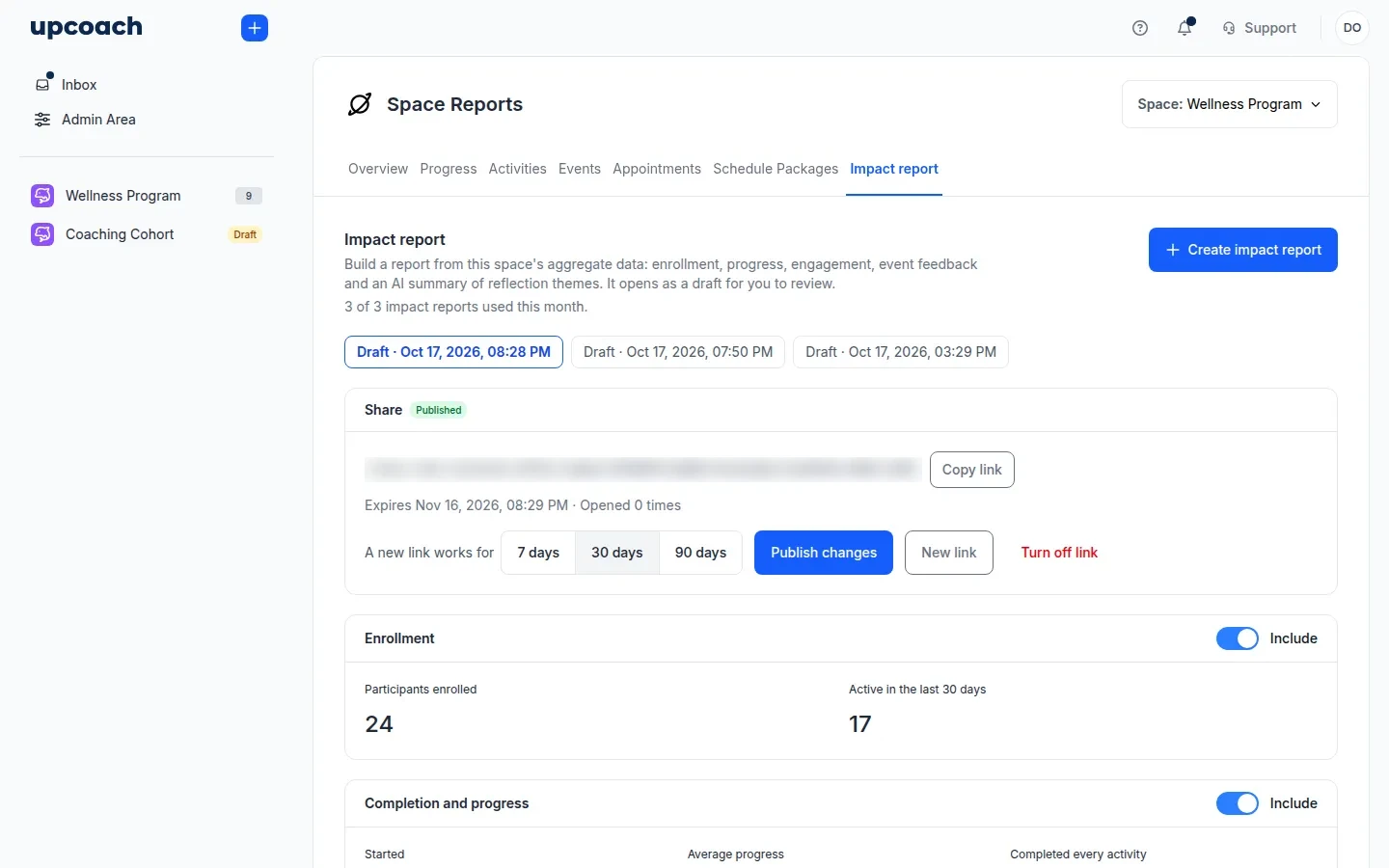
- Open Admin Area > Reports > Space Reports and pick the program. Program admins open Space Reports from the sidebar.
- Open the Impact report tab.
- Click Create impact report.
The report opens as a draft, and the summary takes a moment to write. Nothing is shared until you publish.
Review the draft
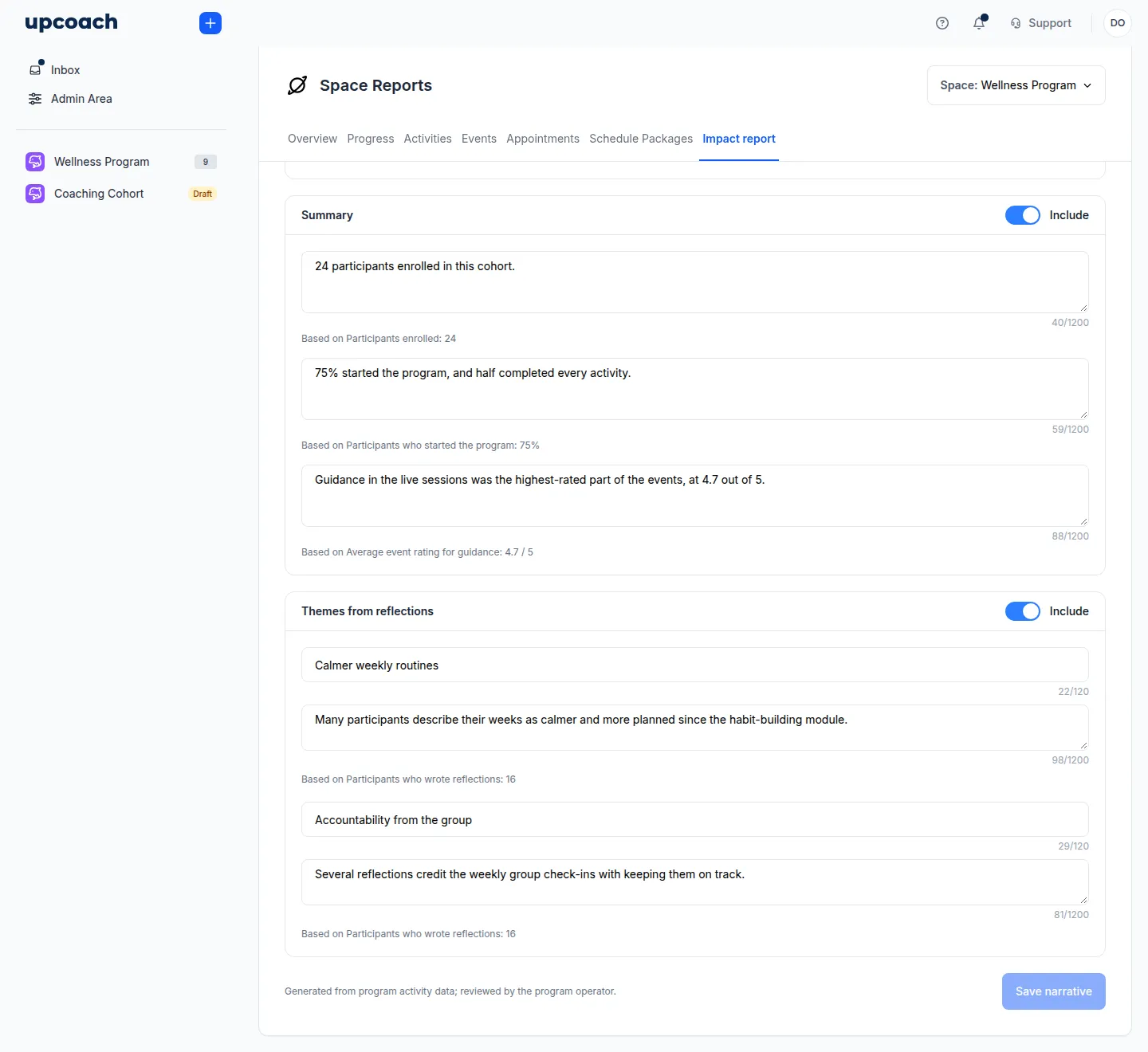
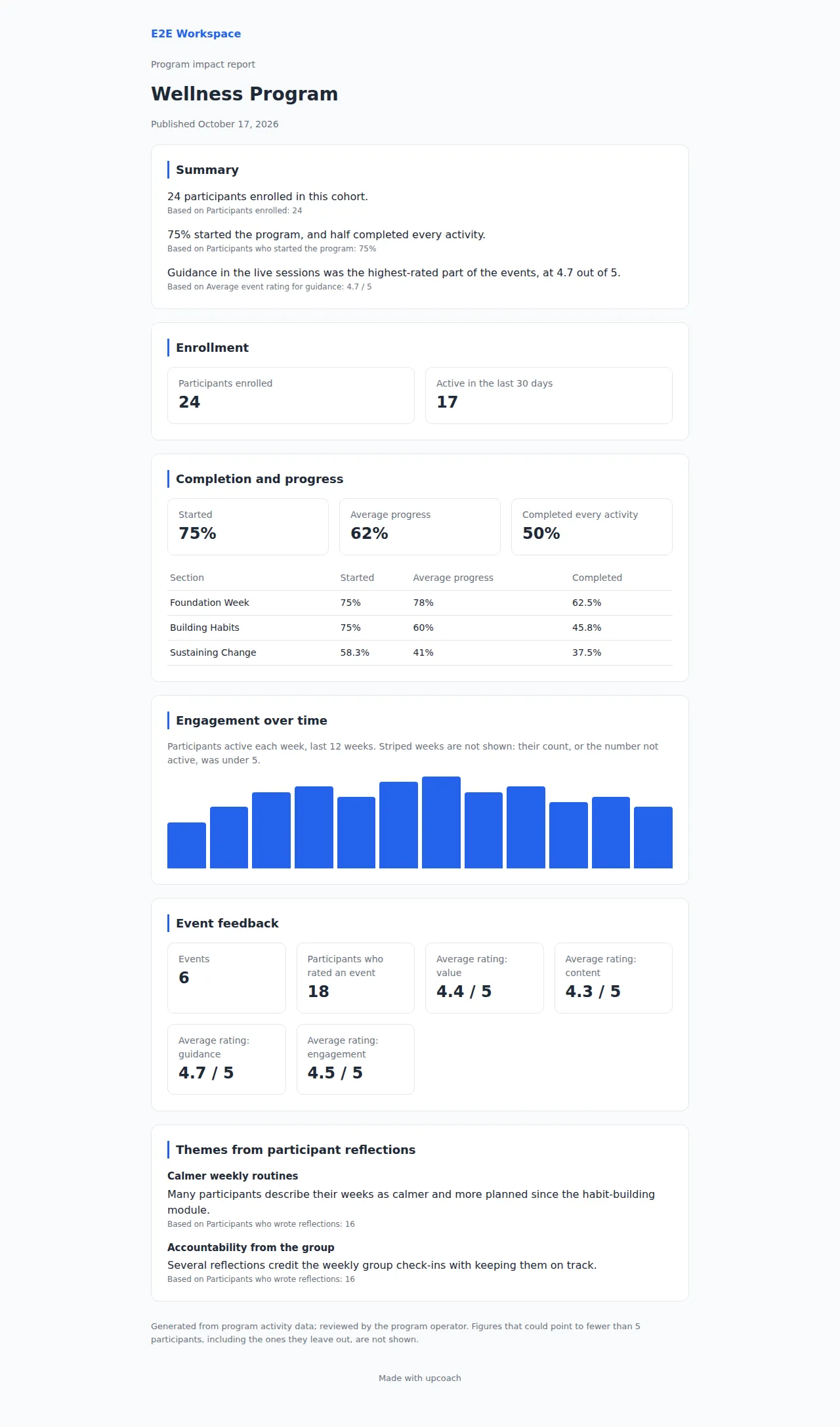
The draft shows the same sections the shared page will have: Enrollment, Completion and progress, Engagement over time, Event feedback, Summary, and the themes, headed Themes from reflections in the draft and Themes from participant reflections on the shared page.
- Turn off a section with its Include switch, if you’d rather not share it.
- Edit the summary and themes to fix wording or remove anything you don’t want to say. Then click Save narrative.
- Watch for “Left out when shared” under a line. It means the line rests on a section you’ve switched off, or on a figure too small to share.
Themes are drawn from participants’ reflections. Each one must come from at least five different participants. upcoach asks the AI to write themes as paraphrased patterns, and you review them before you share.
How small groups are protected
A figure that could point to one to four people is never shared. That covers the figure itself (“2 completed”) and the people it leaves out (“7 of 8 were active” says one wasn’t). On the shared page these figures read Not shown (small group), and such weeks in Engagement over time are striped.
Publish and share
- In the Share card, choose how long the link works: 7, 30 or 90 days. It’s 30 days unless you change it.
- Click Publish, then confirm.
- Click Copy link and send it to whoever needs the report.
Before publishing, upcoach checks the narrative and the program and section names, and shows you which words to change.
- Always blocked in the narrative: email addresses, web links and @handles. Remove them before you publish.
- Also blocked: a figure the shared page doesn’t show. Reword the line.
- Your call: a word that may be a participant’s name, a phone-like number, a bare domain, or something in the program or section names, such as a date like “2026-10-24”. If none of these identifies anyone, choose Publish anyway.
The shared page shows the report as it was when you published it. To share later edits, click Publish changes: the link stays the same.
Upgraded plan required — Your logo and brand color on the shared page may not be available on all plans.
Turn off or replace a link
- Turn off link stops the link working right away.
- New link replaces the address. The old one stops working, and you can send the new one to the people who still need the report.
Anyone who opens an expired or turned-off link sees “This report link is no longer available”. The Share card shows how many times the link was opened.