How to duplicate an Agenda?
You like the layout of one of the existing agendas, but you want to tweak it a bit without messing up the existing one. Easy - just duplicate the Agenda, make edits and start using it.
1. Head over to the Admin page of the upcoach portal:
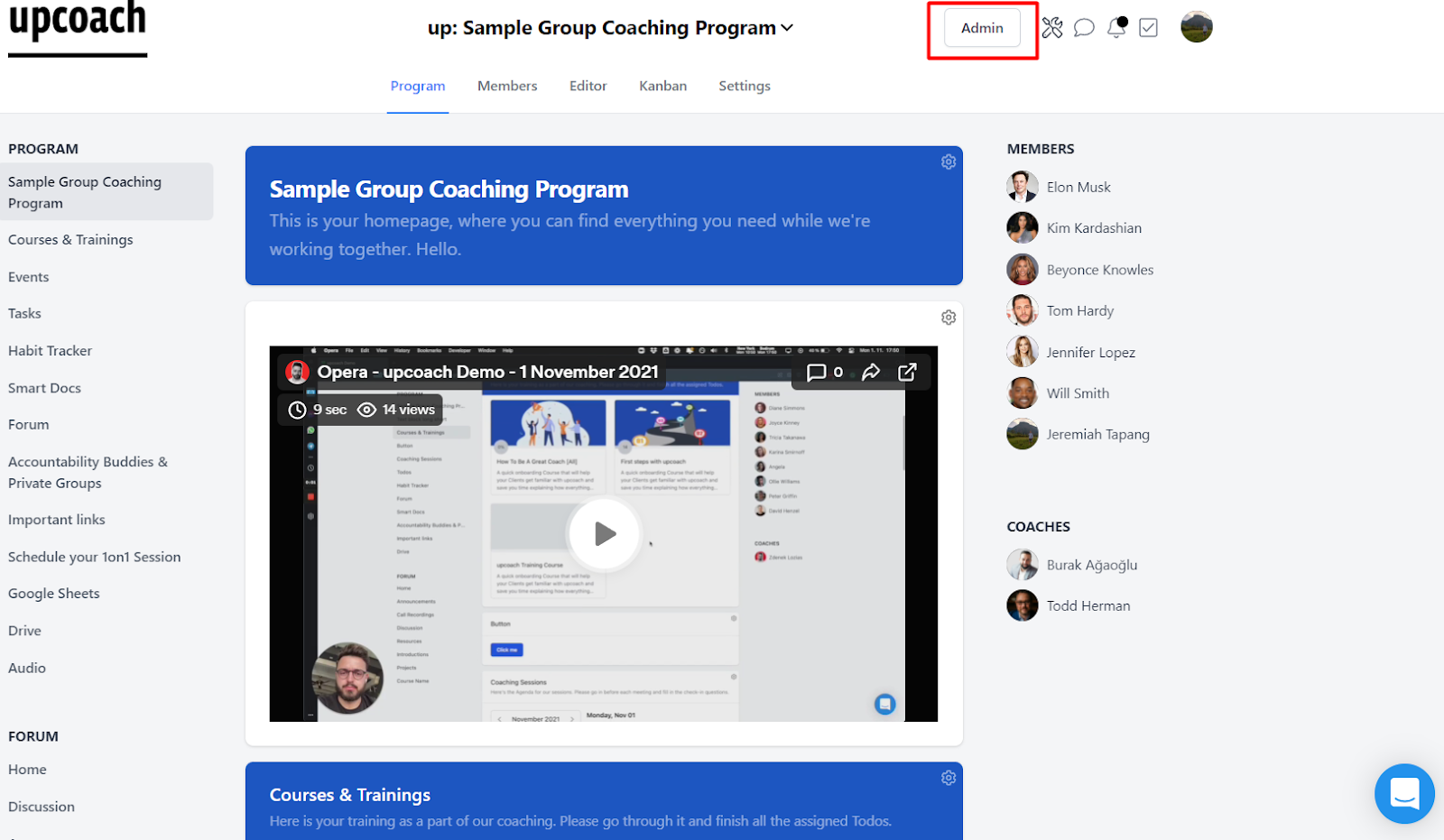
2. On the left-hand panel, under Build & Manage, click on Agendas. Here you will see all the Agendas that you created for different purposes:
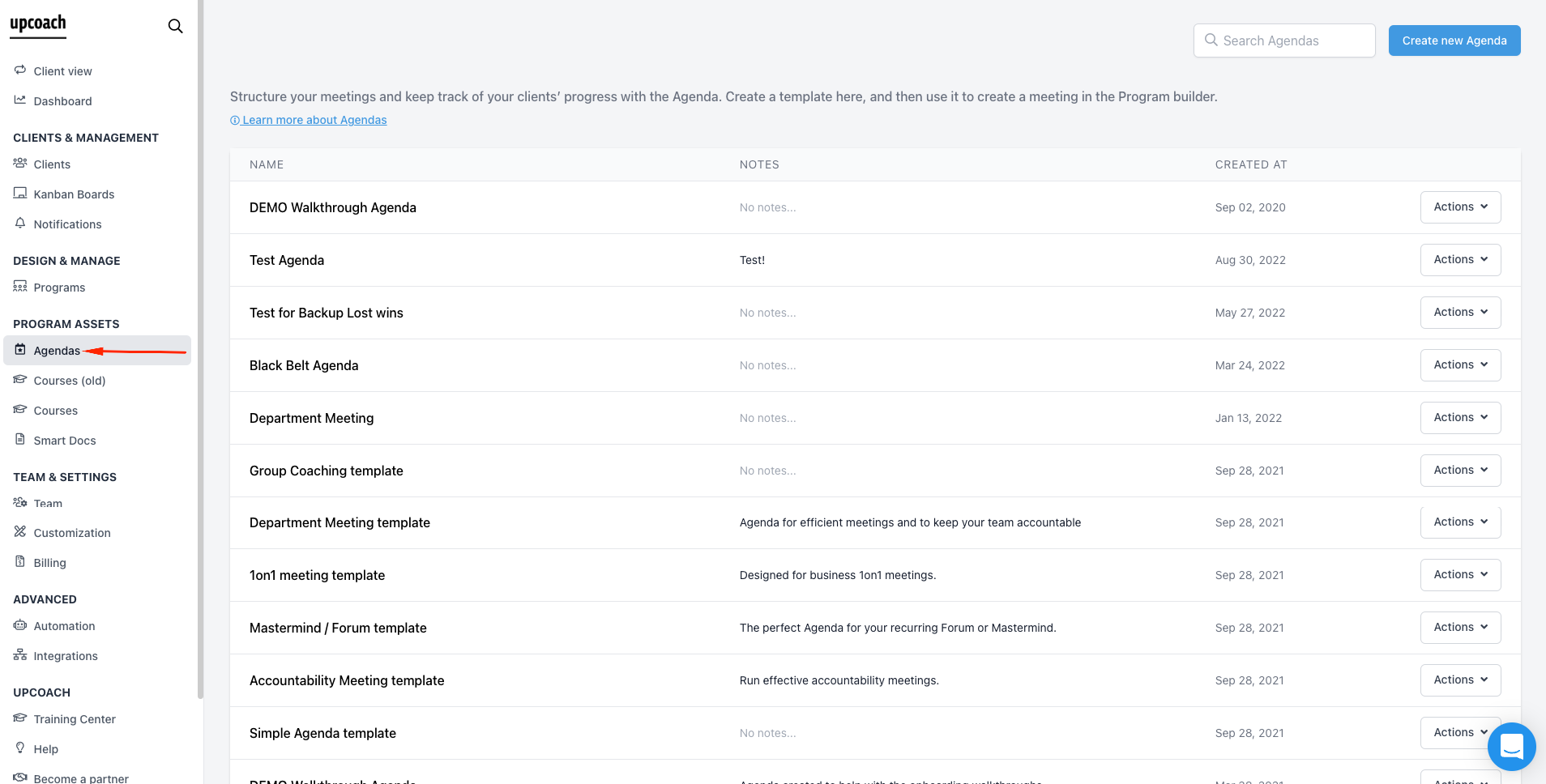
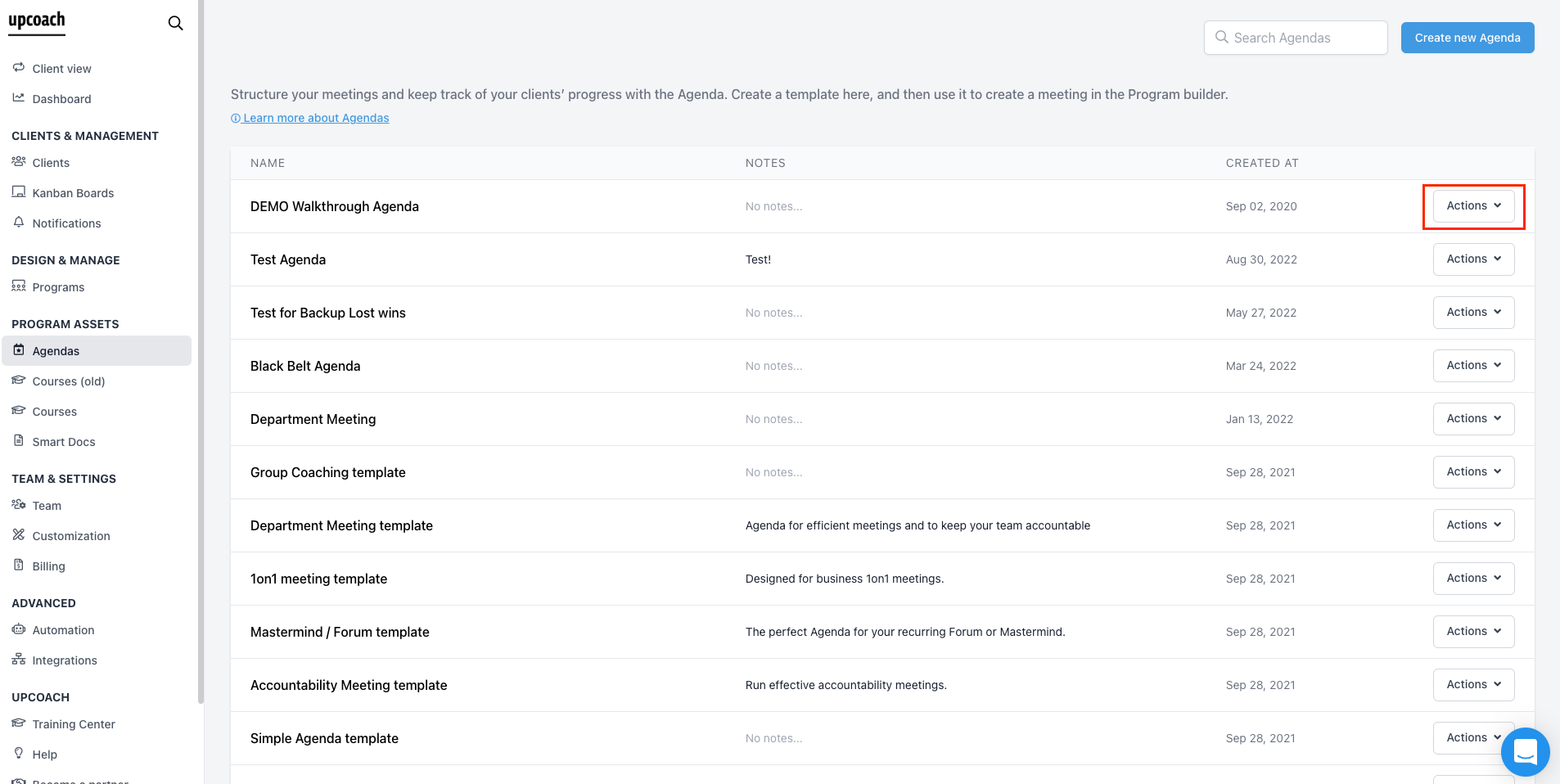
3. Look for the Agenda that you would like to duplicate, then click the Action button on the right:
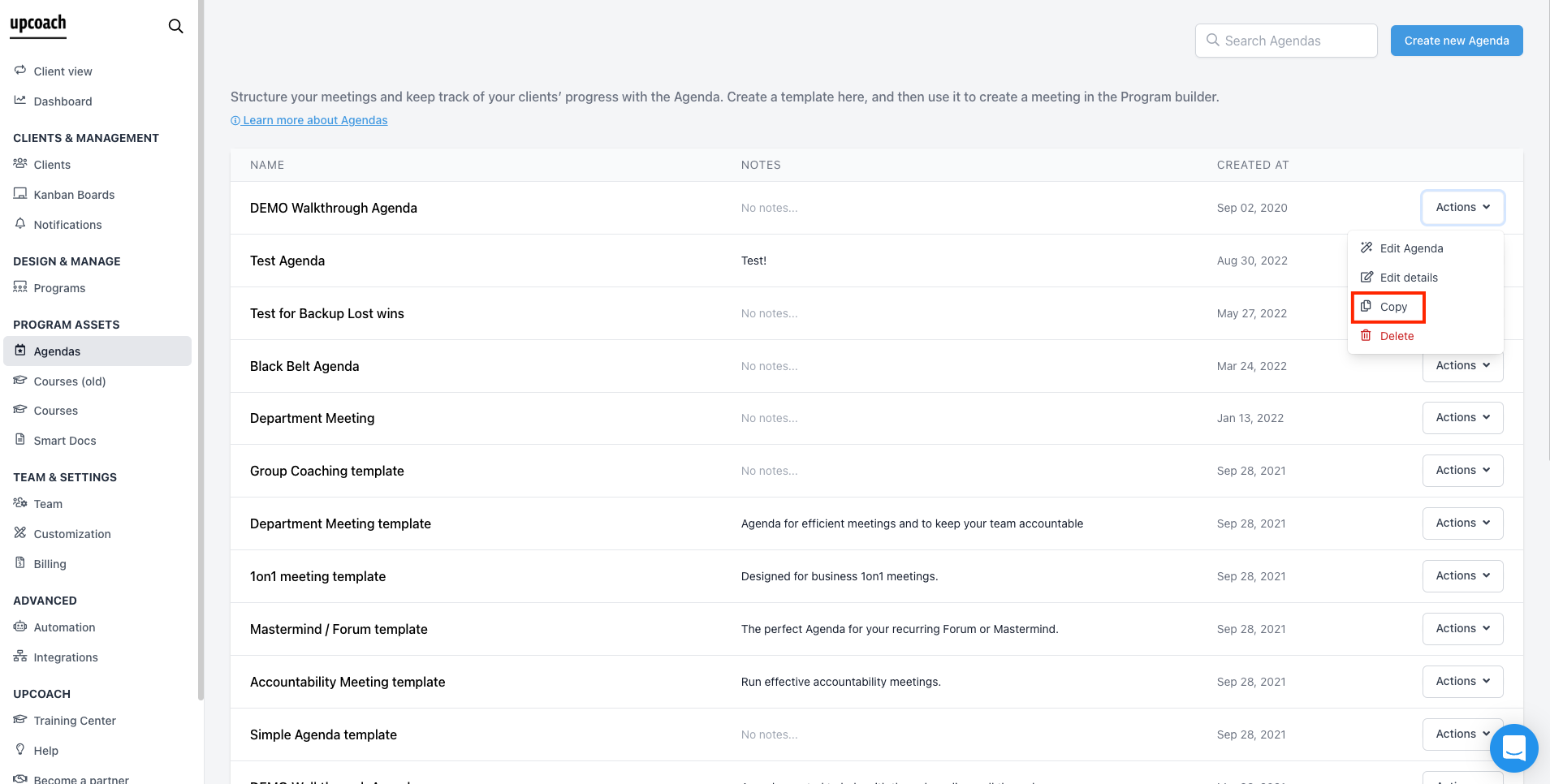
4. On the dropdown, click Copy:
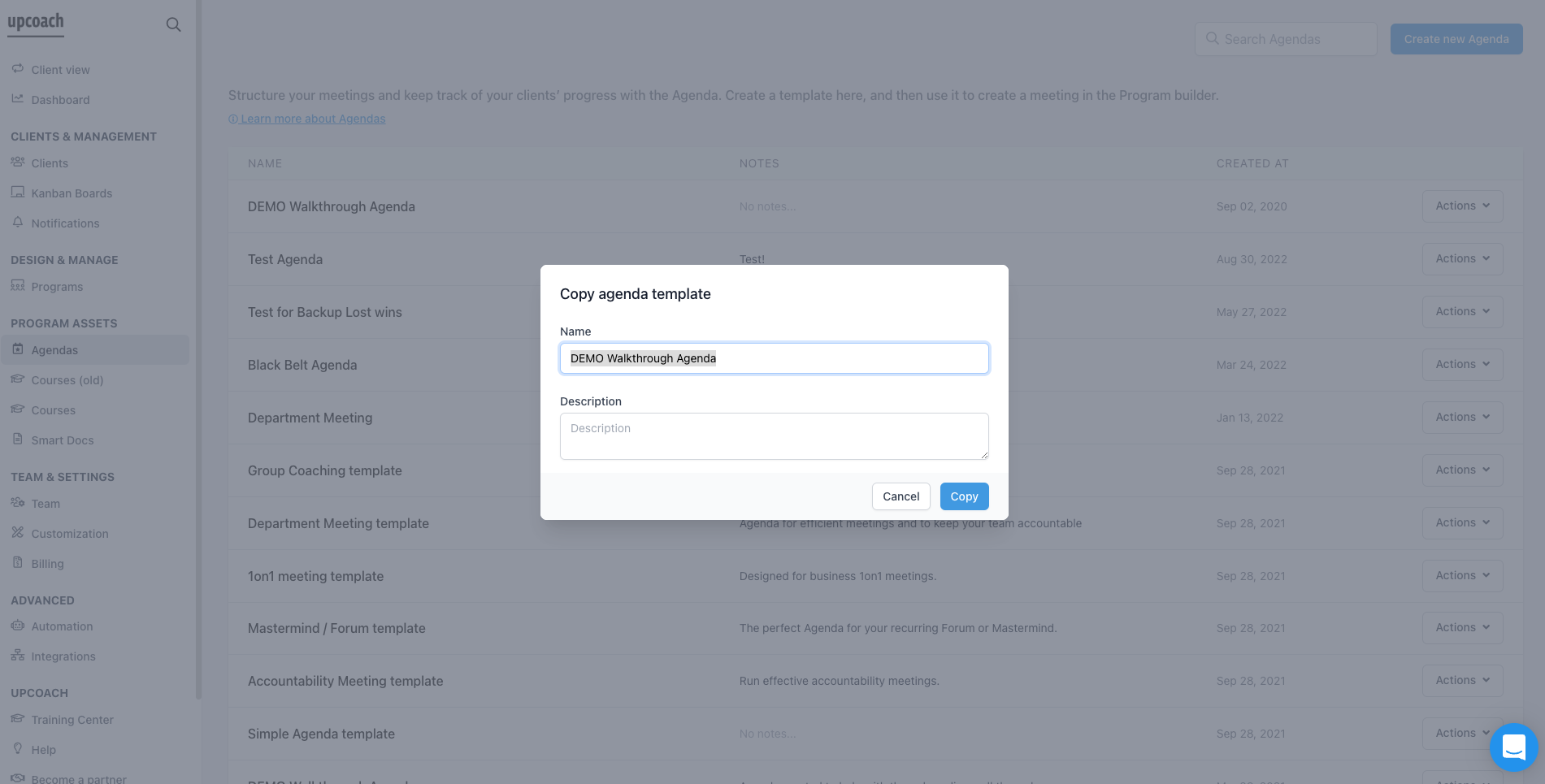
5. Rename the copy of an Agenda, and add a description if needed. Once Name and Description are populated, click Copy:
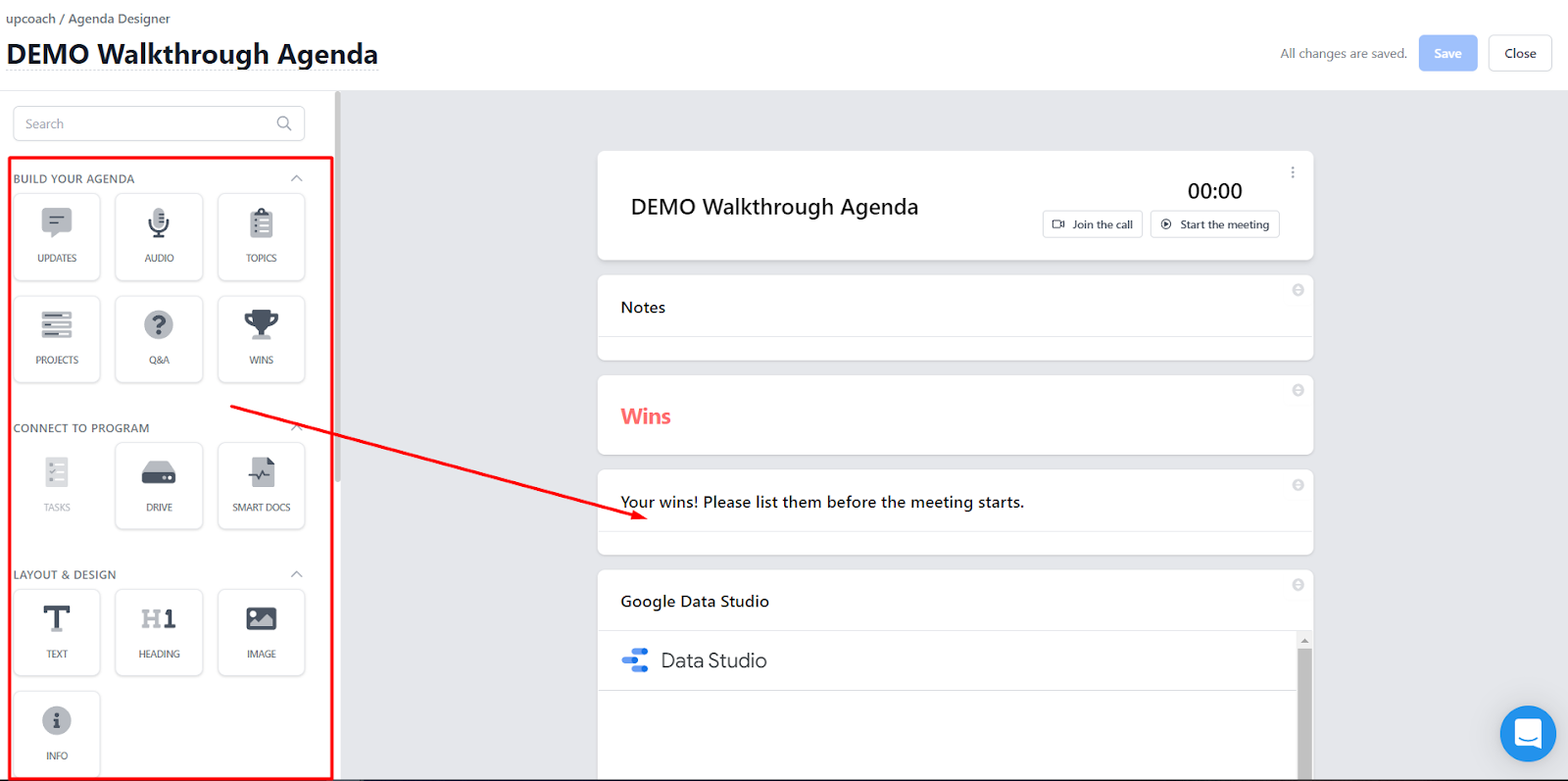
6. This will take you to the Agenda Designer, where you can drag and drop blocks from the left panel to the right and make edits and tweaks:
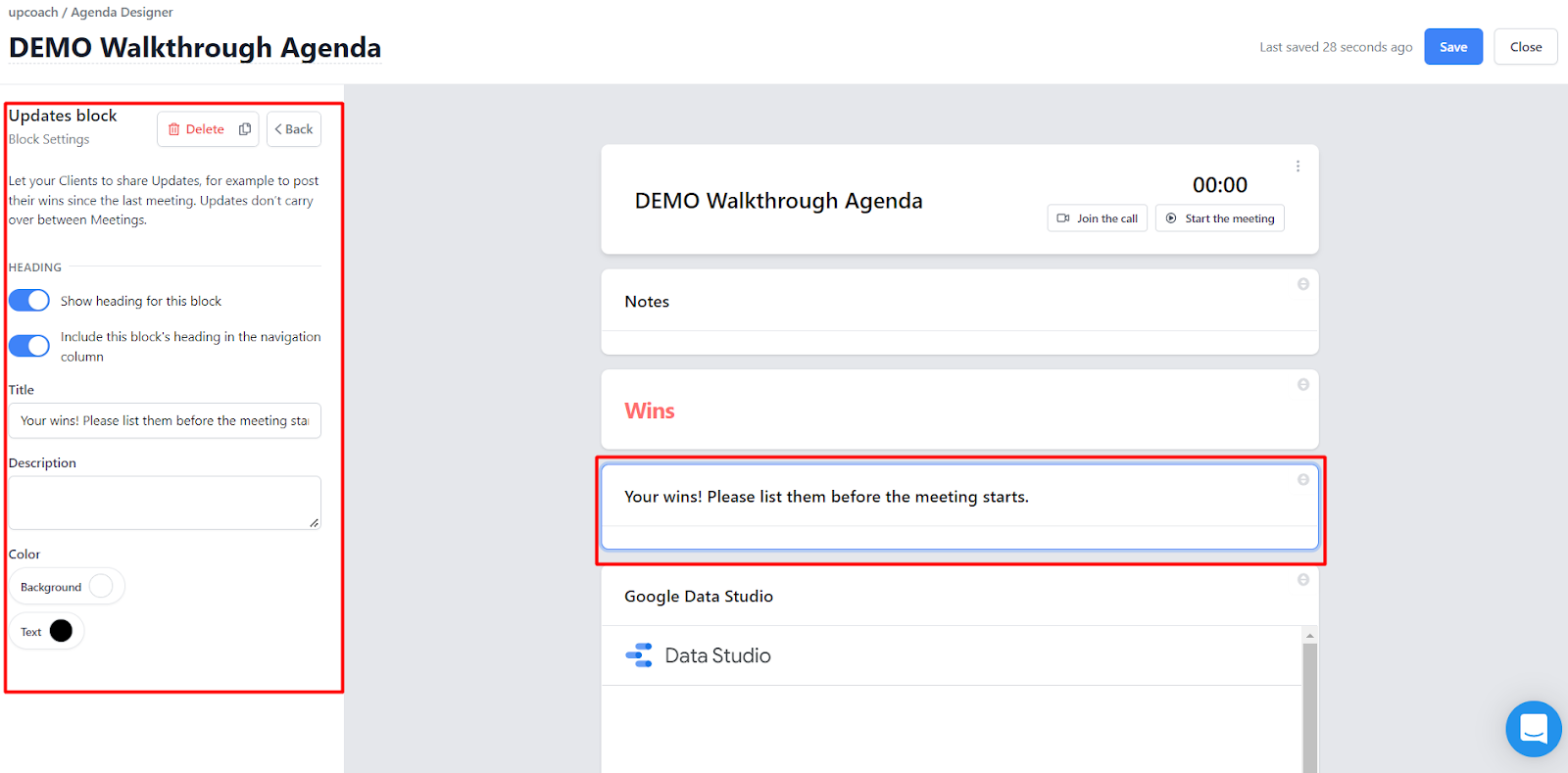
7. If you wish to make additional changes to the existing blocks, just click the block and edit on the left sidebar:
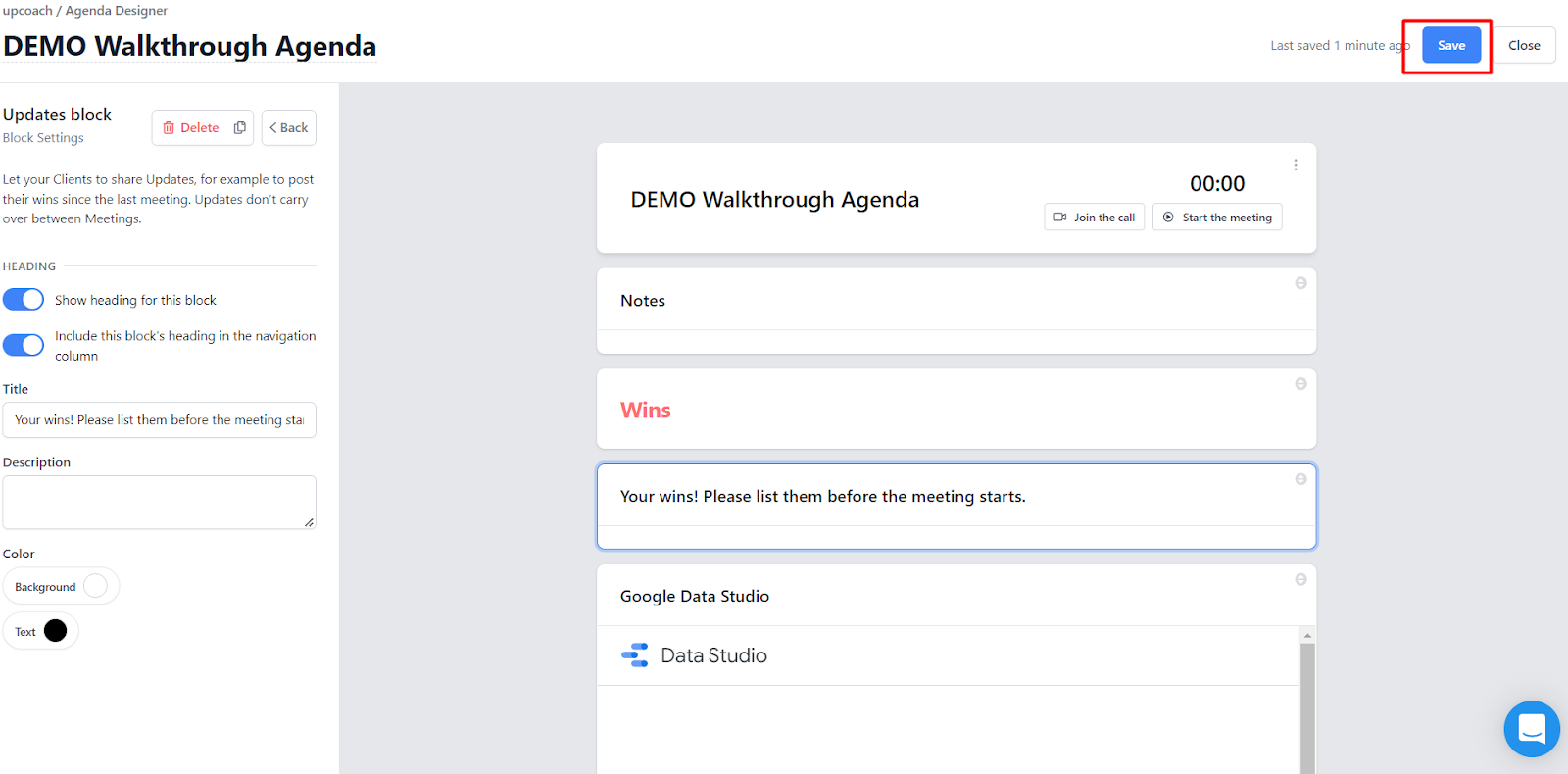
8. Once changes are made, make sure to click Save on the upper right:
You can then use the Agenda you just duplicated and attach it to your meeting!
If you need further assistance or have additional questions, feel free to contact us at support@upcoach.com or inside the platform by clicking on the chat messaging bubble in the lower right corner.